
SLM Windows On-Premise Installation Guide
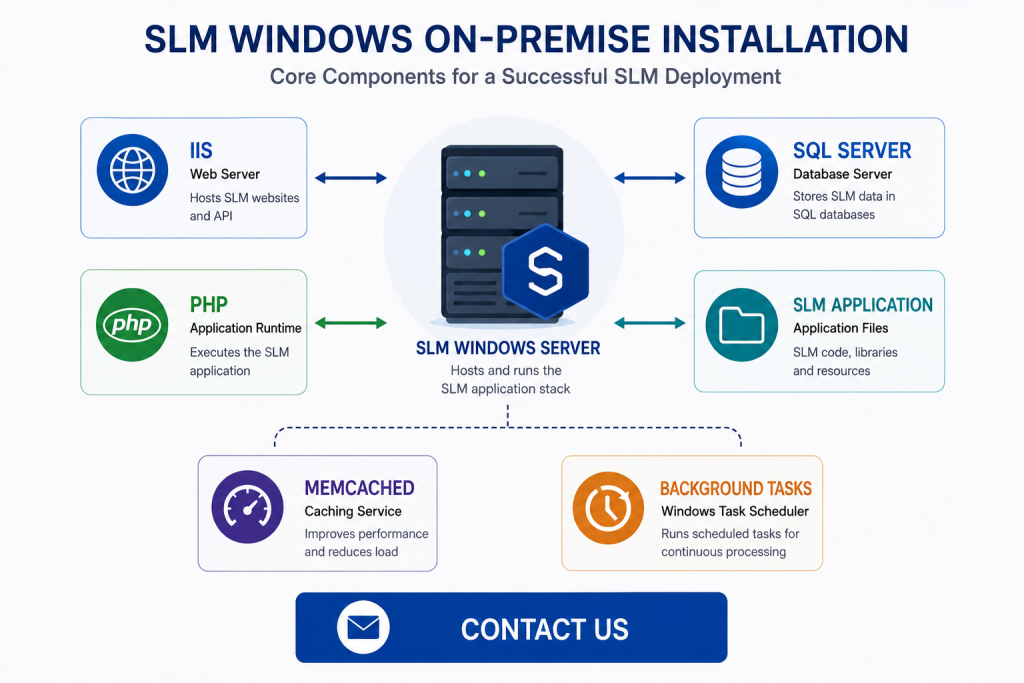
SLM Windows on-premise installation provides organizations with the option to deploy Safety Lifecycle Manager within their own Windows Server environment. SLM is an enterprise web application that uses supporting technologies including IIS, Microsoft SQL Server, PHP and Memcached.
An installation can use a dedicated application server or a shared database and application server, with infrastructure requirements varying according to the deployment model.
This guide covers the complete SLM Windows on-premise installation workflow demonstrated in the training, from infrastructure preparation through IIS, SQL Server and PHP configuration to SLM deployment, Memcached and background-task scheduling.
SLM Windows On-Premise Installation Overview
An SLM Windows on-premise installation consists of several infrastructure and application components that must be configured to work together.
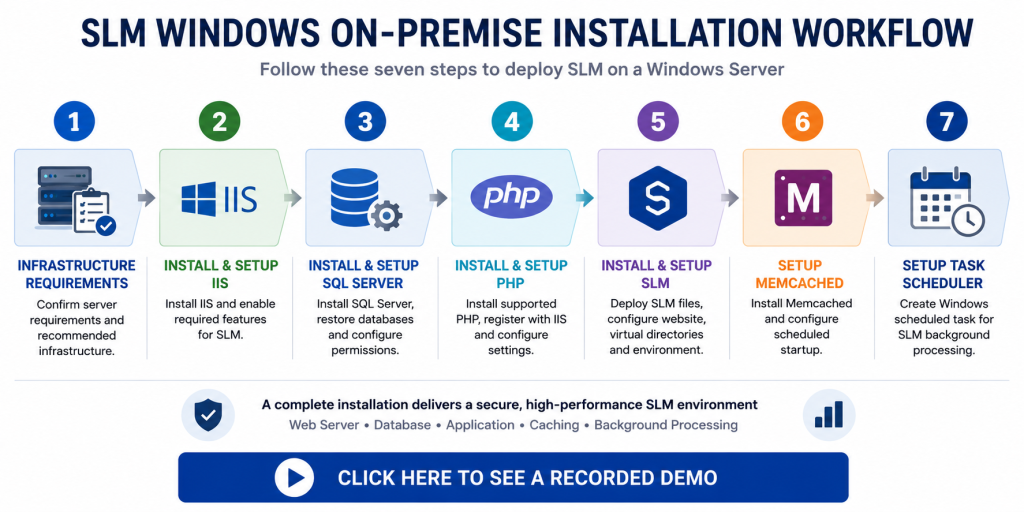
The installation process demonstrated in the training covers seven principal stages:
- Confirm system infrastructure requirements.
- Install and configure IIS.
- Install and configure Microsoft SQL Server.
- Install and configure PHP.
- Install and configure SLM.
- Configure Memcached.
- Configure Windows Task Scheduler.
Completing these stages establishes the web server, database, application runtime, SLM files, caching service and recurring background processing required by the demonstrated Windows deployment.
Before beginning an installation, review the SLM On-Premise Hardware and Software Requirements guide for the wider infrastructure requirements associated with an on-premise deployment.
SLM Windows On-Premise Installation Requirements
SLM can be deployed using either a dedicated application server or a shared database and application server. The minimum infrastructure requirements demonstrated in the training differ according to the selected architecture.
For a dedicated server, the training identifies:
- 4–8 CPU cores
- 8 GB RAM
- 120 GB disk space
- Current Windows Server release
For a shared database and application server, the training identifies:
- 4–8 CPU cores
- 16 GB RAM
- 1 TB disk space
- Current Windows Server release
The training also recommends a dedicated access URL, access to DNS where required, an SSL/TLS certificate for secure data transmission and access to an SMTP delivery or relay service.
These figures reflect the minimum requirements presented in the SLM training. Actual infrastructure sizing should account for the requirements of the specific deployment.
Installing and Configuring IIS for SLM
The IIS stage of an SLM Windows on-premise installation prepares Internet Information Services to host the application and its supporting web components.
The training installs the Web Server (IIS) role through Windows Server Manager and enables the required supporting features.
These include features across several IIS categories:
- Common HTTP features
- Health and diagnostics
- Performance
- Security
- Application development
- Management tools
The demonstrated configuration includes HTTP Redirection, Logging Tools, Request Monitor, Static Content Compression, Request Filtering and authentication features.
Application-development components include the required .NET extensibility and ASP.NET features together with CGI, ISAPI Extensions and ISAPI Filters.
IIS Management Console and Management Scripts and Tools are also enabled.
After IIS has been installed, the training installs PHP Manager for IIS so that PHP can subsequently be registered and configured within the web-server environment.
Installing SQL Server and SLM Databases
SQL Server is a core part of the SLM Windows on-premise installation because it provides the database environment supporting the SLM application.
The training demonstrates installing SQL Server with Database Engine Services and configuring the database engine using the required collation and authentication settings.
SQL Server Management Studio is then installed to provide the administration interface used for the remaining database configuration.
Once SQL Server is available, the three supplied SLM database backups are restored:
- Cluster
- Master
- Revision
The required SLM database logins and users are then created using scripts supplied with the installation documentation. Those scripts are also used to assign the required permissions across the three databases.
Finally, the Cluster database paths are updated to reflect the location in which the SLM application has been installed.
For a more focused explanation of these procedures, see the SLM Database Configuration Guide.
Installing and Configuring PHP
PHP provides the application runtime required by the SLM Windows on-premise installation and should use the compatible version supplied or specified for the SLM release being installed.
The training specifically advises against independently downloading an arbitrary PHP version because it may not be compatible with the SLM software.
The supplied PHP package is extracted into the required Windows directory and its location is added to the Windows system PATH environment variable.
The required Microsoft Visual C++ runtime is also installed before PHP operation is verified from Command Prompt.
Once PHP and IIS are available, PHP is registered through PHP Manager for IIS.
The training then configures several runtime limits, including:
- Post size
- Maximum upload size
- Execution time
- Memory limit
The required PHP extensions are enabled according to the SLM installation documentation, while unnecessary extensions are disabled.
FastCGI settings are also configured, including the required activity, idle and request timeouts.
API Handler Mappings and SSL
Where the SLM API is installed, additional IIS handler configuration is required.
The training demonstrates editing the PHP handler mapping and adding the PUT and DELETE HTTP verbs required for API operations.
If SSL is being used, the server certificate is imported into IIS using the appropriate PFX certificate file and password.
The certificate can subsequently be selected when the HTTPS binding is created for the SLM website.
For more information about the application programming interface after installation, see the SLM API Usage Guide.
Installing SLM During a Windows On-Premise Installation
After the supporting server components have been prepared, the SLM application package can be installed.
The supplied installation archive contains the application files required by the deployment. Depending on whether the API is included, the package may contain the code base, application stack and API components.
The training demonstrates extracting these files and placing them within an SLM directory on the Windows server.
A new website is then created in IIS with its physical path pointing to the SLM web root.
Virtual directories are created for the required Libraries and Resources folders.
If HTTPS is being used, an HTTPS binding is added using the appropriate hostname and installed SSL certificate.
Where the API is included, additional IIS applications are created for the API itself and its documentation.
Configuring the SLM Environment File
The SLM Windows on-premise installation uses an environment file to define deployment-specific application settings, including hosts, authentication, database connections, caching and email configuration.
The training demonstrates configuring values including:
- Production or development environment
- Website hostname
- API hostname
- Client code
- SLM instance identifier
- SSL status
- Cache configuration
- Authentication mode
- Email configuration
- Database configuration
- PHP executable path
- SMTP configuration
The SLM instance identifier is obtained from the appropriate record in the Cluster database.
Authentication can also be configured according to the deployment, with the training discussing local accounts, SAML and Active Directory as available approaches.
Database connection values identify the SLM databases, SQL Server host and the application, administration and SSRS database accounts.
For the SMTP-specific variables, see the SLM SMTP Configuration Guide.
Configuring Minify and File Permissions
After the environment file has been configured, the training updates the SLM Minify configuration to reflect the installed application paths.
The required paths include the Minify cache location, document root and Libraries directory.
The appropriate Windows permissions must then be assigned so that the IIS accounts can access and write to the required SLM folders.
The training applies these permissions to the Code Base and App Stack directories and, where the API is installed, to the API directory as well.
These permissions are deployment-sensitive and should be applied according to the SLM installation documentation and the security requirements of the environment.
Setting Up Memcached for SLM
Memcached forms part of the SLM Windows on-premise installation by providing the caching service used by SLM to support application performance.
The Windows installation demonstrated in the training uses files and commands supplied as part of the SLM installation documentation.
An elevated Command Prompt is used to create the Memcached scheduled task and start the caching process.
The supplied controls can also be used to stop Memcached or remove its scheduled task when required.
Because the exact commands are supplied with the installation package, administrators should use those deployment-specific instructions rather than recreating the commands manually.
For additional information, see the SLM Memcached Maintenance Guide.
Configuring Windows Background Tasks
The final stage demonstrated in the SLM Windows on-premise installation is configuring Windows Task Scheduler for recurring SLM background processing.
A scheduled task is created using the System account and configured to run with the required privileges.
The demonstrated trigger repeats every minute indefinitely. Its action runs the configured PHP executable and passes the SLM application path and required processing parameters.
The task conditions and settings are then configured to support continuous background processing.
This operating-system task provides the recurring mechanism used to check and process SLM background work.
For details about application-level scheduling, queue monitoring and queue recovery, see the SLM Background Task Manager Guide.
Reviewing the SLM Windows On-Premise Installation
After completing the SLM Windows on-premise installation, administrators should review the major components before treating the environment as ready for use.
The review should confirm that:
- The Windows Server environment meets the required infrastructure specification.
- IIS and the required features are installed.
- SQL Server and SQL Server Management Studio are available.
- The Cluster, Master and Revision databases are restored and configured.
- The supported PHP version is installed and registered with IIS.
- The required PHP extensions and FastCGI settings are configured.
- The SLM website, virtual directories and optional API applications are configured in IIS.
- The SLM environment and Minify configuration files contain the appropriate deployment values.
- Required Windows file permissions have been applied.
- Memcached is configured and available.
- The SLM background task is configured in Windows Task Scheduler.
The exact software versions, configuration values, credentials, paths and supplied scripts should always correspond to the SLM release and customer environment being installed.
Microsoft’s IIS architecture documentation provides additional technical background on the Windows web-server platform. SLM-specific installation requirements should continue to follow the MSS installation package and documentation.
Windows On Premise Installation
0:06
Welcome to this IT Explainer video, part of our installation topic range.
0:11
In this video we’ll cover the subject of SLM Windows on Premise installation in regard to SLM.
0:17
This training will cover SLM Windows on Premise installation.
0:20
Magnum Software Solutions Safety Lifecycle Manager is an enterprise class web application that leverages modern web architecture and technology to deliver world class process safety lifecycle applications and tools.
0:33
The following information will be covered in this training chapter.
0:36
One will be system Infrastructure requirements.
0:39
Chapter 2 will be install and setup of IIS.
0:42
Chapter 3 will be install and setup of SQL Server.
0:46
Chapter 4 will be install and setup of PHP.
0:49
Chapter 5 will be install and setup SLM.
0:53
Chapter 6 will be setup of the Memcached.
0:56
Chapter 7 will be setup of the Task Scheduler.
1:03
SLM can be installed on premise on a dedicated application server or shared database and application server.
1:10
The system requirements differ based on the choice of server.
1:14
The table below outlines the minimum system requirements.
1:17
So for a dedicated server you’d need 4 to 8 CPU or cores, 8 gig of RAM, 120 gigabyte disk drive space, and Windows Server current release.
1:28
For a shared server you’d need 4 to 8 CPU or cores, 16 gig of RAM, one terabyte of disk drive space and Windows Server current release to enable SLM to be accessible within the on premise network.
1:41
The following are recommended infrastructure requirements.
1:45
A dedicated access URL.
1:47
Access to DNS may be required.
1:49
SSL slash TLS certificate for secure data transmission and SMTP server and authentication.
1:57
Access to SMTP delivery or relay.
2:03
In Chapter 2, we’ll be covering installation setup of IIS for SLM, including common HTTP features, health and diagnostic features, performance features, security features, application development features, and IIS Manager.
2:22
Let’s begin by installing IIS.
2:25
Let’s first open the Server manager we come across to manage and add roles and features.
2:38
Click Next.
2:39
Installation type will be default.
2:42
Server selection is default for the server roles.
2:46
Select Web Server IIS.
2:49
Click Add Features.
2:53
Click Next.
2:56
Select NET Framework 3.5 Features.
3:00
Click on next the Role Services.
3:06
Under the Common HTTP features, let’s select Http://redirection.
3:13
Under Health and Diagnostics, we’re going to select Logging Tools and Request Monitor.
3:24
Under Performance, we’re going to select Static Content Compression, which is already selected.
3:30
Scroll down a little more under Security Request Filtering, Basic Authentication, Digest Authentication and Windows Authentication.
3:44
And under Application Development dot Net Extensibility 4.8 and 3.5, Scroll down asp.net 4.8 and 3.5.
4:07
Let’s click on CGI as well ISAP Extensions and Filters.
4:17
Under Management Tools, we’re going to select IIS Management Console and Management Scripts and Tools and then select Next.
4:31
Now click Uninstall.
4:35
After the installation process is complete, we will see this screen saying that the installation has finished.
4:43
So now we just click on the close button and now we’re now done with the installation of the IIS.
4:52
In this video, we’ll look at how to install the IIS manager.
4:56
So you’ll be provided with a downloadable file or a folder, and from there you can click on this PHP manager for IIS and it will walk you through the steps.
5:08
Click Next, click on I agree.
5:12
Click on Next, then it will say PHP installation is complete.
5:17
We can now click on close.
5:19
The PHP IIS Manager is now installed.
5:23
If we open up IIS here, click on the main server, we can see that there’s a PHP Manager in here.
5:32
Now in Chapter 3, we’ll be covering the installation setup of SQL Server for SLM, including installing SQL Server, installing SQL Server Management Tools and setting up SLM databases, adding database users permissions and cluster database path setup.
5:57
So once you have the SLM recommended installation file, you can go ahead and right click on the downloaded installation image file and click on Mount.
6:11
This will mount it on the D drive or DVD drive.
6:15
Then you’ll go ahead and click on the setup.
6:20
Once we have the installation centre open, we can click on Installation, click on New SQL Server.
6:28
You can specify the edition here, Evaluation, Developer Express, or you can enter a product key if required.
6:36
We’re going to go with the Developer edition.
6:39
Click Next.
6:42
Click on I accept the terms and conditions.
6:44
Click Next.
6:48
Click Next again.
6:50
Click Next again, and for the feature selections, we’re going to select Database Engine Services and click Next again.
7:01
Here we’re going to go with the default instance name.
7:04
If you have a specific requirement, you can enter it here, a specific name that you want to give to the SQL Server, but we’ll go with the default one for now.
7:12
Click Next.
7:14
Next we’re going to click on the Collation tab and the database engine should be set to SQL Latin General CP1.
7:25
If it’s not, then we need to set this.
7:27
Click on Next.
7:28
Under the server config, we’re going to go with mixed mode and specify the password for the system admin account.
7:41
Then you can add the current user as admin and if you click on Data Directories tab, you can select which folder to use for the database, for the log directory, and for the backup.
7:52
But we’re going to stick with the default for now.
7:55
Click on Next and then click Uninstall and it will install SQL Server 2022 for us.
8:02
So after the SQL Server completes, we should see this screen with the status of success under the features and click close from here and now SQL Server has been successfully installed.
8:15
We’ll open the SQL Server installation and then click on Install SQL Server Management Tools.
8:22
It will open up a browser window and we can click on Download SSMS and click on the 1st link at the top here.
8:34
Once it’s finished downloading, you can click on Open Files and this window should open and we’ll go with the default location and click Uninstall.
8:46
Once the installation of SQL Server Management Studio is complete, you will see this screen saying Setup Complete and click on close and that is now fully installed.
8:58
So you should at this stage have a backup of files of the databases provided to you.
9:04
Let’s go ahead and copy those database backups and navigate to the backup folder within SQL, and if we come to Program Files, SQL Server SQL Miss SQL Backup.
9:23
Paste those backup files into here.
9:25
Once we’ve done this, we can open up the SQL Server Management Studio.
9:36
So in this window, if you have a SQL Server authentication, you can click on that and enter the username and the password.
9:45
But we’re going to use Windows authentication here for the encryption.
9:51
If you have encryption, we don’t have it.
9:54
So we’re going to select Optional and click on Connect.
10:01
Now we’re going to click on the databases, right click and restore databases.
10:07
Go to the device selection here and click on the three dots.
10:12
Click on add.
10:15
Select the database.
10:17
Click OK Click OK again with the default settings and we can see that has been restored successfully.
10:26
We’re going to repeat the process again.
10:34
First database was the cluster.
10:36
This is now the master database.
10:39
We’re going through exactly the same process again.
10:43
Let’s go ahead now and add the revisions database.
11:01
Now the next thing we need to do is add users.
11:05
Make sure we’re selecting the server for this.
11:07
We’re going to click on new query and then make sure we have the master selected here in the dropdown.
11:13
So the commands to add a new user will be provided to you.
11:18
So if we just copy these three lines here, we create login, let’s paste those into here.
11:24
Now you’ll need to enter your passwords.
11:27
Once the passwords have been entered here and we’ve executed the query, we’ll see a command successfully completed window down here.
11:35
Now let’s go ahead and add the permissions to the databases.
11:38
So if we come down to the commands again that have already been provided for you, copy the create new users commands, paste those commands into this top window, and we have to run this on each of the databases.
11:54
So here’s the cluster, the master database revisions that’s now been executed on all three databases.
12:06
If the users already exist on these databases, we can, instead of running this command, we can use the other command that’s underneath.
12:14
You can see the comment here.
12:15
If users exist in the database, update permissions.
12:18
So we copy and paste those into here and click on execute.
12:22
We’ll run this for the free databases.
12:33
So next we’re going to apply the permissions for the users on the stored procedures to execute the stored procedures.
12:42
So if we Scroll down to the scripts that we provide.
12:59
Let’s copy that and paste it into this window.
13:10
We now need to execute this on each of the three databases.
13:13
So that’s the cluster, the master and revisions, and now all the permissions have been applied and the database has been configured.
13:30
One last thing we need to do on the cluster database is update the paths, which again is a script that’s provided to you, so we’ll just copy that.
13:37
Now let’s paste that in and then select the cluster database and where it’s got the set paths.
13:54
We need to set this to the path where we installed our application.
13:57
So in our case it’s C SLM codebase.
14:08
Now click on Execute on the cluster database.
14:12
Now the paths have been updated and the database should be set up correctly.
14:19
In Chapter 4 we’ll be covering the installation and setup of PHP for SLM, including installing PHP, installing PHP Manager, setting up PHP which will include register PHP, set runtime limits, enable extensions, fast CGI settings and handler mappings.
14:41
It’s not advisable to download PHP versions from the Internet because it might not be compatible with our SLM software.
14:48
So the compatible version will be provided and once you receive the package you can extract it.
15:01
Once it’s finished extracting, we can go to the File Explorer, create a new folder under the C drive in Program Files, new folder PHP, and then under that we can create a folder for the current version, which is version 8.3.
15:32
And then we’ll copy the folder that was extracted, Control A, right click and copy, open our new folder, version 8.3, click on paste, and then we’ll need to add a new version of PHP under the environment variables.
15:52
Right click on this PC, go to Properties, Scroll down to the bottom until we see Advanced System Settings, and then we can see under the Advanced tab Environment Variables.
16:03
Click on that under the System Variables.
16:07
You can see a path here.
16:08
If we edit that path, if we come to the folder where we installed the PHP and we copy that path and paste the path into the environment variables, click on OK.
16:35
Next we need to install Visual C executable for the PHP to work.
16:40
So for that we’ll open up the browser, search PHP for Windows and go to thislinkwindows.php.net.
16:49
Once the page is open, Scroll down to where it says VS 16 and 17 and click on X64 link here.
17:00
Once that downloaded, click on open file, agree to the license term and conditions and click uninstall.
17:11
So once that’s installed the installation of PHP is complete.
17:15
So to verify that PHP is installed we need to open up a command prompt and check.
17:21
So if we click the windows key on the keyboard and then come to command prompt, then we type PHP space V and click return and here we can see the PHP version 8.3 point 8 with the build information etc.
17:38
So now we can see that PHP has been installed successfully.
17:43
So once you have PHP installed and IIS is already installed, we’ll open up the IIS, click on the server, go to PHP manager, click on register new PHP version.
18:00
We’re going to browse to the folder where the PHP was installed.
18:04
Program Files, PHP version 8.3, click on PHP dash CGI, Click OK.
18:13
Now we need to, in the PHP settings, click on Set runtime limits, increase the post size to 100, upload the maximum file size to 100.
18:28
All of these settings are in the documentation.
18:30
Execution time 600, memory limit 512.
18:36
Once that’s done, click Apply and then we can go back to the main menu.
18:41
Next, we need to enable extensions.
18:45
The list of extensions to be enabled are provided in the documentation.
18:49
So to enable a disabled extension, just right click and click on Enable.
18:57
We’re just going to go through now and enable all of the correct extensions.
19:14
Now to disable the extensions under the enabled extensions, right click and click on Disable.
19:25
We just have one more file here to disable, and that’s it.
19:29
Once you’re done, back to the main menu.
19:31
Now we also need to set up the fast CGI settings.
19:37
So let’s double click on here.
19:38
Right click on the path, click on Edit on the activity timeout, we’ll change this to 600.
19:49
The idle timeout will also be 600, and the request timeout will be 600.
19:56
Also click on OK.
20:00
We then click on the server path again.
20:02
If you have the API, we also need to modify the handler mappings, so double click on here.
20:08
Scroll down to the PHP version here, right click on that.
20:13
Click on Edit under executable.
20:18
Make sure there’s a double quote for the start and the end.
20:22
Click on the Request Restrictions button.
20:26
Click on the Verbs tab.
20:29
On the end here, we’ll add put and delete.
20:35
Click OK, OK again, and then you get a confirmation.
20:41
Click yes.
20:43
That’s it for the handler mappings.
20:44
So click on the server again.
20:47
Next, if you have the SSL certificate, we’ll need to import that.
20:52
So to import the server certificate, go into the server Server certificates, click on import.
21:00
Click on the three dots and find the PFX file.
21:08
Add your password.
21:12
If you want to be able to export the certificate later, click this box.
21:16
Click OK.
21:19
Now you have the server security certificate installed.
21:22
So this concludes setting up the PHP and IIS.
21:30
In Chapter 5 we’ll cover the installation setup of SLM, including installing SLM files, setup of SLM files on IIS, configuring dot env files, configuring minify, and setup of file permissions.
21:47
The installation zip file is provided to you, so once you receive it, right click on it, Extract all.
21:54
Select your extraction destination, click on extract.
22:00
Once the zip file finishes extracting, we will be presented with this folder.
22:05
Let’s double click and open that folder.
22:08
There will be 3 folders in there depending on whether you have the API.
22:12
If you don’t have the API, you’ll only have the two folders being the app stack and the code base.
22:18
But for now, we’ll be copying all three of these folders.
22:23
Hit Control A and Control C and we’re going to be installing this on the C drive.
22:28
The user can of course install in any path they want.
22:32
So let’s click on C right click, go to new folder, name it SLM.
22:40
Go inside the SLM folder and paste the three folders.
22:45
We’ll now need to set up the IIS.
22:47
Let’s open the IIS, right click on the sites and add a new website.
22:52
In this case, we’ll be adding SLM gold.manganslm.com.
22:59
This can be any name, but it’s advisable to use your company’s domain name.
23:04
So we’ll copy this and we’ll paste it into the host name as well.
23:08
For the path, click on the three dots.
23:12
Now let’s find the folder that we created, the SLM folder.
23:16
Let’s open the code base folder and select the web root.
23:25
Web root is a folder where the main index file resides, so we’ll select that.
23:30
We can uncheck this start website immediately because we need to add a couple more resources yet before that’s possible.
23:37
So uncheck that box and click OK.
23:40
Now you’ll see the new website here.
23:42
So right click on this, add a virtual directory.
23:47
First alias will be Libraries.
23:54
And let’s find the physical path again.
23:57
We’re going into the C drive SLM folder, and the library is stored in the Appstack folder.
24:06
So let’s click on there and we can see a Libraries folder, so we’ll select that.
24:11
Click on OK.
24:14
Click on OK.
24:18
Next, we’ll add another virtual directory, which is going to be resources.
24:29
Let’s find the physical path again.
24:34
C Drive SLM under the App Stack Atlas and then inside the web folder, and if we Scroll down, we can see the resources folder.
24:54
Click on that, select it.
24:56
Click OK and OK again.
24:58
Now we’ll go back to the website and if you have SSL installed on IIS, click on the bindings, add a new binding, select HTTPS.
25:11
Let’s add the domain name here.
25:21
Click on the SSL certificate and select it.
25:24
Click OK and click close and we should see it over on the right hand side here.
25:32
It’s now if you also have the API, we’ll need to add that.
25:37
So we’ll right click on the website again.
25:39
This time we’re going to add application alias will be API physical path.
25:49
We’ll be in C drive inside the SLM folder Atlas API and then select public.
26:06
OK, OK.
26:13
And then for the API, we also have documentation, so we’ll add that as well.
26:18
Right click on the website, add application.
26:23
The alias will be docs.
26:28
We’ll now select the physical path again, SLM folder, Atlas API.
26:38
Go to public and click on the Docs folder.
26:44
Click OK and OK again.
26:50
Now the website on IIS is set up.
26:53
Now we’ll need to configure some environment variables.
26:56
So to do that, we’ll need to go back to where we installed the application.
27:00
First, we’ll set up the environment variable for the website.
27:03
We’ll go to the code base folder.
27:06
There should be an env file.
27:08
Right click on the env and edit with notepad or another editor and there’s several variables in here we need to configure.
27:18
The code environment defines whether it’s production or development.
27:22
If it’s in development mode, whenever there is an error, it will display it on the screen.
27:26
So in this case, we’re going to go with production.
27:29
For HTTP HOST, it’s the host name of the website.
27:35
So in this case it’s SLM gold.manganslm.com.
27:39
The API HTTP host will be the web address slash API as there’s no separate sub domain.
27:47
The client code will be demo or whatever the client code is.
27:52
The product is SLM instance, UID is the identifier that’s on the database on the cluster database.
28:00
Let’s have a quick look at that.
28:01
So for that we’ll need to open up SQL Server Management Studio.
28:04
We’ll go to the cluster database and expand it under tables.
28:11
There’s a database table here, Insurance instances.
28:14
We’ll right click on it, select top 1000 rows, and here is the instance ID that we’re going to put in the environment file.
28:23
So scope type and root type does not change.
28:26
If you have SSL, we’ll set this to one.
28:29
If you don’t have SSL, we’ll need to set this to a 0.
28:34
In this case we have so we’ll set SSL equals one.
28:37
For the cache configuration, we’re going to use memcached here.
28:40
For the driver.
28:42
The cache host will typically be the local IP address, or we could have localhost, or we can have 127.0.0.1.
28:55
The cache port will stay the same.
28:56
The authentication mode is for the users when and how they log into the system.
29:02
If SAML is set up, we can set it up as a SAML account.
29:05
If it’s a regular username and password login, then we’ll set it up as a local account, and if you’re using Active Directory, we can specify Active Directory, but in this case we’ll just set it as a local account.
29:25
On the e-mail configuration, we’ll have the mail engine SMTP mail from is when the application sends out emails, this is the address that it will serve from.
29:35
So in this case we have SLM Gold.
29:37
The license Ula type will be License HIDE Password.
29:42
So if the authentication mode is not local account, for example, it’s SAML.
29:47
If you want to hide the login username and password boxes on the interface then we’ll need to set it up as zero.
29:53
If you want to display it, we’ll just set it up as a one.
29:57
As we have local accounts selected, we’ll need to enter a value of 1 here.
30:02
The next configuration is the database configuration.
30:05
Core Master DB will be the master database.
30:08
Core cluster will be the cluster.
30:10
Database revisions will obviously be revisions.
30:12
The host name is the host name for the SQL Server.
30:15
In this case we’ve got SQL Developer.
30:17
The core DB App user is the app account that we created in the database earlier in one of our previous videos.
30:24
So the app username is SLM Appdemo, then we have the password, then the admin user, then we have the password and then the SSRS user and the password for that account as well.
30:35
Next is the PHP path.
30:36
This is the path where we installed PHP.
30:40
So we installed it in C programfiles PHP V 8.3 php.exe.
31:00
So if you have a space in the path, you will need to use the double quotes.
31:05
If you don’t have a space in the path, then you don’t need to worry about the double quotes.
31:10
Next is the SMTP configuration.
31:13
If you’re using SMTP, so we’ll put in the host name, username, SMTP password and the SMTP port.
31:25
Cloud export can be left as it is.
31:27
That’s setting up the environment file for our application.
31:32
So once that’s all done, we can click on save.
31:35
Next we need to set up minify, Go to the SLM installation folder, go inside the code base folder.
31:44
We need to ensure we have a mini file folder in here.
31:47
Come to the Webroot folder.
31:51
Come into the min folder and edit the config dot PHP file.
31:58
Edit with a notepad or any other text editor.
32:01
There are three areas in here that we need to edit.
32:04
So the first place is the min cache path.
32:08
So this will be the path of the minify folder.
32:11
So in our case it’s C SLM codebase minify.
32:26
Next, if we scroll further down on line 78, we need to edit the min doc root folder.
32:36
That’s the folder of where we put the app stack folder.
32:39
So in our case it’s C SLM appstack.
32:51
Next, we’ll scroll a little bit further down on line 165.
32:55
We need to update the libraries path, so it should be C SLM app stack slash libraries and close the quote.
33:04
And that’s all we need to do to configure minify.
33:07
And the final thing that we need to do is we need to give permissions for the IIS users to be able to write to these SLM folders.
33:15
So we’ll right click on code base, click on Properties, go to Security, click on Edit, click on Add, click on the advanced button on this window under locations, make sure it’s this computer, this local computer.
33:35
Click on find.
33:36
Now we Scroll down, we can see IIS users and iuser.
33:43
Hold down the control key to highlight them both at the same time.
33:46
Click on OK, click on OK again, and in terms of the permissions, we can click Allow full permissions on both of those users and then click on Apply.
34:00
So let’s click OK and click OK again to get out of the property window.
34:06
Let’s complete the same process again for the App Stack folder.
34:11
So right click and select Properties.
34:15
Click on the Security tab.
34:19
Click on Edit here.
34:20
Click on Add Advanced find.
34:23
Now let’s find those two users again.
34:28
Select both of them.
34:29
Click on OK Click OK again, Allow full control for both users.
34:38
Click Apply and OK.
34:40
You may well see a Windows security pop up.
34:42
And if you have the API, we’ll need to do the same thing for the API as well.
34:47
So let’s right click Properties, Security, Edit, Add, go to Advanced, click on find.
35:01
Now find our 2 users.
35:05
Click on OK Click on OK again, Allow full control.
35:13
Put both of the users, click apply and we have now completed setting up the files for SLM on the server.
35:28
In Chapter 6, we’ll be covering the setup of memcached, including installation, starting, stopping, and uninstallation.
35:38
For the next task, we’ll need these two files that will be provided to you.
35:42
So let’s go ahead now and open a command prompt.
35:45
This needs to be in elevated permissions.
35:48
So if you come to the command prompt, right click and run as administrator, and then we have a couple of commands that we need to type in here.
35:56
These commands will also be provided to you.
36:08
As previously mentioned, this is the command that we provided to you in the documentation.
36:13
You can copy and paste that into this window to save having to type it all out.
36:17
Once you copy and paste it, just click on enter and you should see success.
36:21
The scheduled task memcached has successfully been created and then to run the memcached we need to paste the other command which is as follows.
36:35
So this will run the memcached.
36:38
Now to stop it, you can copy and paste the stop command that’s provided to you instead of run it will be end.
36:46
If you need to remove a scheduled task, it’s the same, we just change this to delete and it will ask you if you’re sure you want to remove the task.
37:00
Just press Y for Yes and click Enter, and now this memcached is removed.
37:10
In Chapter 7, we’ll be covering the setup of the Task Scheduler for SLM, including configuring triggers, configuring actions, and configuring conditions.
37:20
So the first thing we need to do is search here for the Task Scheduler.
37:25
Once this window pops up, click on Task Scheduler Library, right click and create new task.
37:32
We’ll give it a name SLM background task.
37:39
The users we need to change it to System user.
37:43
Click on Check names that’s added the system user and then configure four.
37:51
Select the current server that we’re using, so Windows Server 2022, and then also be sure to check run with highest privileges.
38:01
Let’s click on the triggers tab and click new.
38:04
It’s going to be one time repeat task every.
38:07
Let’s change this to every one minute for a duration of indefinitely.
38:18
Make sure Enabled is ticked and click OK Come to the actions, click New under Program script.
38:31
We’re going to put in the path for the PHP.
38:37
So let’s go to our Windows folder, Program Files, Scroll down to PHP version 8.3.
38:50
Click on the EXE file, make sure it’s in quotes in the arguments we’re going to put in the path of where we’ve installed our SLM application.
39:05
So in this case it’s C drive slash SLM slash codebase slash Webroot slash index dot PHP.
39:21
This again is provided in the documentation.
39:27
Let’s add some parameters here.
39:32
And that’s it.
39:33
Click on OK.
39:35
Now the Conditions tab.
39:36
We can uncheck the start to the task only if the computer is on AC power.
39:42
Let’s uncheck that box.
39:46
Then click on OK.
39:48
If we double click on our task and come to settings, allow tasks to be run on demand, unselect.
39:56
If the running task does not end when requested, force it to stop.
40:00
And then on the drop down here, we’re going to select run a new instance in parallel.
40:05
That should be everything there.
40:06
So click OK and now the background task has been created and it’s ready to rerun.


