Notifications
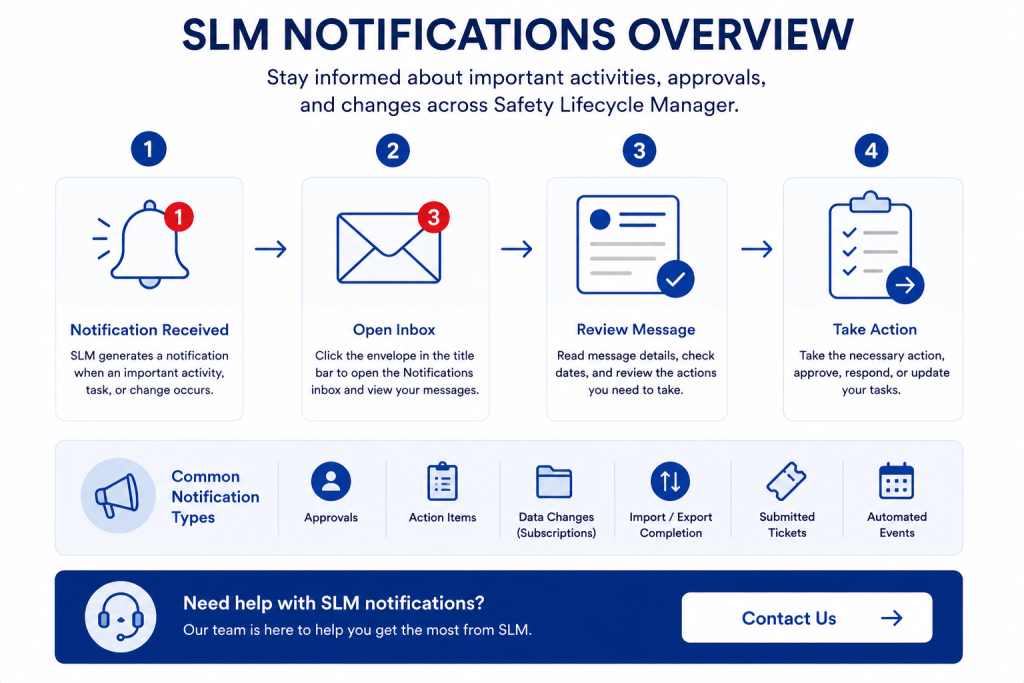
SLM notifications keep users informed about important activities, approvals, assigned tasks, data changes, and system events within Safety Lifecycle Manager. Rather than manually checking every module, users receive notifications whenever important actions occur, helping them stay up to date and respond quickly.
Notifications are displayed within the SLM notification centre and can also be delivered directly to your email. This allows users to monitor approvals, subscriptions, imports, exports, action items, and workflow changes whether they are logged into SLM or not.
This guide explains how SLM notifications work, where to find them, how to manage your inbox, and how to connect notifications to your email account.
What Are SLM Notifications?
SLM notifications are automated messages generated by Safety Lifecycle Manager whenever important activities or workflow events occur.
These notifications help users stay informed without needing to continually monitor every module.
Typical notification events include:
- Approval requests
- Assigned action items
- Data changes to subscribed objects
- Import and export completion
- Submitted support tickets
- Automated event records
By centralising system messages into a single notification centre, SLM helps users manage daily activities more efficiently while improving visibility across the safety lifecycle.
To learn more about how users receive change notifications from subscribed objects, see our Subscriptions guide.
Finding Your SLM Notifications Inbox
The SLM notifications inbox is located in the title bar at the top of the application.
An envelope icon displays the total number of unread notifications currently waiting for your attention.
Selecting the envelope opens the Notifications mini module, where users can review every message received.
Each notification includes:
- Date and time received
- Message details
- Notification status
- Available actions
This provides a single location for monitoring workflow activity across the system.
Managing SLM Notifications
Users can organise SLM notifications using several built-in management tools.
Individual messages can be selected and updated using the toolbar.
Available actions include:
- Mark as Read
- Mark as Unread
- Star
- Unstar
- Delete
Unread messages are displayed with a white background, while messages that have already been reviewed appear with a grey background.
These simple management tools make it easy to prioritise important notifications and keep inboxes organised.
Using Starred and Deleted Folders
SLM includes dedicated folders to help users organise their notifications.
Important messages can be marked as Starred, allowing them to be accessed quickly from the Starred folder.
Messages that are no longer required can be moved to the Trash folder.
From the Trash folder users can:
- Restore deleted messages
- Permanently delete notifications
- Review previously removed messages
These folders help users manage large numbers of notifications without permanently deleting important information too early.
Notification Subscriptions
One of the most useful features of SLM notifications is object subscriptions.
Subscriptions allow users to receive notifications whenever another user makes changes to a selected object.
This is particularly valuable for collaborative projects where multiple engineers or reviewers are working on the same lifecycle information.
The Subscriptions folder provides access to all active subscriptions and allows users to review the objects they are currently monitoring.
For a full explanation of subscription management, see our Subscriptions guide.
Connecting Notifications to Email
SLM allows users to receive SLM notifications directly through their email account.
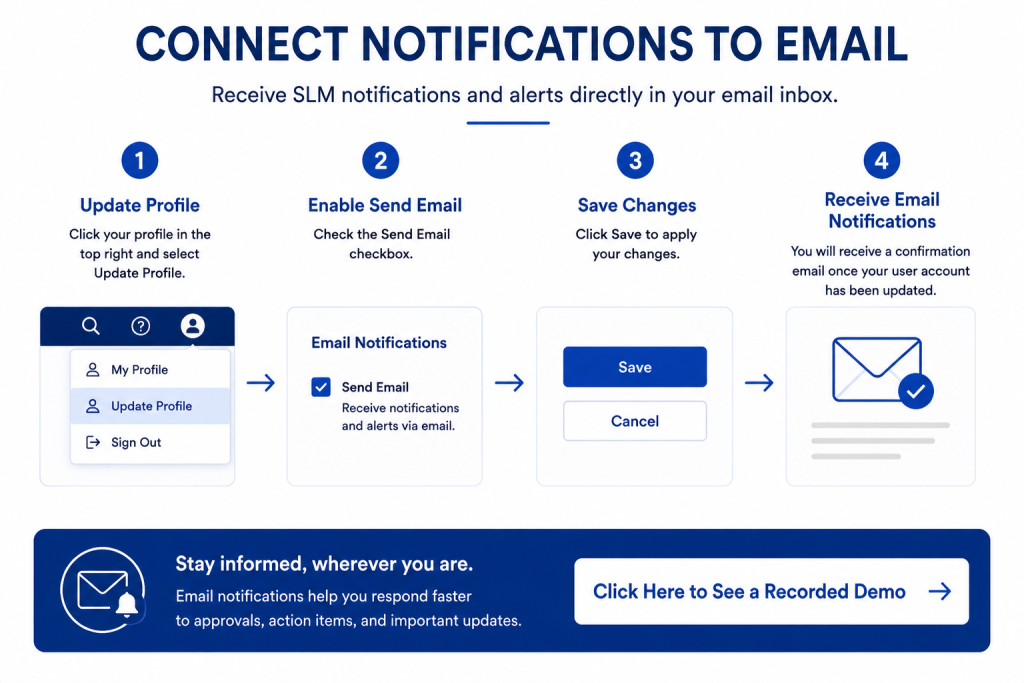
To enable email notifications:
- Select your user profile.
- Choose Update Profile.
- Enable the Send Email option.
- Save your changes.
Once enabled, SLM sends a confirmation email confirming that your notification settings have been updated.
Email notifications ensure users remain informed about approvals, action items, and important workflow changes even when they are away from the application.
Benefits of SLM Notifications
Using SLM notifications helps organisations improve communication, accountability, and workflow efficiency.
Key benefits include:
- Improved visibility of approvals and assigned tasks
- Faster response to workflow changes
- Automatic notification of object updates
- Better collaboration across teams
- Reduced risk of missing important activities
These capabilities support more effective management of functional safety activities throughout the lifecycle.
For organisations implementing digital functional safety workflows, our Functional Safety Management Software page explains how SLM supports the complete IEC 61511 lifecycle.
Learn More About SLM Productivity Features
Notifications are one of several features that help users manage work more efficiently within Safety Lifecycle Manager. Combined with subscriptions, action management, and workflow approvals, they provide greater visibility across projects and help ensure important activities are never overlooked.
You may also find these resources useful:
For additional information on functional safety standards, visit the International Electrotechnical Commission (IEC).
SLM-101 Notifications
0:06
Welcome to this Application Explainer video, part of our SLM 101 topic range.
0:11
In this video we will cover the subject of notifications within SLM.
0:16
Notifications is a feature used to send messages from SLM to the user about activities, tasks or changes that need to happen or have taken place.
0:26
Common examples include approvals, data changes for subscribed objects, import and export completion action items, assigned submitted tickets, and automated event records.
0:41
In this video, we will discuss navigating to notifications, managing notifications, and connecting notifications to your e-mail.
0:53
Notifications can be found at the top of the screen in the title bar.
0:58
The number indicates how many unread notifications there are.
1:02
Clicking on the envelope will navigate you to the Notifications mini module.
1:07
Inside.
1:08
The Notifications view displays an inbox with messages and a date and time stamp for when the messages were sent.
1:16
A white background indicates an unread message.
1:19
A Gray background indicates a message that has been read.
1:22
You can select any message and then mark them as Read, Unread, Starred, Unstarred, and Deleted.
1:34
Marking a message as starred will send the message to the Starred folder.
1:42
Click on the Starred folder to view any starred messages.
1:50
Marking a message as deleted will send the message to the Deleted folder or the Trash folder.
1:58
Click on the Trash to view messages stored in the Trash folder.
2:02
You can select these to delete them permanently or to restore them.
2:10
The Subscriptions folder will allow you to manage your subscriptions, which is how you get notified when another user makes changes to an object in SLM.
2:20
For more information on subscriptions, watch the SLM 101 Subscriptions video.
2:26
You may wish to connect notifications to your e-mail to always say up to date with messages you’re receiving, such as action items and approvals, without having to log in to SLM.
2:35
To connect notifications to your emails, navigate to the top right of the title bar and click on the drop down option and select Update Profile.
2:45
Check the Send e-mail checkbox and press Save.
2:50
Once completed, you should receive an e-mail from SLM stating that your user account has been updated.


