
Object Templates
SLM object templates provide predefined object structures that allow users to create new records quickly and consistently throughout Safety Lifecycle Manager. Rather than building objects from scratch each time, templates ensure standardised data structures and reduce repetitive configuration.
Object templates are available within every user module and can be used to create multiple object instances while maintaining consistency across projects. This approach improves efficiency, supports standardisation, and helps organisations enforce best practices.
This guide explains what object templates are, where they are located, and how to use them to create new objects within SLM.
What Are SLM Object Templates?
SLM object templates are predefined blueprints that define the structure and properties of objects before they are created.
Instead of manually configuring each new object, users simply select an existing template to generate one or more new objects automatically.
Using templates helps organisations:
- Maintain consistent object structures.
- Reduce repetitive data entry.
- Standardise engineering workflows.
- Create multiple objects more efficiently.
- Improve data quality across projects.
Templates are available within every user module and can be reused whenever new objects are required.
To understand how objects are organised before creating them, see our General Layout guide.
Finding SLM Object Templates
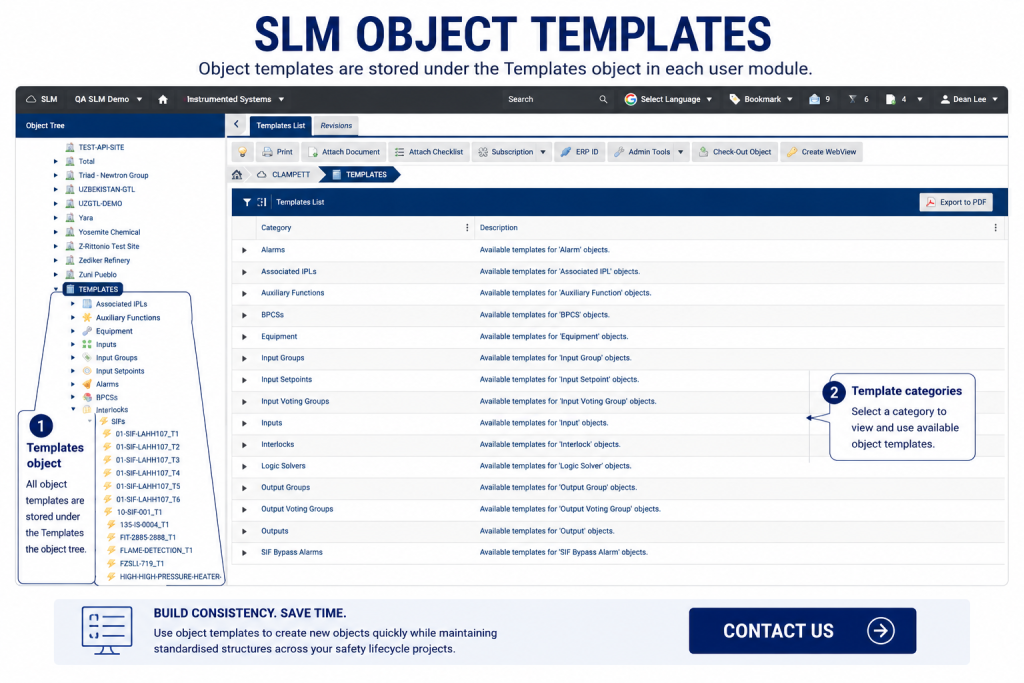
SLM object templates are stored beneath the Templates object within the object tree of each user module.
To locate object templates:
- Open the required user module.
- Expand the object tree.
- Locate the Templates object.
- Select the required object type.
Each template represents a predefined object that can be reused whenever a new instance is required.
Creating Objects from SLM Object Templates
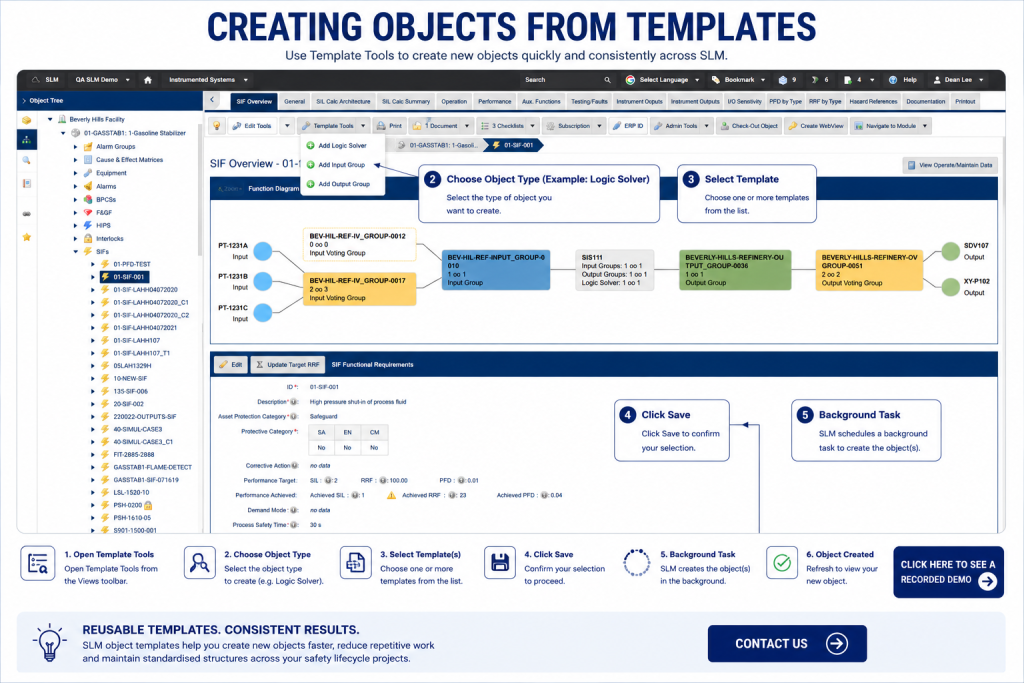
Creating objects from SLM object templates is completed using the Template Tools menu.
To create a new object:
- Navigate to the required location within the object tree.
- Select Template Tools.
- Choose the object type to create.
- Select one or more templates.
- Click Save.
SLM schedules a background task to create the selected objects automatically.
Once processing has completed, refresh the object tree to display the newly created objects.
For more information about the Template Tools toolbar, see our General Layout guide.
Creating Multiple Objects from Templates
One of the major advantages of SLM object templates is the ability to create multiple objects simultaneously.
When several templates are available for the selected object type, users can select multiple templates before saving.
SLM processes each selected template as part of the same background task, significantly reducing the time required to create large numbers of objects.
This capability is particularly useful when setting up new projects or expanding existing safety lifecycle models.
Background Processing
After selecting a template and clicking Save, SLM automatically creates a background task.
Once the background process finishes:
- The new object is created.
- The object appears beneath the selected parent.
- The standard template structure is preserved.
- The object is immediately available for editing.
Refreshing the object tree displays the newly created object.
Benefits of SLM Object Templates
SLM object templates improve consistency while significantly reducing the effort required to build new projects.
Key benefits include:
- Reusable object definitions.
- Consistent object structures.
- Faster object creation.
- Reduced manual configuration.
- Improved engineering efficiency.
Using templates ensures new objects follow approved organisational standards while reducing repetitive engineering work.
To learn how Safety Lifecycle Manager supports digital functional safety workflows, see our Functional Safety Management Software guide.
Learn More About Creating Objects
Object templates are one of several features that simplify object creation within Safety Lifecycle Manager. Combined with cloning, object manipulation, search, and module navigation, templates help users build projects faster while maintaining consistency.
You may also find these related guides useful:
For additional information about reusable templates and standardisation, visit the Template Method Pattern overview.
SLM-101 Object Templates
0:06
Welcome to this Application Explainer video, part of our SLM 101 topic range.
0:11
In this video, we’ll cover the subject of object templates within SLM.
0:17
Object templates refer to predefined data structures or blueprints used for creating instances of objects inside SLM.
0:25
They help in maintaining consistency and reusability in data, allowing users to define common data structures once and then create multiple instances of objects based on those definitions, rather than creating them from scratch each time they’re needed.
0:39
Object templates are located under the Template object in each User module.
0:44
Users can create an object from a template by accessing Template Tools in the Views toolbar.
0:54
Object templates are located under the Templates object within the object tree in any user module.
1:01
Let’s say for example, we’d like to create an alarm.
1:05
Using this alarm template, I can go to any scope in SLM.
1:12
We go to the Template tools, select the type of object that we’d like to create, which in this example will be an alarm.
1:23
The system will display all the alarm templates.
1:25
I can create multiple alarms at the same time, but in this scenario there’s only one template.
1:31
I’ll select that template and click Save.
1:34
A background task will be scheduled to create this alarm from the alarm template.
1:39
Once this task is finished, we’ll be able to see the alarm under the unit.
1:45
If we now reload the unit, we’re going to be able to see the alarm has been created from the alarm template.


