Contact User Support
SLM contact user support allows users to quickly request assistance directly from within Safety Lifecycle Manager. Whether you need help troubleshooting an issue, reporting a problem, or requesting a new feature, the built-in support function provides a fast and convenient way to contact the Mangan Software Solutions support team.
Instead of creating a separate email, users can submit a support request directly from the application, attach screenshots, and receive automated updates throughout the lifecycle of the support ticket.
This guide explains where to find the Contact User Support feature, how to submit a support request, and what happens after your ticket has been created.
What Is SLM Contact User Support?
SLM contact user support provides a built-in method for contacting the Mangan Software Solutions support team without leaving the application.
Users can quickly submit:
- Technical support requests.
- Troubleshooting questions.
- Enhancement requests.
- General application enquiries.
The feature eliminates the need to manually compose emails while ensuring all relevant information is captured within the support request.
For general navigation around the application, see our General Layout guide.
Finding the SLM Contact User Support Feature
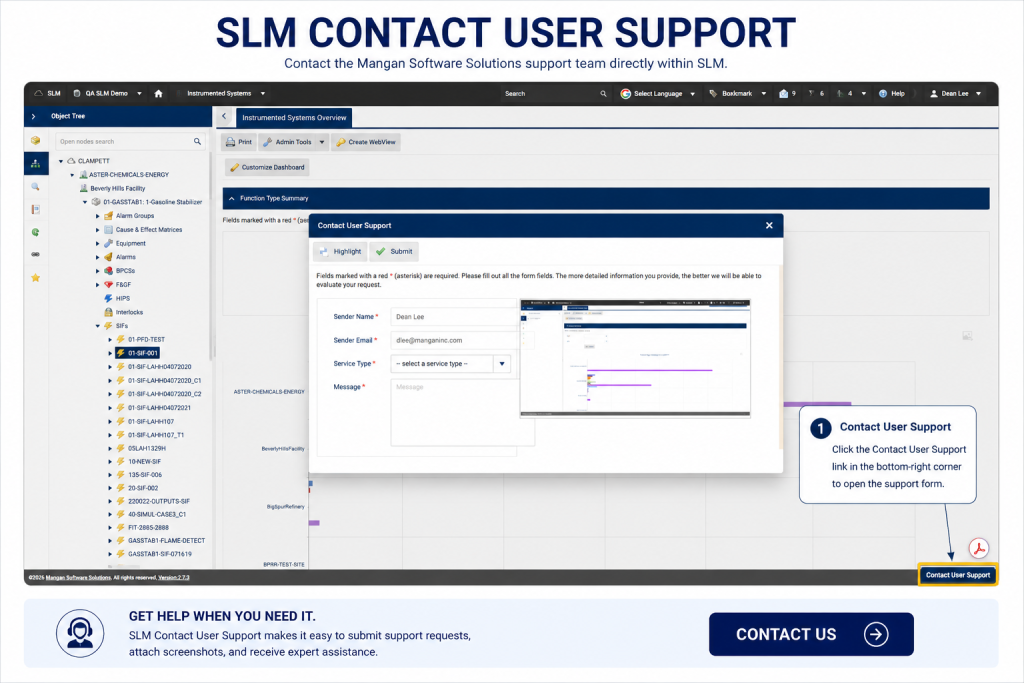
The SLM contact user support option is always available from within Safety Lifecycle Manager.
To access the feature:
- Log in to Safety Lifecycle Manager.
- Navigate to any module.
- Select Contact User Support in the bottom-right corner of the application.
Clicking the link opens the support request form without interrupting your current work.
Completing the Support Request Form
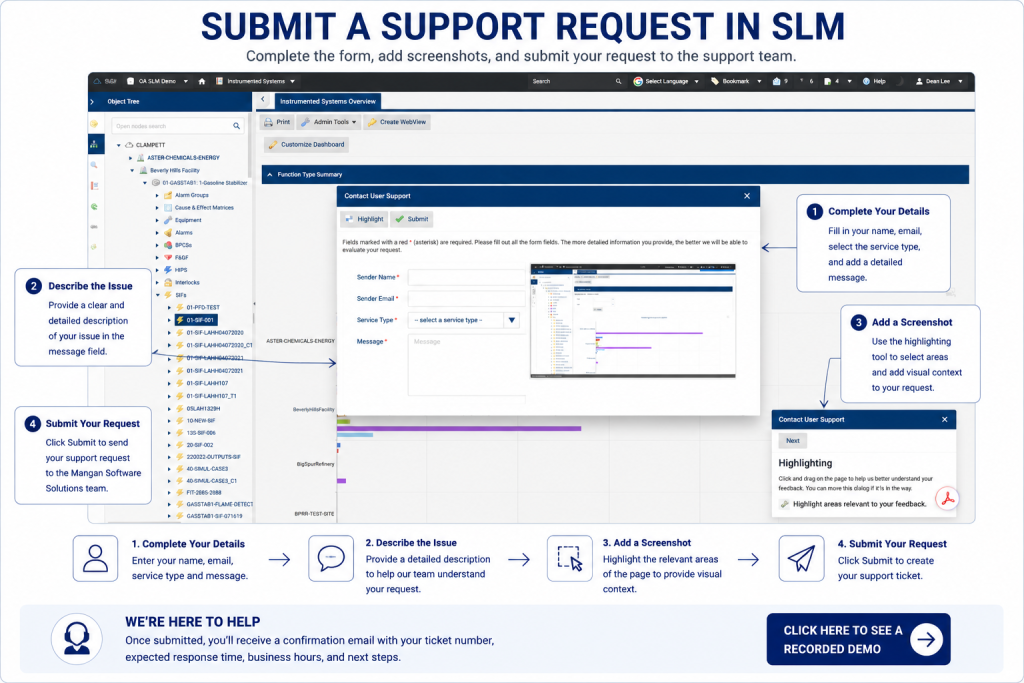
The support request form captures the information required to help the support team investigate your request efficiently.
Users are asked to provide:
- Name
- Email address
- Service type
- Description of the issue
Providing clear and detailed information helps reduce response times and improves the accuracy of the support investigation.
Adding Screenshots to Support Requests
SLM contact user support also allows users to include visual information with their request.
Users can highlight areas of the application and attach screenshots directly to the support ticket.
Including screenshots helps:
- Explain issues more clearly.
- Identify affected areas of the application.
- Reduce follow-up questions.
- Speed up troubleshooting.
Visual information often enables the support team to diagnose problems much faster.
What Happens After You Submit a Ticket?
Once the request has been submitted, SLM automatically creates a support ticket.
You will receive a confirmation email from the Mangan Software Solutions support system containing:
- Your support ticket number.
- Expected response time.
- Support business hours.
- Instructions for updating the existing ticket.
Future replies are automatically linked to the same support request, making it easy to continue the conversation.
Benefits of SLM Contact User Support
SLM contact user support provides a simple and efficient way to receive assistance without leaving the application.
Key benefits include:
- Built-in support requests.
- Screenshot attachments.
- Automatic ticket creation.
- Email confirmations.
- Faster issue resolution.
The integrated support process reduces administration while helping users receive assistance as quickly as possible.
To learn more about Safety Lifecycle Manager, visit our Functional Safety Management Software page.
Learn More About Using SLM
For additional information about customer support best practices, visit the Zendesk Support Best Practices.
Contact User Support
0:06
Welcome to this Application Explainer video, part of our SLM One O One topic range.
0:11
In this video we’ll be covering the subject of contacting user Support within SLM.
0:17
The User Support Contact feature offers a means for users to seek assistance with troubleshooting issues within the application and requesting enhancements.
0:26
This functionality streamlines the process of reaching out to the support team directly within the application, eliminating the necessity of composing an e-mail and saving users time.
0:41
Once logged into SLM, the user will be able to find the Contact User Support feature in the bottom right hand corner of the application.
0:48
When you click Contact User Support, the system will display a modal form containing the following details.
0:55
Send a name, send an e-mail, service type and message.
1:08
Additionally, users can highlight specific areas within SLM to add visual imagery to help in the description of their support ticket.
1:25
After submitting the ticket, the user will receive a confirmation e-mail from Zendesk, our customer support software.
1:31
The e-mail will contain a ticket number, an expected response time, our business hours and details on how to add further information to their existing ticket.


