Service Status Change Event
A service status change event provides a controlled way to record when safety instrumented system functions and devices are commissioned, taken out of service, decommissioned or replaced. Within Safety Lifecycle Manager (SLM), these events create a dated, auditable history of important changes throughout the operational lifecycle.
Accurate service status is more than an equipment record. Commissioning establishes when functions and devices enter service, enabling SLM to begin tracking information such as service hours, prior use hours, failure rates and Tier 3 metrics where applicable.
This guide explains how the SLM Service Status Change Event works, the different statuses available for functions and devices, how commissioning affects lifecycle data, and how status changes are recorded against the affected objects.
What Is a Service Status Change Event?
A Service Status Change Event in SLM records a change in the operational status of functions and devices. It provides an auditable record showing the date on which equipment was commissioned, decommissioned, taken out of service or replaced.
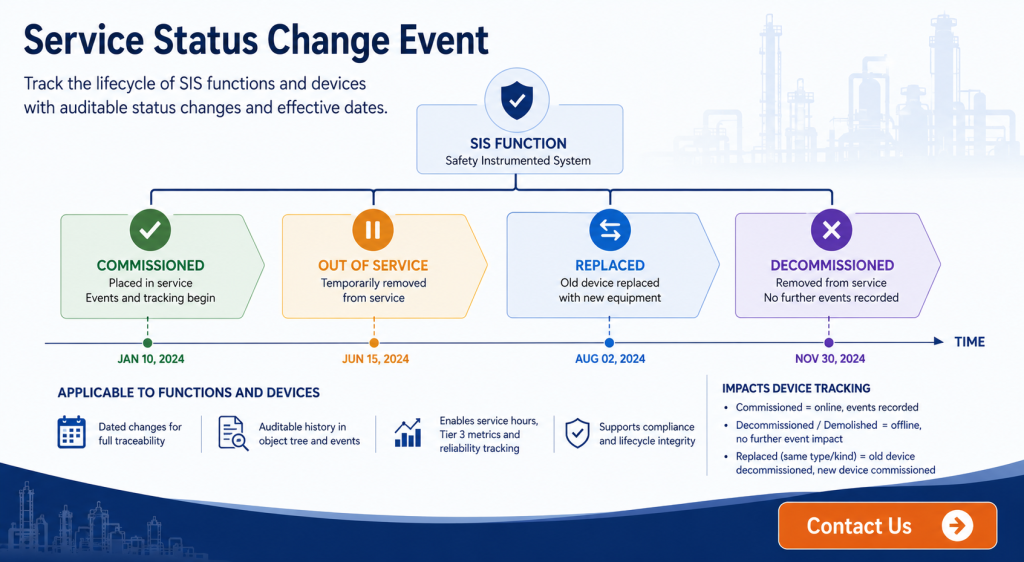
Functions and devices have different available status options because their operational lifecycle requirements differ. Function status changes include Commissioned, Decommissioned and Out of Service. Device status options additionally include Replacing Kind, Replaced with Same Type and Demolished.
When a Service Status Change Event is processed, SLM creates a Service Status Change object beneath the affected function in the object tree. The change is also represented against the affected devices, providing traceability from the function level down to individual equipment.
This lifecycle history is particularly useful for safety instrumented systems, where teams need to understand not only the current configuration but when equipment entered or left service. The Safety Instrumented System guide provides broader context for the role of SIS equipment across the functional safety lifecycle.
Service Status Change Event Statuses and Their Effects
The status selected during a service status change determines how the affected function or device is treated within SLM. Commissioning places a device online and allows subsequent events to contribute to its operational information.
Decommissioning or demolishing a device places it offline. Once offline, subsequent events no longer affect the device data in the same way as they would for equipment actively in service.
The replacement options support equipment changes while retaining lifecycle traceability. Replacing Kind and Replaced with Same Type decommission the existing device and create and commission a new device using the applicable specifications.
This provides a clearer distinction between the history belonging to the original device and the operational history that should accumulate against its replacement. Rather than simply overwriting an equipment record, the change can be represented as part of the device lifecycle.
Commissioning SIS Functions and Devices
Commissioning is particularly important because it establishes the point from which operational information begins to accumulate. Commissioning a function provides the start date required for SLM to enable Tier 3 metrics for that function and begin tracking its service hours.
Commissioning an individual device starts its service-hour and prior-use-hour tracking. It also enables the accumulation of information used for device failure-rate tracking.
This makes the commissioning date an important lifecycle data point rather than simply an administrative status. Without an appropriate start point, operating-time information cannot accurately represent how long equipment has actually been in service.
The relationship between operational history and reliability information is explored further in the Failure Rate Library, where model-specific reliability information and accumulated operating experience can be managed through Prior Use Certificates.
How the Service Status Change Event Workflow Works
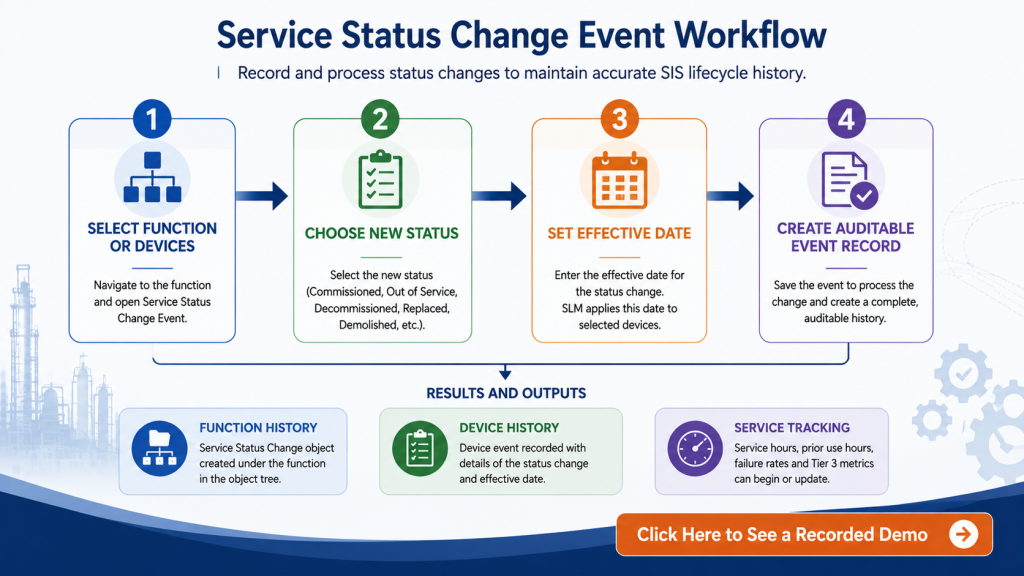
The service status change event workflow begins from the affected function. In the workflow demonstrated in SLM, the user opens Edit Tools and selects Service Status Change Event.
If the function has not yet been commissioned, the initial status selection applies to the function. The user selects Commissioned, enters the appropriate commissioning date and proceeds through the workflow.
SLM then displays the function and associated equipment, including inputs, outputs and logic solvers. The workflow shows the existing status, the proposed new status and the effective date for equipment affected by the change.
SLM can populate the status and date selected for the function across its associated devices. A device that already has the requested status does not undergo another status change. Once the user saves the event, SLM processes the change and creates the corresponding Service Status Change Event record.
The resulting event shows the new status and effective date for the function and for each device whose status was changed. This creates a persistent lifecycle record rather than leaving commissioning information as an undocumented configuration change.
Device Records, Event History and Prior Use Data
Devices can be created beneath Input, Output and Logic Solver objects in SLM. Each device record can contain information such as device type, manufacturer, Prior Use Certificate and certification status.
Where a Prior Use Certificate has been selected for the parent equipment, the corresponding specifications can pass to the device. This associates the device with the appropriate PUC and allows relevant device information to contribute to that Prior Use Certificate.
The device record also provides access to testing and performance information. According to the demonstrated workflow, this can include test scheduling, test-group membership, service status, commissioning dates, service hours, proven hours and other device statistics.
Event history provides another important layer of traceability. SLM can display events that have occurred against the device together with information such as event date and pass/fail status. Examples shown in the training include tests, demands, bypasses, fault or failure events and maintenance.
The Logging Events guide covers this operational event-recording workflow in more detail, while the How to Gather Prior Use Failure Rate Data guide explains how operational experience can contribute to prior-use reliability information.
Commissioning New Devices on an Existing Function
Not every device is commissioned at the same time as its parent function. Equipment may be introduced after the function is already operational, for example when a design change results in an additional transmitter being added.
In this situation, SLM allows the Service Status Change Event to be used for the devices without recommissioning the entire function. The user can select the Devices Only commissioning option and proceed to the equipment selection stage.
Devices that have already been commissioned can be distinguished from newly created equipment requiring a status change. The appropriate new device can then be set to Commissioned with an effective date. The date initially entered in the event is populated automatically but can be changed where necessary.
This workflow helps preserve the distinction between the original commissioning of the function and the later introduction of individual equipment. It is particularly relevant where equipment modifications are being managed during the operating phase of the lifecycle.
Connecting Commissioning with Testing and Performance Tracking
Commissioning affects several downstream operational workflows. Once a device has entered service, its operating history can begin to accumulate and the device can participate in the testing and performance-management processes associated with the function.
For example, the training workflow shows that commissioned devices can subsequently be added to test groups. The Configuring Test Groups guide covers how these groups are established for testing activities.
At the function level, commissioning also establishes the start date used for Tier 3 performance information. The Tier 3 Metrics guide provides additional information on this part of the Operate & Maintain workflow.
Together, these records help establish when equipment entered service, how long it has operated and what events have occurred during that period. This provides stronger context when reviewing testing, reliability and operational performance information.
Why Service Status Traceability Matters
Functional safety records need to represent the lifecycle of the installed equipment rather than only its present-day configuration. Knowing that a device exists does not establish when it was placed in service, whether it replaced another device, or which operational events belong to each period of service.
A service status change event helps preserve this chronology by associating equipment status with an effective date and retaining the resulting change within the SLM object and event history.
This is also consistent with the broader lifecycle approach used for safety instrumented systems. IEC 61511 addresses requirements across the SIS lifecycle, including operation and maintenance. Organisations should apply the standard according to their own functional safety management processes and engineering requirements.
Within SLM, status history provides supporting lifecycle traceability by connecting commissioning and equipment changes with the operational records that subsequently accumulate against functions and devices.
This is also consistent with the broader lifecycle approach used for safety instrumented systems. IEC 61511-1 addresses requirements across the SIS lifecycle, including operation and maintenance. Organisations should apply the standard according to their own functional safety management processes and engineering requirements.
Managing SIS Operational Records with Safety Lifecycle Manager
The Service Status Change Event provides the transition point between equipment configuration and its active operational history within SLM. Commissioning establishes when tracking begins, while later decommissioning, replacement and other status changes preserve the chronology of the equipment lifecycle.
These records then connect with other Operate & Maintain activities such as device-event logging, service-hour accumulation, prior-use data, failure-rate tracking, testing and performance metrics.
The MSS Safety Systems solution supports the management of safety-system information throughout these lifecycle activities. The Service Status Change Event specifically provides the SLM workflow demonstrated here for recording when functions and devices transition between operational states.
Maintaining this history gives engineers and functional safety teams a clearer record of what equipment was in service, when changes occurred and which operational information belongs to each stage of the equipment lifecycle.
Service Status Change Event
0:06
Welcome to this Application Explainer video, part of our operate and maintain topic range.
0:12
In this video we will cover the subject of service status change events, commissioning functions and devices.
0:18
The Service Status Change Event is an event in SLM which tracks the change in status of functions and devices.
0:24
It provides an auditable trail with dates when these functions and devices have been commissioned, decommissioned, and replaced.
0:32
The following information will be covered in this training.
0:34
Chapter one will be an overview.
0:36
Chapter 2 will be device creation.
0:39
Chapter 3 will be service Status change event and commissioning functions and devices.
0:49
In Chapter 1, we’ll cover service statuses, effects of the SSC event on functions, effects of the SSC event on devices, and SSC object relationships with functions and devices.
1:03
As mentioned previously, the service status change event allows for the change in status for functions and devices.
1:12
The status changes for functions which can be found on the first step of the event are commissioned, decommissioned and out of service.
1:25
The status changes for devices are commissioned, decommissioned, out of service, replacing kind, replaced with same type and demolished.
1:36
Commissioned places the device online, which allows events to be recorded for that device.
1:41
Decommissioned and demolished places the device offline, making it so that events no longer have an impact on device data.
1:50
Replacing kind and replace with same type decommissions the old device and creates and commissions a new device with the same specifications.
2:00
Once a service status change event has been processed in SLM, a service status change object will appear in the object tree under the function showing the details of that change.
2:15
It will also create a device event under the affected devices detailing the change in status taking place for that device.
2:33
The status change also shows on the function object as well as the device object.
2:39
Commissioning the function provides a start date needed to enable Tier 3 metrics for that function and allows service hours to be tracked.
2:52
Commissioning devices starts the clock on tracking the device service hours and prior use hours.
2:58
It also allows for tracking failure rates for each device.
3:06
In Chapter 2, we will cover device connection to prior use certificate, viewing device information, device event history, and creating a device.
3:15
Devices can be added as a child to the Input, Output, and Logic Solver objects.
3:22
Clicking on the Device object shows several key sections of information for that device.
3:28
The Device Data section shows information like the device type, manufacturer, prior use certificate, and certification status.
3:37
If the prior use certificate has been selected for the parent of the device, those specifications will be passed on to the corresponding device, causing it to be associated with the prior use certificate, allowing the device data to be passed on to that prior use certificate.
3:55
For more information on prior use certificates, see the video on Prior Use Certificates.
4:02
The next two sections show testing data for the device, including test scheduling and which test groups it is tested in.
4:13
Next displays performance data, which shows device information like the service status, commissioning dates, number of service hours, proven hours, and other stats on the device.
4:25
Last, you’ll see history for the device, which displays a history of all of the events that have occurred, the date of the event, pass or fail status, and so on.
4:38
These events include tests, demands, bypasses, fault or failure events, and maintenance that’s been performed on the device.
4:55
To add a device, click on the Input Logic Solver output object, click on Edit Tools and Add Device.
5:05
Enter in the device ID and click on Save.
5:11
The device is now shown under the Input object.
5:19
In Chapter 3, we’ll cover service status change event workflow, commissioning functions and devices, and commissioning devices with commissioned functions.
5:30
When changing the service status of a functional device, navigate to the function, click on Edit Tools and Service Status Change Event.
5:41
If a function has not yet been commissioned, only the status for the functions will appear.
5:47
Select Commission and enter the Commission date.
5:51
Clicking Next will take you to Step 3, which displays a series of tables for the function type, inputs, outputs, and logic solvers.
6:02
Here you can see the current status before the change, what the status will change to, and the date of the change for any change in status.
6:12
SLM will also fill the status and date selected on step one for all devices.
6:18
No change in status will take place for a device that already has the desired status.
6:23
Click Save to conclude the workflow and process the event.
6:29
A Service status Change event is created, displaying the new status and date of change for the function and all of the devices that had a change in status.
6:40
If the function has been commissioned but the device has not yet been commissioned in SLM the process is very similar.
6:47
For example, a transmitter being added to the design of the function as a result of an MOC.
6:56
Once again, click on the function and use Edit Tools to add the Service status change event.
7:01
This time Scroll down to the Devices Only section and select Commissioned from among the choices and press Next.
7:09
Any devices that have already been commissioned will appear in here.
7:12
If the device has not yet been commissioned, you will see it on the next step.
7:20
Now with our input, you can see the devices that have been commissioned versus the one that has been created from the MOC.
7:27
To change the status, we select the status for commissioned.
7:36
The date that was entered in on the first step will automatically appear here.
7:39
The date, however, can be changed if desired.
7:44
Pressing Save will allow the event to process as a background task.
7:48
Once the event has finished processing, click on the tab to refresh and the results can be seen on the Service Status Change event, both in the object tree and for the device.
8:01
These commissioned devices can now be added to the test group.
8:05
For more information on building out test groups, see the video on Creating and configuring Test Groups.


