
Object Manipulation – Adding Objects
Adding objects in SLM allows users to create new records and build structured hierarchies throughout Safety Lifecycle Manager. Whether creating Safety Instrumented Functions (SIFs), devices, systems, or other lifecycle objects, SLM provides multiple methods for quickly adding new information to the database.
Creating objects correctly is an important part of maintaining an organised and traceable lifecycle structure. SLM offers several approaches that allow users to add records directly from parent objects, template views, and category views depending on the task being performed.
This guide explains the rules for adding objects in SLM and walks through the available methods for creating new records efficiently and accurately.
What Is Adding Objects in SLM?
Adding objects in SLM creates new records within the database and links them into the appropriate location within the object hierarchy. New objects can represent equipment, systems, functions, devices, procedures, or other lifecycle information depending on the module being used.
By creating objects in the correct location, organisations can maintain clear traceability and improve information management throughout the safety lifecycle.
Common reasons for creating new objects include:
- Adding new Safety Instrumented Functions (SIFs)
- Creating new devices and assets
- Building project hierarchies
- Recording lifecycle information
- Expanding existing system structures
SLM automatically places new objects beneath the selected parent object, ensuring the hierarchy remains organised and easy to navigate.
Rules for Adding Objects in SLM
Before creating records, users should understand the basic rules that govern adding objects in SLM.
New objects must be created beneath an appropriate parent object and within the correct module structure. This ensures information is stored in the correct location and remains available for reporting, navigation, and lifecycle management activities.
When creating a new object:
- Select the correct parent object first
- Use a unique object ID
- Choose the correct object type
- Complete any required fields before saving
- Verify the object appears in the intended hierarchy location
Following these guidelines helps maintain a consistent database structure and improves long-term data quality.
Adding Objects in SLM Using Edit Tools
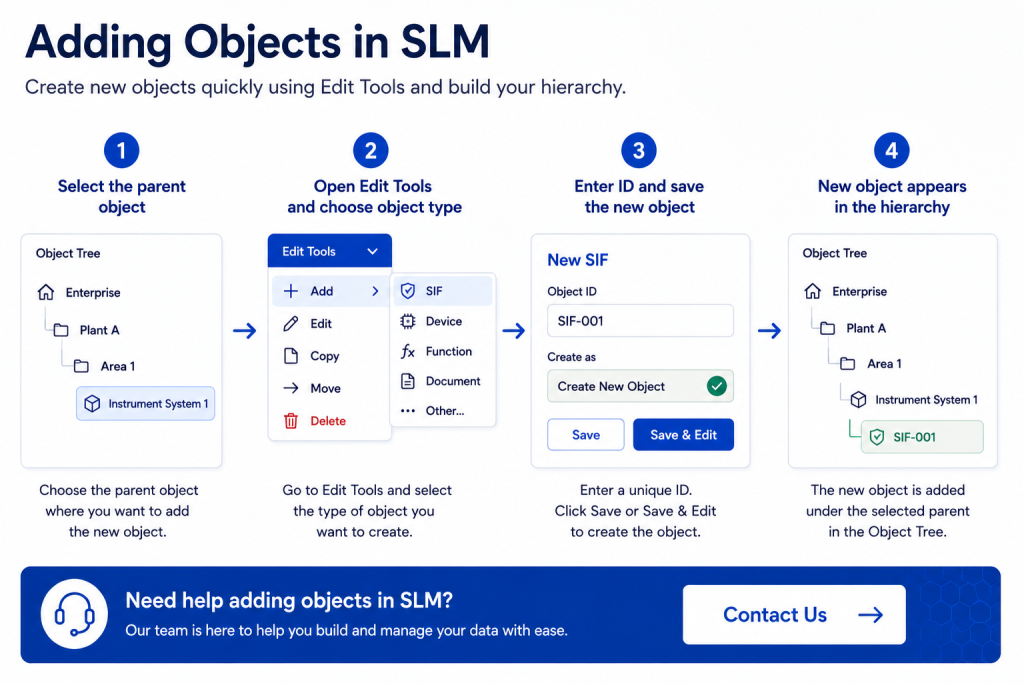
The most common method for adding objects in SLM is through the Edit Tools menu.
This method allows users to create a new object directly beneath an existing parent object.
To create an object using Edit Tools:
- Select the parent object.
- Open the Edit Tools dropdown menu.
- Select the object type you wish to create.
- Enter a new object ID.
- Confirm the option displays Create New Object.
- Click Save or Save and Edit.
Selecting Save creates the object and returns you to the previous screen. Selecting Save and Edit creates the object and opens the newly created record immediately.
After saving, the new object will appear beneath its parent within the Object Tree.
To learn more about navigating object structures after creation, see our SLM-101 View Templates guide.
Adding Objects Within Template Views
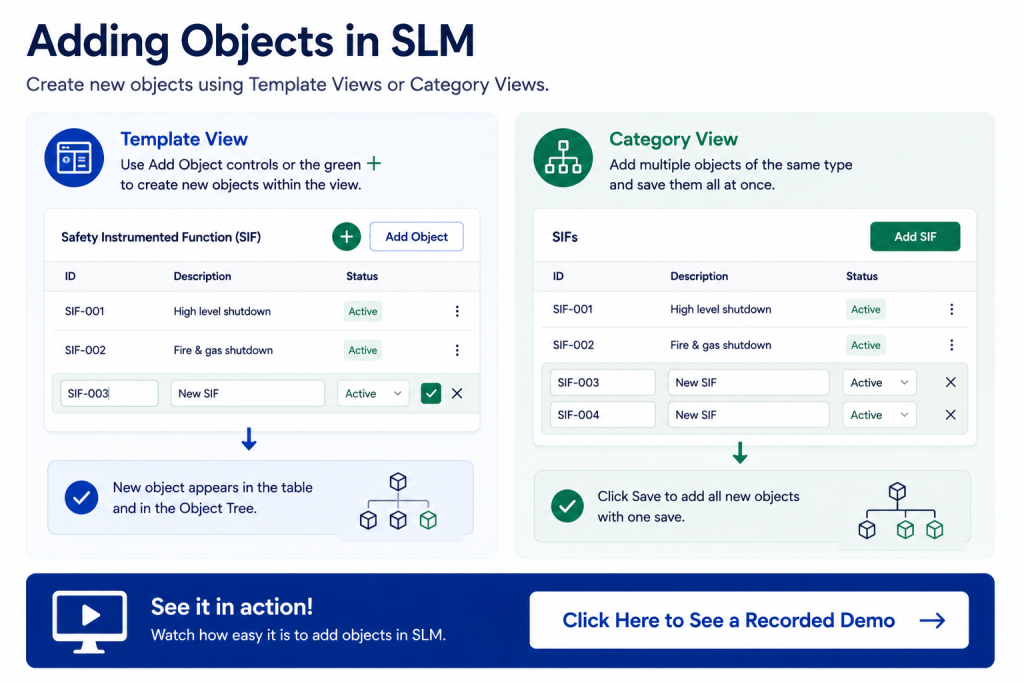
Another method for adding objects in SLM is through Template Views.
Many templates contain built-in controls that allow users to create records without leaving the current screen.
Depending on the template, users may see:
- An Add Object button
- A green + icon
- Inline object creation controls within tables
These controls allow users to enter object information directly within the current view.
After entering the required ID and associated information, selecting Save creates the object and adds it to both the template view and the Object Tree.
This method improves efficiency by reducing navigation and allowing users to create records while reviewing related information.
Adding Objects from Category Views
Users can also create new records directly from category views within the Object Tree.
Category views display groups of similar objects and often include dedicated creation buttons at the top of the table.
For example, users may see buttons such as:
- Add SIF
- Add Device
- Add Equipment
- Add Function
This approach is particularly useful when creating multiple objects of the same type.
Rather than creating each record individually, users can add several objects within the table before saving all changes at once.
This makes category views one of the most efficient methods for bulk object creation activities.
Benefits of Adding Objects Through Different Views
Adding objects in SLM through multiple interfaces provides flexibility for different workflows and user preferences.
Each creation method offers unique advantages depending on the task being performed.
- Edit Tools provide structured object creation beneath a selected parent.
- Template Views enable rapid creation while working within records.
- Category Views support efficient bulk creation of similar objects.
These options allow users to choose the most efficient method while maintaining consistency throughout the database hierarchy.
For organisations implementing digital lifecycle management processes, our Functional Safety Management Software resources provide additional guidance.
Best Practices for Creating New Objects
Following consistent object creation practices helps maintain a clean and reliable database structure.
Recommended best practices include:
- Use meaningful and consistent object IDs
- Create objects beneath the correct parent location
- Complete all required information before saving
- Verify object placement after creation
- Review hierarchy structures regularly
- Follow company naming conventions
These practices improve traceability, reporting accuracy, and long-term lifecycle information management.
Learn More About SLM Object Management
Understanding how to create records efficiently is a fundamental part of working within Safety Lifecycle Manager. By using Edit Tools, Template Views, and Category Views, users can quickly build and maintain structured lifecycle information.
Additional resources you may find useful include:
For further information on lifecycle management principles and industrial safety standards, visit the International Electrotechnical Commission (IEC).
Object Manipulation – Adding Objects
0:07
Welcome to this Application Explainer video, part of our SLM 101 topic range.
0:12
In this video we’ll be covering the subject of adding objects within SLMSLM provides a multitude of options when dealing with the adding of new objects.
0:22
In this video we’ll be concentrating on adding objects using edit tools.
0:27
Adding objects in a template view and adding objects in a category view.
0:32
We will also discuss the rules for creating and adding objects.
0:39
The first method of adding objects will be through the Edit Tools drop down menu.
0:45
In order to add objects with the Edit Tools menu, click on the parent of the object you wish to add, navigate to Edit Tools and add your desired objects.
0:58
Next, type in the ID for that object and if it’s a new object, which it should be if you’re adding then it will automatically say Create new object as your option.
1:14
Click Save to save the object and navigate to the screen behind or click Save and Edit to navigate to the newly created object.
1:28
You can see how the SIF has been added underneath the parents of the object.
1:33
Another way to add new objects is to navigate to certain views and tables within an object itself and then look for either adding object buttons or you can add an object by clicking on the green plus symbol.
1:59
When that object has been added, you will see it once again in the object tree and also you can use the Add Object button here and that will allow you to enter in an ID directly into the table.
2:20
Whenever you finish adding the ID and filling out the necessary information, click save and that will add the desired object.
2:29
A third way to add objects is by navigating directly to the category itself in the object tree.
2:38
Here it displays a table and at the top of the table you can see an Add SIF button.
2:43
You can press Add SIF or as many sifts as you would like to create.
2:49
This method is good for adding a lot of the same object types all at the same time.
3:02
Whenever you finish adding new objects, click the save button and now all the new objects have been added with one save.


