
Configuring Test Groups
Configuring test groups provides a structured way to organise SIS functions and devices according to the testing methods used at a site or unit. Within Safety Lifecycle Manager (SLM), test groups bring the equipment being tested, test intervals, recorded results and testing schedules together within the Operate & Maintain workflow.
The Safety Requirements Specification establishes testing requirements for functions and their associated inputs, outputs and logic solvers. Depending on the site’s testing approach, testing may involve individual functions, groups of functions, equipment within a unit or broader SIS testing activities.
This guide explains how test groups are structured in SLM, the prerequisites for adding equipment, how groups are created and modified, how test events are recorded, and how completed testing contributes to reliability information and operational reports.
What Does Configuring Test Groups Involve?
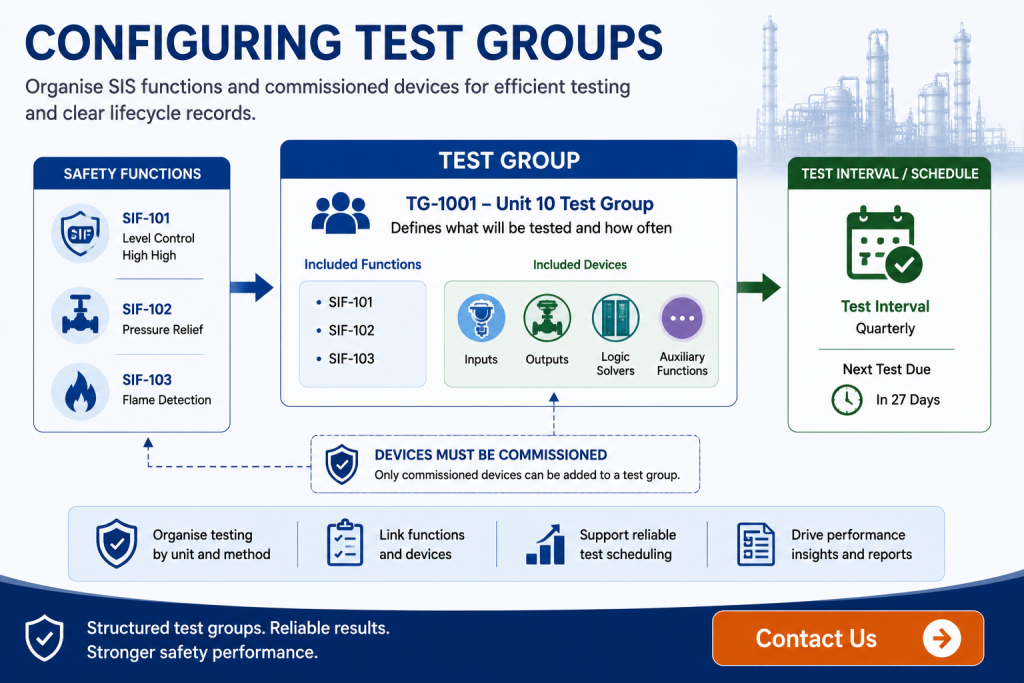
A test group in SLM organises the functions and devices that will be included within a defined testing activity. Test groups are created beneath unit objects in the Operate & Maintain module, allowing applicable functions and devices within that unit to be selected.
Functions can be added to a test group, while devices must be in a commissioned state before they can be selected. Device commissioning status can be reviewed through the Performance Data information maintained against the device.
This requirement helps ensure that test-group device selections correspond with equipment that has entered service. The Service Status Change Event guide explains the related SLM workflow for commissioning functions and devices and establishing their operational status.
Once established, a test group provides the structure from which test events can be recorded and testing schedules can be monitored.
How Test Groups Organise SIS Testing
Different facilities may organise testing in different ways. The training identifies examples including testing inputs and outputs within a unit, function-only testing, function-group testing and broader SIS testing.
SLM test groups allow the organisation of functions and equipment to reflect the testing method being used rather than requiring every test to follow the same equipment grouping.
Test events are created beneath the applicable test group. Results associated with the function can also be viewed from the function, while device test results are represented against the relevant device event history.
The test event itself brings the information together through dedicated functional and device test-result information. This allows users to review what was tested and the corresponding results from the same testing activity.
After a test event has been recorded, its data can be reviewed before the event is finalized or approved. This review stage is important because completed test information can subsequently affect other SLM calculations and operational records.
Configuring Test Groups in SLM
Configuring test groups begins from the applicable unit in the Operate & Maintain module. The demonstrated workflow uses Edit Tools and Add Test Group to start a three-step configuration process.
The first step establishes the basic test-group information. This can include the test group ID, description, group type, whether testing is online or offline, the module containing the functions, whether the group is active and the applicable test interval.
The second step selects the functions included in the group. The third selects the applicable devices, which can include inputs, outputs, logic solvers and auxiliary functions.
Once the selections are saved, the resulting test-group record displays the configured test information together with the functions and devices included in the group.
This creates a reusable testing structure rather than requiring users to rebuild the equipment selection each time a test is performed.
Recording a Test Event from a Test Group
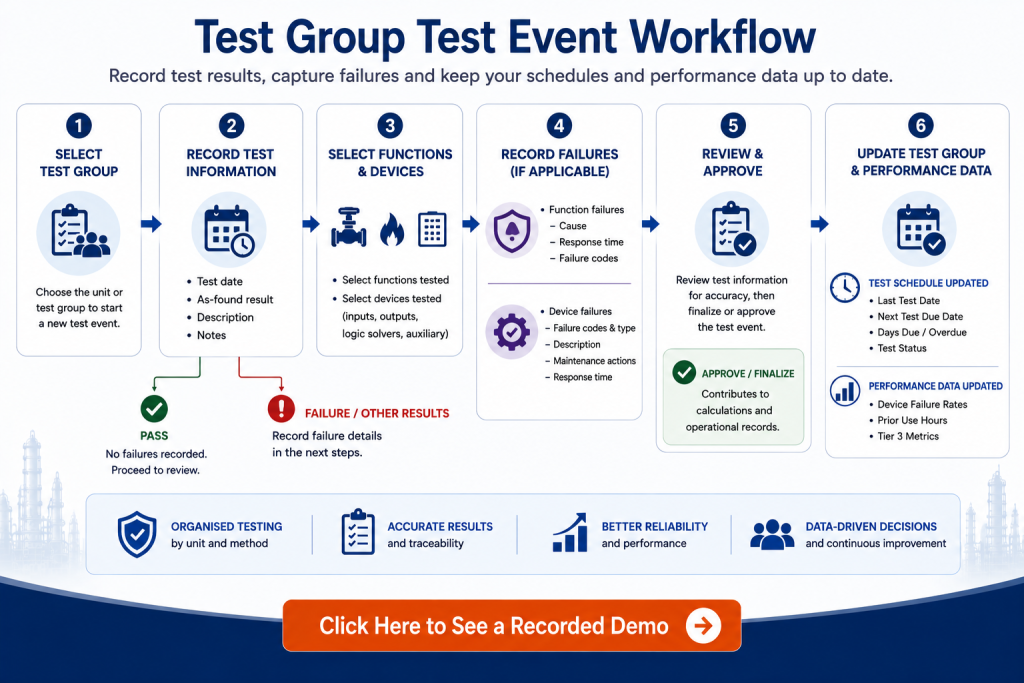
Once a group has been configured, test results can be recorded against it. Users can initiate a Test Event from the applicable test group or unit and work through the step-by-step event workflow.
The initial stage captures general information such as the test result, date, description and notes. The selected as-found status then affects the subsequent workflow.
If the as-found result is Pass, SLM skips the stages used to record failure information. If another applicable result is selected, such as a pass with fail-safe failures or a failure with dangerous failures, the additional failure-recording stages become available.
Users then select the functions and devices that were actually included in the test. A test event does not require every function within the test group to have been tested, allowing the recorded event to reflect the work actually performed.
The event can therefore represent both the predefined scope of the test group and the specific functions and equipment included on a particular testing occasion.
Recording Function and Device Test Failures
Where the test identifies a problem, the workflow allows the affected functions and devices to be identified separately.
For function failures, users can record information including as-found and as-left status and dates, response time where applicable, failure codes and the cause of the failure. According to the demonstrated SLM workflow, a function with an as-found status of Fail with Dangerous Failures can contribute to its failed-on-test rate.
Device failures can similarly be selected and documented. Devices not identified as failed are automatically assigned a pass result within the demonstrated workflow.
For failed devices, information can include as-found and as-left status, failure codes, failure types, descriptions and mitigating actions. Maintenance information can also document repair activity associated with the change between the as-found and as-left condition.
The final testing information can include observed device response time for comparison with the specified or designed response time.
These detailed event records help preserve the evidence behind the overall test result rather than recording only whether the test passed or failed.
Finalising and Approving Test Events
After the testing information has been entered, the test event can be saved and reviewed for accuracy. It can then proceed through the applicable finalization or approval process.
Within the workflow demonstrated in SLM, finalizing and approving the test event have the same effect on the calculations that depend on completed event information.
Once completed, applicable test information can contribute to device failure rates, prior-use hours and Tier 3 metric calculations for the functions involved.
This creates an important relationship between testing records and broader operational performance information. The Tier 3 Metrics guide explains how approved operational events contribute to performance indicators such as failed-on-test rate and other IPL performance measures.
Where device information is associated with a Prior Use Certificate, testing can also contribute to accumulated operating experience. The How to Gather Prior Use Failure Rate Data guide explains this relationship in more detail.
Modifying Existing Test Groups
Configuring test groups is not necessarily a one-time activity. Testing arrangements can change over the operating life of a facility, so existing groups do not have to remain fixed after their initial creation.
SLM allows users to return to an existing test group and modify the functions and devices included within it. The Select Functions and Devices workflow returns the user to the relevant selection stages, where functions or devices can be added, changed or removed.
Saving those changes updates the test group to reflect the revised equipment selection.
This allows the group configuration to continue representing the testing scope being used by the facility while retaining the test events already recorded through the applicable SLM structures.
Test Scheduling and Testing Reports
Configuring test groups with the appropriate test interval also supports ongoing scheduling. Completed test events update the last test date and the next test due date calculated from that interval.
SLM can also show the number of days until the next test is due or the number of days by which testing is overdue, together with the applicable test status.
The Test Groups report can be viewed at site or unit level and provides information for the groups within that scope, including status, last-test information, test interval and the next due date. Users can also access the corresponding test results and sort testing information by due date.
The Test Status view separates testing information into categories such as overdue tests, tests due within the upcoming year, deferred tests, recently completed tests, tests pending approval and tests that have not yet been submitted for approval or finalization.
A further overview shows test groups according to whether they are overdue or on schedule, providing a higher-level view from which users can drill into individual test-group details.
The broader operational event process is covered in the Logging Events guide, which explains how test events sit alongside demands, bypasses, faults and other SIS operational records.
Why Structured SIS Testing Records Matter
Proof testing and other periodic testing activities generate important evidence about the condition and performance of safety functions and their associated equipment. Organising that information consistently helps teams understand what was tested, when testing occurred, what the result was and what failures or maintenance activities were identified.
The wider functional safety lifecycle also places importance on testing and maintaining safety instrumented systems. The ISA-84 Series of Standards provides authoritative guidance for safety instrumented systems throughout the lifecycle, including operation, maintenance and testing activities.
The particular test-group structures, event steps and reporting workflows described on this page are SLM capabilities rather than prescribed test-group structures from the standard. Organisations remain responsible for defining suitable testing procedures, intervals, acceptance criteria and functional safety practices for their applications.
A structured digital record can then support those practices by maintaining the relationship between the defined testing scope and the evidence generated when testing is performed.
Managing Test Groups with Safety Lifecycle Manager
Configuring test groups in SLM connects planned testing activities with the operational records generated when those tests are performed.
Test groups define which functions and commissioned devices are available within the testing scope and establish information such as test intervals. Test events then capture what was actually tested, the results obtained and any function or device failures identified.
Once the event has been reviewed and completed through the applicable finalization or approval process, its information can contribute to test scheduling, device reliability information, prior-use data and Tier 3 performance calculations.
The MSS Safety Systems solution supports the broader management of safety-system lifecycle information. Within the Operate & Maintain workflow described here, test groups provide the organisational structure connecting testing scope, individual test events and ongoing testing status.
This provides engineering and functional safety teams with a traceable path from the equipment intended for testing through to the results, failures, approvals and future testing schedule.
Configuring Test Groups
0:06
Welcome to this application Explainer video, part of our operate and maintain topic range.
0:10
In this video, we’ll cover the subject of configuring test groups in SLM.
0:15
The safety requirement specification establishes testing frequency for each function and its IO and logic solver.
0:22
The following are examples of methods that can be used for these tests.
0:26
All input and outputs in a unit, function only testing, function group testing and SIS testing.
0:32
SLM organises these test procedures in test groups to reflect the testing methods used at the site or the unit.
0:39
The following information will be covered in this training.
0:42
Chapter 1 will be the overview, Chapter 2 will be test group creation, Chapter 3 will be test event Workflow, and Chapter 4 will be testing Reports.
0:57
In Chapter 1, we’ll cover requirements for creating test groups with devices, relationships for test groups, and relationships for test events.
1:06
Requirements for creating test groups with devices is that the device is in a commissioned state.
1:12
Test groups are created as children of the unit objects in Operate and maintain.
1:17
This allows any functions and devices in that unit to be added to that test group.
1:23
Any function can be added to the test group, however a device must be commissioned before it can be selected for that test group.
1:30
To determine whether a device is commissioned, this can be seen on the Device object on the 1st tab in the Performance Data section.
1:38
As seen here, Test events, unlike other events, are children the test group.
1:44
These test events can be seen under the test group.
1:47
By expanding that test group, the test group allows for both functional tests and device test results to be recorded.
1:56
Functional tests can be found as a child of the function viewed here, which shows the results of that test, whether it passes, fails, and the dates of that test, and so on.
2:13
Whereas device test results are found as children of the device events, which shows similar information, whether it passes, fails, the date of the test, and any other details for that device test.
2:30
Both the function and device test results can be seen on the test event object, each having its own dedicated tab, functional test results and device test results.
2:45
Once the test event has been recorded, the data can be reviewed for accuracy before finalising or approving the event.
2:52
Approving and finalising an event has the same effects in SLM, which contributes to specific calculations, namely the device failure rates, prior use hours and Tier 3 metric calculations for the functions completed.
3:08
Test events will update specific information on the test group such as the last Test date, next test due date determined by the test interval, the number of days the test is due in or overdue by, and the test status.
3:21
Below are the tables showing lists of functions, inputs, outputs, logic solvers, auxiliary functions, as well as information from any previous tests conducted from this test group.
3:43
In Chapter 2, we’ll cover test group workflow and modifying existing test groups.
3:50
To create a test group, navigate to the Unit object, click on Edit Tools, and Add Test Group.
3:58
A lightbox window will display a three-step process to build a test group.
4:03
First enter in the basic information.
4:05
Next, select the functions, and 3rd select your devices that are going to be tested in this test group.
4:13
In the first step, we’ll enter in the test group ID the description for the test group.
4:19
Test group type, whether it’s on or offline, the module that the functions exist in, whether the test group is active, and then other information like test group interval.
4:38
Next, select the functions that will be a part of this test group.
4:47
Lastly, select the devices that you want to have included in this test group.
4:52
You can select between inputs, outputs, or logic solvers or auxiliary functions.
5:01
When satisfied with the selections, click Save to create the test group.
5:06
After saving, the view will display the information for that test group, including the test information that you added from step one, the functions, inputs, outputs, and logic solvers that were selected.
5:24
If at any point you want to modify what is being tested in this test group, click on the Select Functions and Devices button where it takes you to Step 2 of the Test Group workflow, allowing you to add, change, or remove functions in Step 2 or devices in Step 3.
5:49
Once finished with the changes, click Save and the test group is now modified to display the updated selections for Functions and devices.
6:01
In Chapter 3, we’ll cover recording a test event, viewing test event results, and effects of a test event on a test group.
6:10
Once test groups have been created, test results can be recorded in SLM.
6:14
To start this process, navigate to the desired test group or unit, click on Edit Tools, and record Test Event.
6:27
This will open up a lightbox window showing the test event workflow at the top of the screen.
6:32
Remember that the lightbox can be expanded for a better user experience.
6:38
Step one shows the initial information for the test, like the results, the date description, and any notes.
6:45
Selecting Pass for the As Found status will skip all steps where the failure information is entered, Steps 456 and seven.
6:56
If any other status like Pass with fail safe failures or Fail with dangerous failures is selected, steps 4 through 7 will be enabled to enter the information for that failure.
7:17
When all information is filled out, click next to proceed to the next step with step two.
7:22
Select the functions that will be tested in the test event.
7:28
Keep in mind, if no functions are tested in this test event, none need to be selected.
7:34
When all the apply are selected, click next step three.
7:38
Select all the devices, the inputs, outputs, or logic solvers that are to be tested.
7:44
For this test group, select Next.
7:50
Remember that the AS Found drop down in step one dictates whether the next step is Step 4 or step 8 because something other than PASS was selected in step one.
8:03
For the As found, steps 4 through 7 are enabled.
8:07
Step 4 allows you to select which functions had a status other than PASS, meaning pass with fail, safe, failures, or failed.
8:16
Once the desired functions have been selected, click next to proceed.
8:21
For step five, click on the bar to expand the function information, which will allow you to fill out the applicable failure information for the function, such as the as found and the as left statuses and dates.
8:42
The function response time if recorded, any failure codes, the cause of the failure, and so on.
8:56
If the function has an as found status of fail with dangerous failures, this will contribute to the fail on test rates.
9:07
One of the five Tier 3 metrics for the function.
9:10
To learn more about Tier 3 metrics, see the Operate Maintain video on Tier 3 metrics.
9:15
If no function was selected in Step 4, these fields for the function will not appear in Step 5.
9:21
Clicking next takes us to Step 6 where we select any input, output, or logic solver devices that have failed their tests.
9:29
Any of these components that are not selected will automatically have a past status given to them.
9:35
Click next to proceed to step 7 to fill out the information for the devices.
9:40
This step shows a list of all devices selected.
9:43
In step six, click on the bar with the tag to expand the section and fill out the fields for that device, starting with the as found and as left statuses and dates.
9:59
You can also fill out other information in the fields like the failure codes, the failure types, description, mitigating action and so on.
10:10
This will allow you to have a more detailed record of that failure on the maintenance activity below to specify what kind of repair had occurred.
10:18
This allows you to make note of any maintenance performed to allow for the change in the as found and as left statuses.
10:26
Clicking next takes you to step 8, which shows the test results for each device tested and the specified or designed response time.
10:35
Here you can enter in the observed response time in comparison to the specified response time.
10:44
After all information is entered, click Save.
10:48
This allows the processing of that test event.
10:52
After confirming the data, the test event can be submitted for approval or on the Test Summary tab can be finalised.
11:05
Approving and finalising an event has the same effect in SLM, which contributes to specific calculations, namely the device failure rates, prior use hours and Tier 3 metric calculations.
11:17
For the functions completed test events, we’ll update the specific information on the test group, such as the test status, the last Test date and next test due date, as well as the test due in and overdue buyer fields.
11:35
In Chapter 4, we’ll cover Test group reports, test status report, and test groups overdue and on schedule.
11:44
The first report that we’ll look at is the Test Group report.
11:48
This can be found at the site or the unit on the Test Groups tab.
11:55
This report shows all test groups for the site or unit, depending on which level is shown, including the status and date of the last Test, with hyperlinks to view the results.
12:05
In addition to the test interval and due date for the next test, this view can also be sorted to show when tests are due in chronological order.
12:18
Next, the Test Status tab, also found at the site and unit level, shows a series of tables displaying testing information for each test group, like the due date, the amount of time it’s overdue by or due in, and the last date the test was performed.
12:34
We can see this information for first overdue tests, then tests due in the upcoming year, deferred tests, tests that are recently completed, tests that are pending approval, and also tests that have not been submitted for approval or finalization.
13:00
The last three tables also show the as Found and as left statuses of the tests listed.
13:09
Another useful report to look at for tests from a high level perspective is the test groups by Overdue and On Schedule.
13:20
This can be found on the Overview tab of the Enterprise Site and Unit Levels.
13:25
This report displays a pie graph of tests that are overdue colored in red versus the test groups that are on schedule colored in green.
13:34
Below there is a table which displays information for each of these tests and hyperlinks to drill down into more of the details of each test group.


