
Data Management - Export Adapters
Data Management Export Adapters allow Safety Lifecycle Manager (SLM) users to extract engineering information in structured formats for reporting, analysis, migration and integration with other software applications. Instead of manually copying information, Export Adapters generate consistent files that can be shared with external systems or re-imported into SLM when required.
SLM provides several Export Adapters, each designed for a specific purpose. Whether you need to export complete datasets, create import templates, generate action item reports or prepare instrument data for third-party engineering software, Export Adapters provide a controlled and repeatable workflow.
This guide explains the different Export Adapters available within SLM, how they are configured, and the best practices for exporting functional safety information while maintaining data quality and compatibility.
By understanding how Editing and Managing SLM Projects showing a controlled check-in workflow from project review and approval to production deployment work, administrators can create consistent export workflows that support reporting, engineering collaboration and controlled data exchange throughout the safety lifecycle.
What Are Data Management Export Adapters?
Data Management Export Adapters are tools within the SLM Data Adapters module that extract information from the database into structured files for use outside the application. Depending on the selected adapter, exported data can be used for reporting, engineering reviews, integration with external systems or subsequent re-import into SLM.
Unlike Processing Adapters, which perform controlled updates to existing data, Export Adapters focus on producing organised output files while preserving the integrity of the source database. Together they form part of a complete Data Management Processing Adapters workflow for managing engineering information throughout the safety lifecycle.
The training introduces several Export Adapters available within SLM, including Smart Export, Export Templates, Export Data, Export Action Items, Export Reference Tables and Export Instruments to SPI. Each adapter produces data in a format appropriate for its intended use while maintaining a consistent export process.
Typical benefits include:
- Consistent extraction of engineering data.
- Standard Excel-based output formats.
- Improved reporting and auditing.
- Simplified data migration projects.
- Support for controlled data exchange.
- Preparation of data for subsequent import activities.
Why Use Data Management Export Adapters?
Engineering databases often contain thousands of interconnected records covering Safety Instrumented Functions (SIFs), instruments, action items, checklists, documents and other functional safety information. Export Adapters allow administrators and engineers to retrieve this information quickly without manually recreating reports.
Because exports follow predefined structures, they can be used confidently for documentation, engineering reviews, integration projects and offline analysis while maintaining consistency between systems.
Export Adapters are commonly used for:
- Producing engineering reports.
- Sharing information with project teams.
- Preparing data for bulk updates.
- Creating import-ready Excel templates.
- Supporting migration between SLM environments.
- Providing information to external engineering applications.
- Archiving functional safety data.
Many export workflows complement the Data Management Delete Adapter and Processing Adapters, enabling administrators to review exported information before making controlled changes within the database.
Using Export Adapters reduces administration effort while ensuring engineering information remains structured, consistent and easy to exchange between systems.
Smart Export Adapter
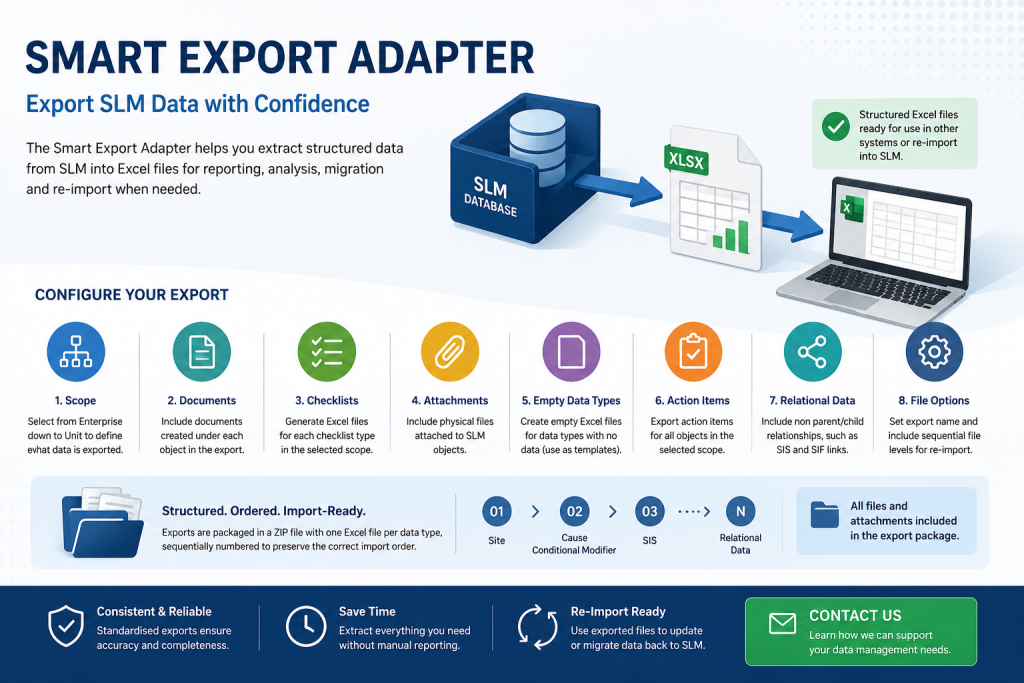
The Smart Export Adapter is the primary export tool within SLM. It generates structured Excel files containing engineering data together with predefined headers that allow the information to be reviewed, modified and, where appropriate, imported back into SLM using compatible import processes.
Users begin by selecting the required scope, ranging from the Enterprise level down to individual Units. The Smart Export Adapter then extracts all applicable data for the selected scope while allowing additional export options to be enabled depending on project requirements.
Available configuration options demonstrated in the training include:
- Include Documents.
- Include Checklists.
- Include Attachments.
- Include Empty Data Types.
- Include Action Items.
- Include Relational Data.
- Custom Export Name.
- Sequential File Levels for re-import.
After the export task has been queued, administrators can monitor its progress through the Export Adapter Tasks screen before downloading the completed ZIP package. The exported files are organised by data type and include the metadata required for future import operations, providing a reliable mechanism for transferring engineering information between environments.
When exporting Safety Instrumented Functions and related engineering information, administrators may also benefit from reviewing the Safety Integrity Levels (SIL) Explained guide to better understand the functional safety data being managed within SLM.
Configuring Data Management Export Adapters
The Smart Export Adapter includes several configuration options that allow administrators to tailor exports for different engineering and reporting requirements. Rather than exporting only object data, additional information can be included to create a more complete dataset for analysis, documentation or future import activities.
The training demonstrates the following export options:
- Include Documents – Exports document records associated with the selected objects.
- Include Checklists – Creates separate Excel files for checklist information.
- Include Attachments – Downloads physical files attached to SLM objects.
- Include Empty Data Types – Generates blank Excel files that can also be used as import templates.
- Include Action Items – Exports action items related to the selected scope.
- Include Relational Data – Includes non-parent/child relationships, such as related Safety Instrumented Functions (SIFs).
- Custom Export Name – Allows a meaningful filename to be assigned.
- Sequential File Levels – Numbers exported files in the correct order for later re-import.
Choosing the appropriate export options helps ensure that all information required for reporting, auditing or migration is included in a single export package.
Export Templates
The Export Template Adapter creates empty Excel templates that follow the structure required by the SLM Import Adapter. These templates allow engineers to populate new information offline before importing it back into the system.
Each exported template contains:
- The data type identifier.
- Field labels.
- Field IDs.
- The parent object type.
Because every template follows the expected import structure, administrators can prepare data consistently while reducing the likelihood of import errors. This workflow works particularly well alongside the Data Management Processing Adapters guide when planning larger data migration or administration projects.
Exporting Individual Data Types
When only a specific object type is required, the Export Data Adapter allows administrators to export information for a single data type rather than the entire database. Users simply select the required scope and object type before queuing the export task.
The resulting Excel file follows the same structured format used throughout the Export Adapters, making it easy to review, analyse or prepare information for future import activities. The training demonstrates exporting Safety Instrumented Functions (SIFs), although the same workflow applies to other supported object types.
This targeted approach is particularly useful for engineering reviews, project handovers and functional safety studies where only selected information is required.
Exporting Action Items with Data Management Export Adapters
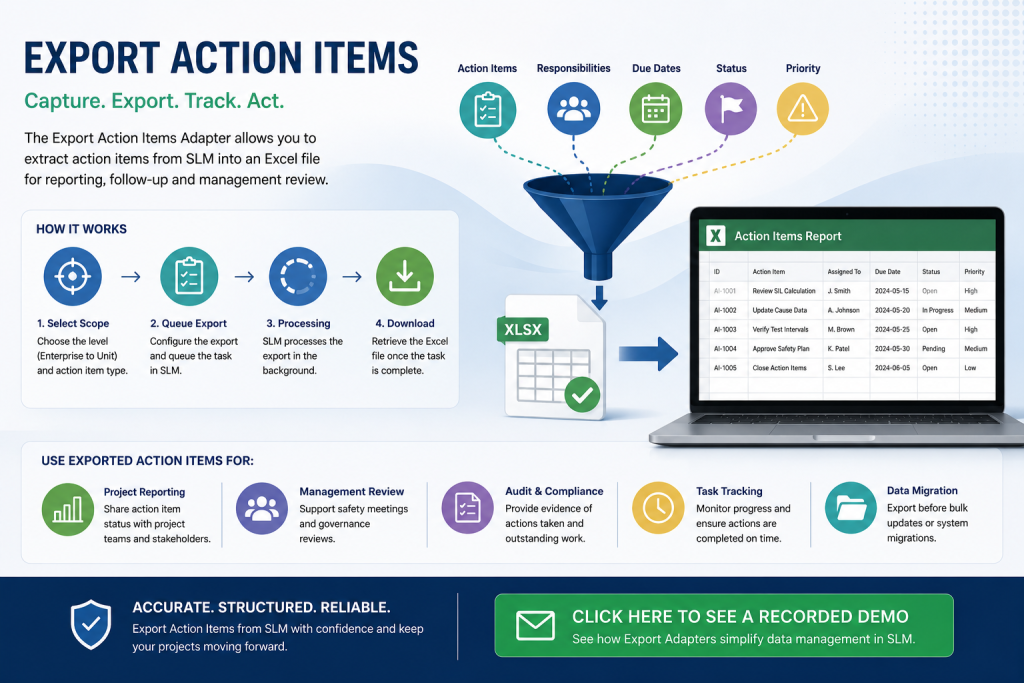
The Export Action Items Adapter enables users to download action item information into an Excel file for reporting and follow-up activities. Administrators can choose the type of action items they wish to export before queuing the task through the Export Adapter module.
Once processing has completed, the exported file contains the selected action items together with their associated information, providing a simple way to review outstanding work outside the SLM environment.
Exporting Action Items supports:
- Project progress reporting.
- Management review meetings.
- Engineering audits.
- Task tracking.
- Offline analysis and documentation.
Where corrective actions need to be managed throughout the functional safety lifecycle, organisations may also find the Action Item Tracker useful for maintaining visibility of engineering activities across projects.
Exporting Reference Tables
The Export Reference Tables Adapter enables administrators to export the contents of SLM reference tables into a structured Excel file. Reference tables store standardised values used throughout the system, helping to maintain consistency across engineering data and administrative processes.
To perform an export, users select the required reference table and queue the export task. Once processing has completed, the generated Excel file can be downloaded for review, reporting or offline editing. The exported file contains the complete contents of the selected reference table, with each column representing one of the configured fields.
Exporting reference tables is particularly useful when:
- Reviewing standardised engineering values.
- Auditing configuration data.
- Sharing controlled lookup information with project teams.
- Preparing data for migration activities.
- Maintaining consistency across multiple SLM environments.
For organisations performing wider data administration activities, reference table exports complement the Data Management Processing Adapters guide by allowing configuration data to be reviewed before bulk updates are carried out.
Exporting Instruments to SPI
The Export Instruments to SPI Adapter allows engineering information within SLM to be exported in a format compatible with SmartPlant Instrumentation (SPI). This supports organisations that need to exchange instrument and function data between SLM and external engineering applications.
Users begin by selecting the appropriate scope, from Enterprise down to individual Units, before choosing the required export format. Once the export task has completed, SLM generates a structured output file containing instrument and function information suitable for use within SmartPlant Instrumentation. The training demonstrates that the exported data includes plant, area and unit information together with function identifiers, input and output details and other associated engineering fields.
This capability helps reduce manual data transfer, improves consistency between engineering systems and supports integrated project workflows where functional safety information is shared across multiple applications.
Best Practices for Exporting SLM Data
Export Adapters are most effective when used as part of a structured data management process. Before generating export files, administrators should confirm the scope of the export, select only the information required and verify that the chosen export options are appropriate for the intended purpose.
Recommended best practices include:
- Export only the scope required for the task.
- Use meaningful export names to simplify file management.
- Retain exported files as part of the project audit trail where appropriate.
- Review exported data before using it for reporting or import activities.
- Preserve the original file structure when preparing data for re-import.
- Validate engineering information before distributing exported files externally.
Export Adapters work alongside the Data Management Delete Adapter and Data Management Processing Adapters to provide a complete workflow for exporting, reviewing and managing engineering information within Safety Lifecycle Manager.
Related Resources
Authoritative External Reference
For additional guidance on functional safety lifecycle management and Safety Instrumented Systems, see the IEC 61511-1 Functional Safety standard.
Data Management – Export Adapters
0:06
Welcome to this Application Explainer video, part of our Data Adapters topic range.
0:10
In this video, we’ll cover the subject of export Adapters within SLM.
0:15
An export adapter for a software application is a specialized component or plugin that allows data to be extracted from the software in a specific format for using other applications or systems.
0:27
It acts as an intermediary that translates or converts internal data structures into a format suitable for export, ensuring compatibility with external systems or tools.
0:38
Additionally, the exported format may be designed to allow the data to be re imported back into the original system or another compatible system, enabling seamless data transfer and integration.
0:50
In SLM, these adapters are in the Adapters module under the Export Adapters section.
0:55
The following information will be covered in this training.
0:57
Chapter one will be Smart Export Adapter, Chapter 2 will be Export Templates, Chapter 3 will be Export Data, Chapter 4 will be exporting action items, Chapter 5 will be exporting reference tables, and Chapter 6 will be exporting instruments to SBI.
1:22
In Chapter 1, we’ll cover how to use all configurations for the Smart Export Adapter.
1:28
The Smart Export Adapter is used to extract data from SLM in Excel format with predefined headers.
1:35
Users can modify and add data to this file and then import it back into the system if needed.
1:41
Let’s review the parameters available when using the Smart Export Adapter.
1:46
The scope is a list of objects from the enterprise down to the unit, allowing users to choose the scope for exporting data.
1:54
Here we have a selection of options.
1:57
Include Documents generates an Excel file with documents created under each object to be exported.
2:04
Include Checklists generates an Excel file for each type of checklist that are created for the objects to be exported.
2:13
Include Attachments.
2:14
This will include physical documents uploaded to the system related to the SLM objects.
2:22
Include empty Data types Creates an empty Excel file for type of objects with no data.
2:28
This file can also serve as an import template.
2:32
Include Action Items will generate an Excel file with the action items created for all the objects that are going to be exported.
2:41
Include relational Data.
2:42
The Include Relational Data option will export relational data, which is a non parent child relationship in an Excel format.
2:50
For example, it includes relationships between SIS and the SIF for a relational field such as related functions.
3:00
The export name allows users to set a custom name for the export file.
3:04
Otherwise, SLM will generate one automatically and the include file levels option will add a sequential number for each file to be exported, indicating the order in which the files can be re imported back into the system.
3:20
We’ll use the Atlanta site.
3:22
Let’s click on export task.
3:24
Then we can go to Export adapter tasks to check on the status of this task.
3:29
Once the task was finished, let’s go ahead and download the zip file.
3:35
If we now open that file, as we can see we have a specific excel file for each data type in the system that was exported.
3:46
Also we can notice the sequential numbering for each data type.
3:49
For example starting from 01 for the site and then after the site we have a cause conditional modifier.
3:57
So this numbering is used to import the data back into the system.
4:00
Also, if we open one of these files, we’re going to be able to see the specific formatting that SLM generates for each one of the exported files.
4:08
It’s going to be an Excel file with five rows, with the first one being a header.
4:13
The first row, the header, will be the type ID of the data that’s been exported.
4:17
In this scenario, that’s obviously the site.
4:21
The 2nd row will contain the label for each one of the fields for the data that’s been exported.
4:28
The third row will contain the field ID, and then on the 4th row under the object ID, it specifies the parent type for the current object.
4:36
In this scenario, for the site, the parent type will be Enterprise and the template data type.
4:42
As we can see, there’s only one site in this file, which is the one that we exported.
4:47
Additionally, we will find all the related relational data that has been exported.
4:52
For example, the reldat SIF file.
4:55
This is a SIF that is related through the Related functions field with the SIS in the system, and it contains the same format as any other exported Excel file.
5:05
We can also take a look at the checklists.
5:07
These are the checklists that were created under this scope.
5:09
There’s also files for Documents.
5:12
We can see that there’s two documents here.
5:14
They’re actually physical files.
5:16
So since we enabled the attached documents options, it’s going to download the physical files.
5:21
We can find those under the Files folder if we scroll to the top, and inside here we can see the two physical files.
5:30
In Chapter 2, we’ll cover how to export data type templates.
5:35
The Export Template Adapter allows users to download an Excel template designed for entering data in a format compatible with the SLM import Adapter, enabling the adapter to insert or update data in SLM.
5:47
For this tutorial, let’s proceed by downloading one of these templates.
5:51
Let’s filter for a SIF as the data type and then click on Queue Export Task.
5:58
Then we go to the Export Adapter tasks to check on the status.
6:03
Once completed, we can download the file.
6:10
As we can see, this is just going to be an empty file with a specific header structure for the user to enter data for the SIF.
6:17
The first row will specify the data type that we’re dealing with, and in this scenario it’s going to be a SIF.
6:23
The second row will be the label for each one of the fields.
6:25
The 3rd row will be the field ID, and under the 4th row in the Object ID column, we’re specifying the parent data type for the SIF.
6:34
So these templates are going to be used to populate data and use the SLM Import adapter to insert or update data in SLM.
6:44
In Chapter 3, we’ll cover how to export data from a single data type in SLM.
6:51
In order to use the Export data adapter, you just need to select the scope from where they’re going to export the data and the data type that they would like to export.
7:00
For this tutorial, let’s select all sites, all units, and the SIFT data type and click Queue Export Task.
7:09
Now we can go to the Export Adapter tasks to keep track of the status of our task.
7:14
After the task is processing, you can see the percentage that’s complete.
7:19
That task has now been completed so we can click on Download the file.
7:27
Let’s now open that file.
7:30
Now we can see the Excel file with the for row format where the 1st row is going to be the type ID field label field ID.
7:40
The 4th row identifies the data type parents for the SIF and we can see the information for the Sifts exported from the system and all of their fields.
7:53
In Chapter 4, we will cover how to export action items.
7:57
In order for users to download action items data from SLM, the Export Action Items adapter can be used.
8:03
Let’s go ahead and select what type of action item the user would like to download.
8:08
For this tutorial, let’s select standalone action items and click on Queue Export Task.
8:14
Then let’s go to the Export Adapter tasks to check on the status of the process.
8:20
Once the task is completed, let’s go ahead and download the file and we can see a list of all the standalone objects in the system that have been created with its respective data.
8:39
In Chapter 5, we’ll cover how to export reference tables.
8:43
In order to export the data from a reference table, users can use the Export Reference Adapter.
8:50
Then the user needs to select which reference table they would like to export.
8:59
Select the specific table, click on Queue Export task.
9:06
Then we can go to the export task adapters, check on the status of the task.
9:13
Once the task is completed, users can download the file, and this file will contain all the information inside the reference table, with the first row specifying each column of the table.
9:33
In Chapter 6, we’ll cover how to export functions in a format compatible for Smartplant instrumentation software.
9:41
In order to use the export instrument to SPI, users need to select the scope that goes from the enterprise all the way down to the units.
9:48
For this tutorial, let’s select the enterprise and the format in which the user would like the output of this file.
9:55
For this tutorial, let’s select Excel.
9:59
Click on Export.
10:00
Let’s now open this file.
10:02
This file will contain every single unit and input and output associated in a format that the Smart Plant instrumentation software will be able to use.
10:11
As you can see, we can see the plant name, area and unit.
10:16
Then we have the type functions, the function ID, the input and output ID, and the rest of the fields for the functions and inputs and outputs.


