
SLM Background Task Manager Guide
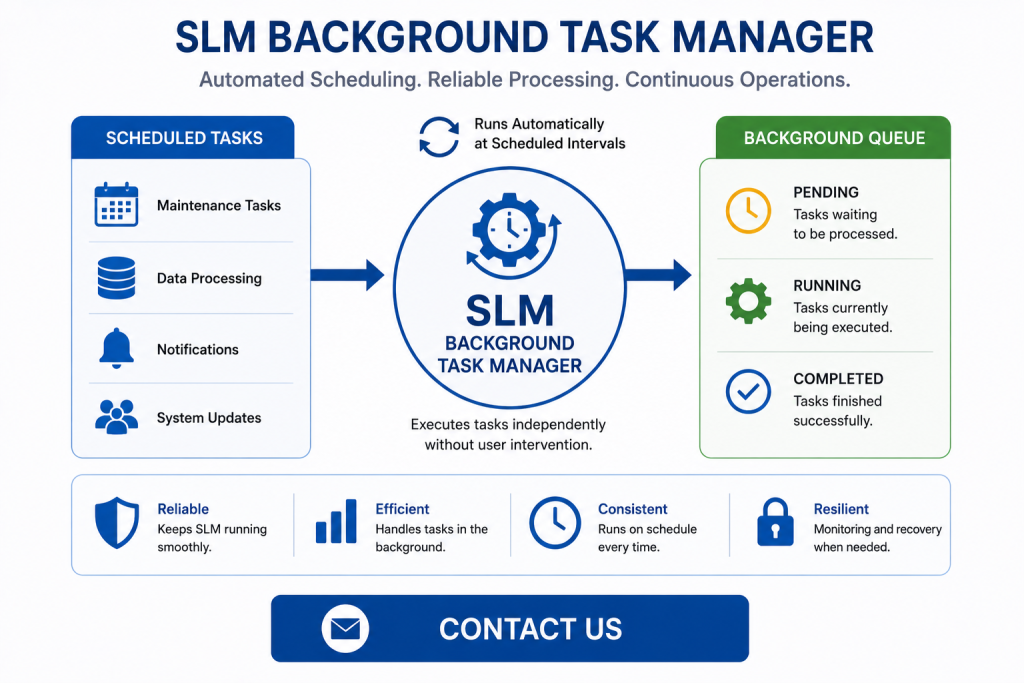
The SLM Background Task Manager schedules and executes automated tasks within Safety Lifecycle Manager. These background processes run independently of normal user interaction, allowing SLM to perform recurring maintenance, updates, data processing and other scheduled activities automatically.
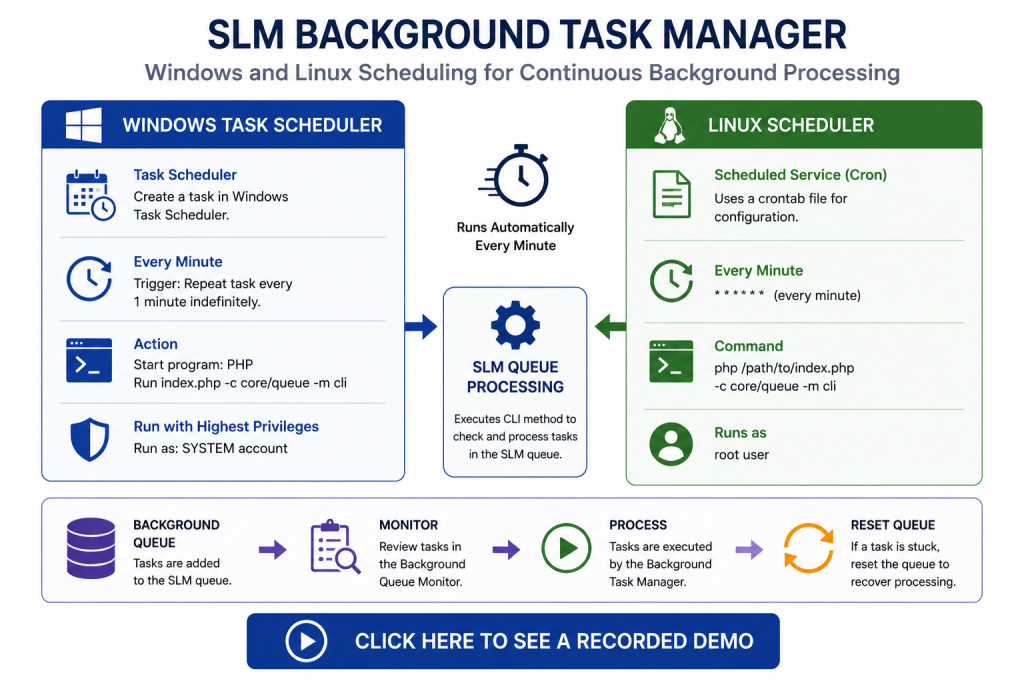
The scheduler can operate in both Linux and Windows environments. Linux uses a scheduled service and configuration file, while Windows uses Windows Task Scheduler to execute the required SLM background process at defined intervals.
This guide explains how the SLM Background Task Manager is configured, how administrators manage scheduled tasks, how the Background Queue Monitor provides task visibility and how the Reset Queue function can recover processing when a task becomes stuck.
What Is the SLM Background Task Manager?
The SLM Background Task Manager provides the scheduling and processing framework used for automated tasks within SLM.
Background tasks run independently of normal user activity and can perform recurring operations such as maintenance, system updates, data processing and other repetitive functions without requiring a user to initiate every action manually.
SLM includes tasks that can run on defined schedules, as well as background processes created by application activity. These tasks are placed into the SLM queue and processed by the configured scheduler.
For the wider server environment supporting these services, see the SLM On-Premise Hardware and Software Requirements guide.
Configuring the Background Scheduler in Linux
In the Linux environment demonstrated in the training, the SLM task scheduler is managed through a scheduled service and configuration file.
The scheduling format defines when a command should execute using fields for:
- Minute
- Hour
- Day
- Month
- Day of the week
- User
- Command
For SLM, the demonstrated scheduler is configured to execute every minute. The scheduled command runs PHP and passes the SLM index.php file together with the controller and CLI method required to analyze the SLM queue.
This recurring process checks the queue for tasks that are ready to execute.
The training also demonstrates stopping, starting and reloading the Linux scheduling service. Administrators should use the commands supplied for their deployed environment rather than assuming that service-control commands are identical across every Linux distribution or container image.
SLM Background Task Manager Configuration in Linux
On Windows, the SLM Background Task Manager relies on Windows Task Scheduler to execute the recurring background process.
The demonstrated task is created using the following general configuration:
- Task name: SLM Task Scheduler
- Run using the System account
- Run with highest privileges
- Trigger once and repeat every minute indefinitely
- Execute the PHP program
- Pass the SLM
index.phppath and required controller method as arguments
The training also disables the condition that restricts execution to AC power so the task can run regardless of that state.
Within the task settings, the demonstrated configuration allows a new task instance to run in parallel when another instance is already running.
After creation, Windows Task Scheduler provides controls to run, end, disable or enable the SLM scheduler task.
Managing SLM Background Task Manager Schedules
The SLM Background Task Manager also provides application-level management of scheduled processes through the System module.
Administrators can access these tasks through Background Task Manager and Manage Task Schedules.
The training identifies automatic SLM tasks including:
- Destroying idle accounts
- System cleanup processes
- Updating test groups
- Managing the notification agent
- Other scheduled background activities
These maintenance-related processes are typically scheduled for periods such as midnight or early morning to reduce disruption to normal users.
System administrators can also execute a task manually using the Run Task function or edit the task configuration.
The demonstrated edit options include changing the task name and execution order.
Using the Background Queue Monitor
The Background Queue Monitor provides visibility into tasks currently being processed by SLM.
System administrators can access it through the System module under Background Task Manager and Background Queue Monitor.
The monitor can show tasks in states including:
- Pending
- Running
- Completed
For completed tasks, the training demonstrates information including:
- Status
- Description
- Scheduled date
- Modified channel
- Task information
This allows administrators to review whether background processing is progressing normally and whether individual tasks have completed.
Regular SLM users can also monitor pending and running tasks from supported user modules using the background-task icon in the top toolbar.
Resetting a Stuck Background Queue
Occasionally, a background task can stop or remain idle because of code, network or other processing issues.
A stuck task can prevent later tasks in the queue from executing, making queue recovery an important administrative function.
The SLM Background Task Manager includes a Reset Queue feature for this purpose.
Administrators can access the function through:
System Module → Background Task Manager → Reset Queue
Executing the reset clears the idle task demonstrated in the training, allowing subsequent background tasks to continue processing.
The Reset Queue function should therefore be used when a task is preventing normal queue progression rather than as a routine way to clear active processing.
How Background Processing Supports SLM Operations
The SLM Background Task Manager supports several different parts of the application by moving recurring and potentially longer-running operations into background processing.
This same background-processing model appears elsewhere in the SLM technical environment. For example, search-index rebuilds create background tasks, allowing administrators to initiate an indexing operation without performing the complete process synchronously.
The SLM Search Indexing and Index Rebuild Guide explains how index rebuilds and automatic index updates use background processing.
Other maintenance operations may also need to be investigated alongside application-level logs. The SLM Application Maintenance guide covers IIS and PHP logging that can provide additional evidence when troubleshooting application behaviour.
Windows and Linux Scheduler Differences
The main difference between the Windows and Linux implementations is the operating-system mechanism used to trigger the SLM queue-processing command.
On Windows, the recurring task is configured through Windows Task Scheduler. On Linux, the training demonstrates a scheduled service and configuration file that execute the SLM processing command every minute.
In both cases, the objective is the same: run the SLM background-processing method regularly so that queued tasks can be identified and executed.
Administrators should therefore focus on two separate layers when troubleshooting:
- Whether the operating-system scheduler is running correctly.
- Whether the SLM background queue itself contains tasks that are pending, running, completed or stuck.
Distinguishing between these layers can help determine whether a problem originates with the scheduler that checks the queue or with a task already inside the SLM processing queue.
Maintaining Reliable Background Processing
The SLM Background Task Manager is an important administrative component because automated application processes depend on the scheduler and queue working together.
A practical administration approach should include:
- Confirming that the operating-system scheduler is active.
- Reviewing scheduled SLM tasks and their execution order.
- Monitoring pending and running tasks through the Background Queue Monitor.
- Reviewing completed task information where necessary.
- Using Reset Queue when a stuck task prevents subsequent processing.
These controls give administrators visibility across both scheduling and execution, helping them distinguish between a task that has not yet been triggered and one that has entered the queue but is not progressing normally.
For general background on Windows scheduling behaviour, administrators can refer to Microsoft’s Task Scheduler documentation. SLM-specific task names, arguments and configuration should continue to follow MSS documentation and the SLM environment being administered.
Background Task Manager
0:06
Welcome to this IT Explainer video, part of our maintenance topic range.
0:10
In this video, we’ll cover the subject of the Background Task Manager within SLMA.
0:16
Background Task Manager is a component or service designed to schedule and execute tasks automatically at specific intervals or times.
0:24
These tasks, often referred to as background tasks or jobs, run independently of user interactions, allowing the application to perform regular maintenance, updates, data processing, and other repetitive functions without manual intervention.
0:39
The following information will be covered in this training.
0:41
Chapter one will be task manager configuration in Linux.
0:45
Chapter 2 will be task manager configuration in Windows.
0:49
Chapter 3 will be managing task schedules, Chapter 4 will be the background queue monitor, and Chapter 5 will be resetting the background queue.
1:01
In chapter one, we’ll be covering how to configure the task scheduler in Linux and how to restart the task scheduler in Linux.
1:11
The task scheduler in Linux is managed by the Chrome service, which uses a Chrome tab file for configuration.
1:18
The file format includes the following elements in order, minutes, hours, days, month, day of the week, username, and then the command to be executed.
1:39
For SLM, we have a task configured to run every minute.
1:43
As you can see, in order to run on every minute, we have to place an* on the minute position, which means on every minute of every hour of every day, every month.
1:58
The user root will execute the following script PHP that will receive the index PHP file located under the web root folder and it will execute the method CLI located in the QA controller.
2:14
This method analysis the SLMQ and checks for tasks that need to be executed.
2:21
Now let’s go over the machine for our instance SLM gold.
2:25
The way that we stop this service is with the following command, ETC.
2:30
Init dot D Chrome stop.
2:33
If we want to start the service, just type start at the end.
2:43
If we’d like to stop and restart the service in a single command, we can use reload.
2:55
In Chapter 2, we’ll be covering how to configure the scheduler in Windows and how to restart the scheduler in Windows.
3:03
In Windows, the SLM background task is executed by the Windows Task Scheduler.
3:09
Let’s go ahead and configure the task.
3:12
In order to do that, we need to click Create Task.
3:16
We’re going to assign a name SLM Task Scheduler.
3:23
We need to select which user is going to run this task.
3:27
Let’s type System, click Check Names and click OK Let’s click the check box to run with the highest privileges.
3:38
Now let’s click the Triggers tab.
3:41
The trigger will allow us to specify how often the task is going to be run, so the settings we’re going to use is one time on the moment we create the task.
3:50
We’re going to repeat the task every minute and for a duration of indefinitely.
4:01
Let’s make sure that Enabled is checked and click OK.
4:06
We’ll leave the rest of the options with their default values.
4:10
Now that we have a name for task and how often it’s going to be triggered, let’s go to the Actions tab.
4:15
Let’s click New.
4:18
When this task is executed, it’s going to start a program.
4:22
In our case, it’s going to be PHP, so let’s search for where PHP is installed.
4:30
Let’s click that file and click Open.
4:35
As part of the argument, we need to specify the file that PHP will receive as an input and the controller and the method that’s going to be running on every minute.
4:44
The file will be the index dot PHP which is located under the web root folder for our code base.
4:51
So let’s copy that path and the controller that’s going to execute will be core slash cure and the method CLI.
5:09
Let’s click OK under conditions.
5:15
Let’s uncheck this box.
5:17
Start the task only if the computer is on AC power.
5:20
We want to start the task regardless.
5:23
Let’s go to settings.
5:26
We’ll leave all of these options as default except this very last one, which we’re going to change to.
5:33
If the task is already running, then the following rules apply.
5:36
Run a new instance in parallel.
5:39
Let’s click OK and we can see the task has been created.
5:45
Here on the right side panel we have some options.
5:50
We can end the task if the task was running at the time.
5:56
We can disable the task to completely stop the task so the task scheduler will not run every minute.
6:02
If we want to start that again, we can click on Enable and then to execute the task, we can click on Run and we can see that the status has changed to Running.
6:18
In Chapter 3, we’ll be covering the processes that are run automatically by SLM in the Task Scheduler.
6:25
SLM features a series of tasks that are automatically carried out by the Task scheduler.
6:30
These tasks can be found in the System module and the background task Manager and Manage task schedules.
6:37
These background processes handle maintenance activities, usually scheduled for midnight or early morning to minimise disruption to the users.
6:45
Automatic tasks include destroying idle accounts, system clean UPS, updating test groups, managing notification agent amongst others.
6:56
System administrators can run these tasks on demand by clicking the Run Task button or edit the tasks by hitting the Edit button.
7:04
In here, we can modify the name and the execution order.
7:12
In Chapter 4, we’ll be covering where users can check the tasks that are currently in the SLM queue and their statuses.
7:20
The Background Queue Monitor enables users to track the status of background tasks and processes executed by SLM.
7:27
In the system module, system administrators can find the Background Queue monitor under Background Task Manager and Background Queue Monitor.
7:36
In here, system administrators can view pending and running and completed tasks.
7:41
For completed tasks, details such as the status, description, schedule date, modified channel, and task information is available.
7:51
Regular users can also monitor pending and running tasks within their user modules.
7:56
We go to Instrumented Systems.
7:59
A regular user can keep track of these tasks by clicking on the background task icon located in the top toolbar.
8:09
In Chapter 5, we’ll be covering how to reset the background task queue.
8:14
Occasionally, a background task may stop or remain idle due to code or network issues.
8:20
When this occurs, it prevents the execution of subsequent background tasks.
8:24
To resolve this issue and ensure other tasks can proceed, admin users can use the Reset Queue feature to clear the idle tasks.
8:32
The Reset Queue feature is found in the System module in the Background Task Manager Reset Queue.
8:39
Let’s hit the Execute button to clear this idle task.
8:42
As we can see, the idle task that was stuck in processing has now been removed.
8:47
We’re now just waiting for our last task to be executed, and that last task has now been executed at this point.


