Using SLM Dark Mode
SLM dark mode gives users an alternative display option within Safety Lifecycle Manager. Users can switch between the standard light mode and dark mode depending on their working environment, screen preference, or preferred visual style.
The display mode can be changed during a session using the crescent moon icon, or saved as a preferred theme through the user profile settings.
What Is SLM Dark Mode?
SLM dark mode is a display theme that changes the application interface from the standard light appearance to a darker visual mode.
- Default Mode, also known as light mode
- Dark Mode
This gives users more flexibility when working in Safety Lifecycle Manager and allows them to choose the interface style that best suits their preferences.
Switching Between Light and Dark Modes
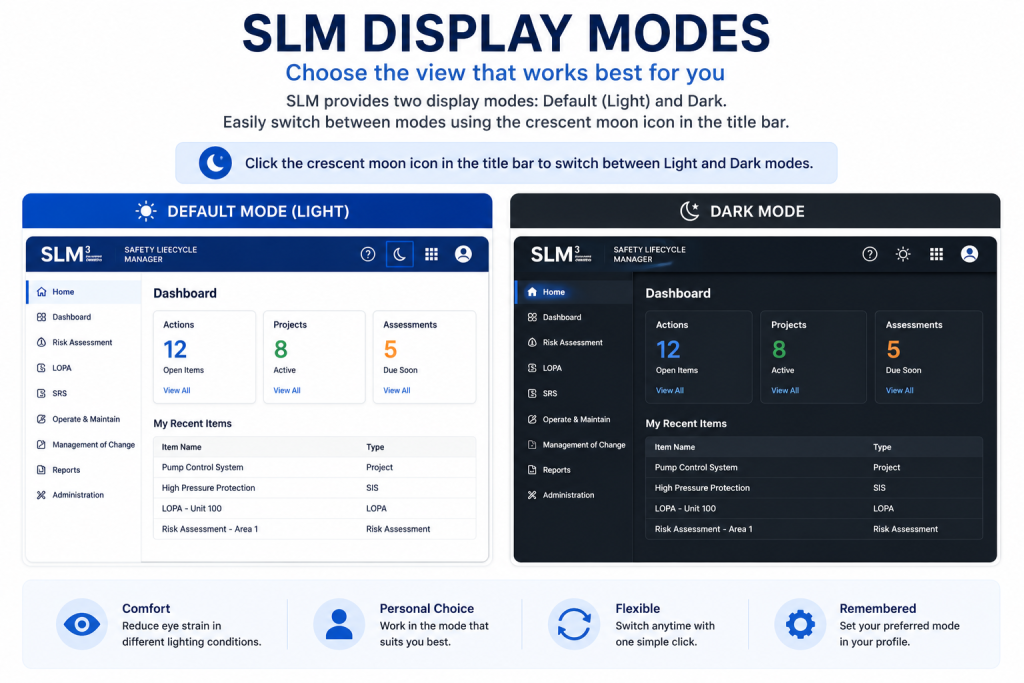
Users can switch between display modes by selecting the crescent moon icon in the title bar.
- Select the crescent moon icon to enable dark mode
- Select it again to return to the default light mode
- The interface updates immediately
- No logout is required
Why Users Choose SLM Dark Mode
Users may choose SLM dark mode when they prefer a darker interface or want an alternative viewing experience during daily work.
- Reduced screen brightness
- Alternative viewing style
- Personalized application experience
- Consistent display preference
Setting a Preferred SLM Theme
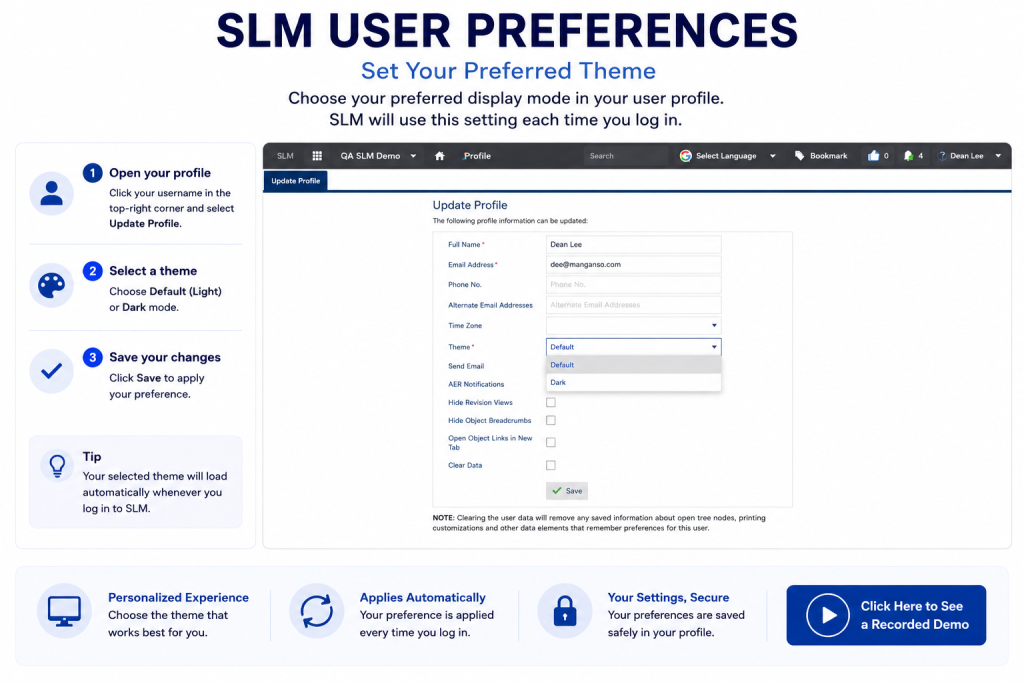
Users can save a preferred theme so that SLM loads in their selected mode each time they log in.
- Select your username in the top-right corner
- Choose Update Profile
- Locate the Theme field
- Select Default or Dark
- Save your changes
Theme preferences are managed through the SLM User Profile, which also provides access to notifications, time zones, and other personal settings.
Managing Display Preferences
Display mode selection forms part of the wider user preference options available in Safety Lifecycle Manager.
- Theme preferences
- Notification settings
- Time zone settings
- View preferences
- Interface customization
These settings help users tailor the application to their preferred working style.
Benefits of Using SLM Display Modes
Providing both light and dark display options gives users greater control over how they interact with the application.
- Greater user flexibility
- Personalized working environment
- Simple theme switching
- Consistent user experience
- Profile-based preferences
The Nielsen Norman Group provides guidance on user experience design and interface customization strategies that help improve software usability. Learn more about dark mode usability considerations.
SLM-101 UI Modes
0:06
Welcome to this Application Explainer video, part of our SLM 101 topic range.
0:11
In this video we’ll cover the subject of modes within SLMSLM provides the user with two modes for viewing and using the software, default mode and dark mode.
0:22
In this video, we will discuss switching between default mode and dark mode and setting an SLM mode as a preferred mode.
0:34
When logging into SLM, you’ll see a display in its default mode, which is the lighter mode.
0:40
To change modes, click on the Crescent moon located in the title bar.
0:44
The display now shows SLM in dark mode.
0:48
Click it again to switch to the default mode or the lighter mode.
0:53
You can also set a preferred mode Let’s in SLM know which mode you wish to see when you log in.
0:58
To do this, navigate to the top right where the username appears, click on the drop down and select Update Profile.
1:08
As you can see in the theme field, default is currently selected.
1:12
Selecting Dark and saving it will make Dark mode your preferred mode.
1:19
Now whenever you log in, SLM will be in Dark mode.


