
Module Selection
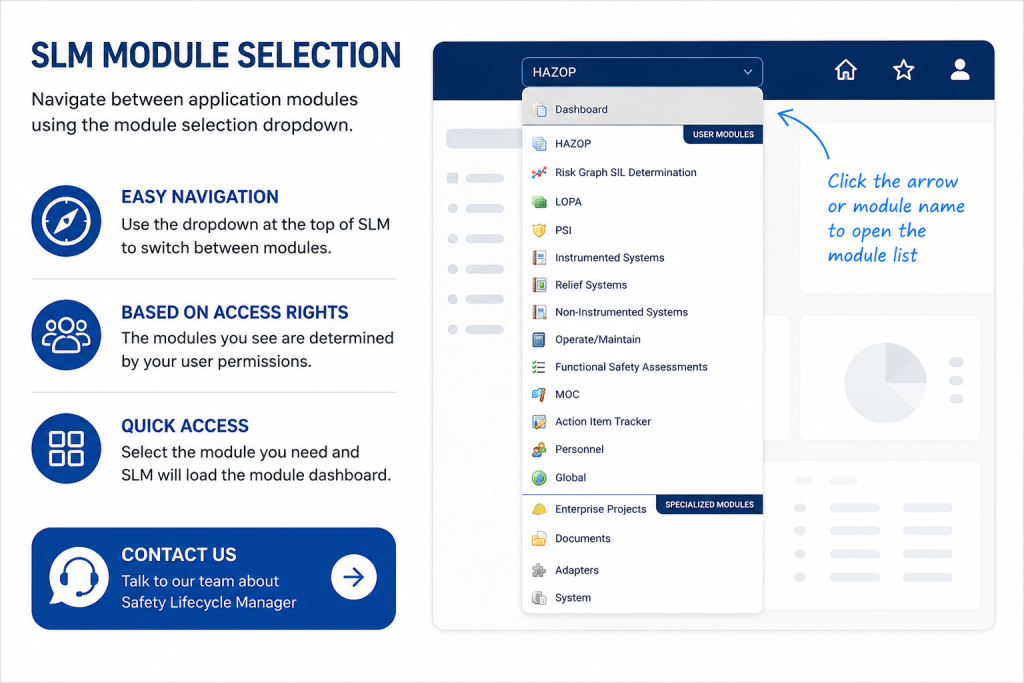
SLM module selection allows users to move between the application modules available within Safety Lifecycle Manager. The module dropdown provides a simple way to access different areas of SLM, depending on the user’s assigned access rights.
Not every user will see every module. The available options are controlled by permissions, helping organisations ensure users only access the modules relevant to their role.
This guide explains how to use the module selection dropdown, navigate to module dashboards, return home within a module, and open multiple modules in separate browser tabs.
What Is SLM Module Selection?
SLM module selection is the dropdown navigation feature used to move between different application modules in Safety Lifecycle Manager.
The dropdown appears at the top of SLM and allows users to choose the module they want to access.
Typical reasons for changing modules include:
- Moving between different lifecycle activities
- Accessing module-specific dashboards
- Reviewing information in different parts of SLM
- Working across multiple safety lifecycle workflows
The list of modules shown is based on the user’s access rights, so available options may vary between users.
How SLM Module Selection Works
The SLM module selection dropdown is activated by clicking either the arrow or the current module name at the top of the screen.
Once opened, the dropdown displays the modules available to the current user.
To change modules:
- Navigate to the top of the SLM screen.
- Click the module name or dropdown arrow.
- Select the module you want to open.
- Wait for the selected module to load.
After a module loads, SLM displays that module’s dashboard window.
Module Access Rights and Permissions
Module availability is controlled by user access rights.
This means not every user will be able to access every module in the dropdown menu.
Access rights help organisations control:
- Which users can view specific modules
- Which areas of SLM are available to each role
- How users interact with different lifecycle workflows
- Which functions are visible within the application
This permissions-based approach supports secure and structured use of Safety Lifecycle Manager across different teams.
For broader information about how SLM supports functional safety workflows, see our Functional Safety Management Software guide.
Navigating Module Dashboards in SLM
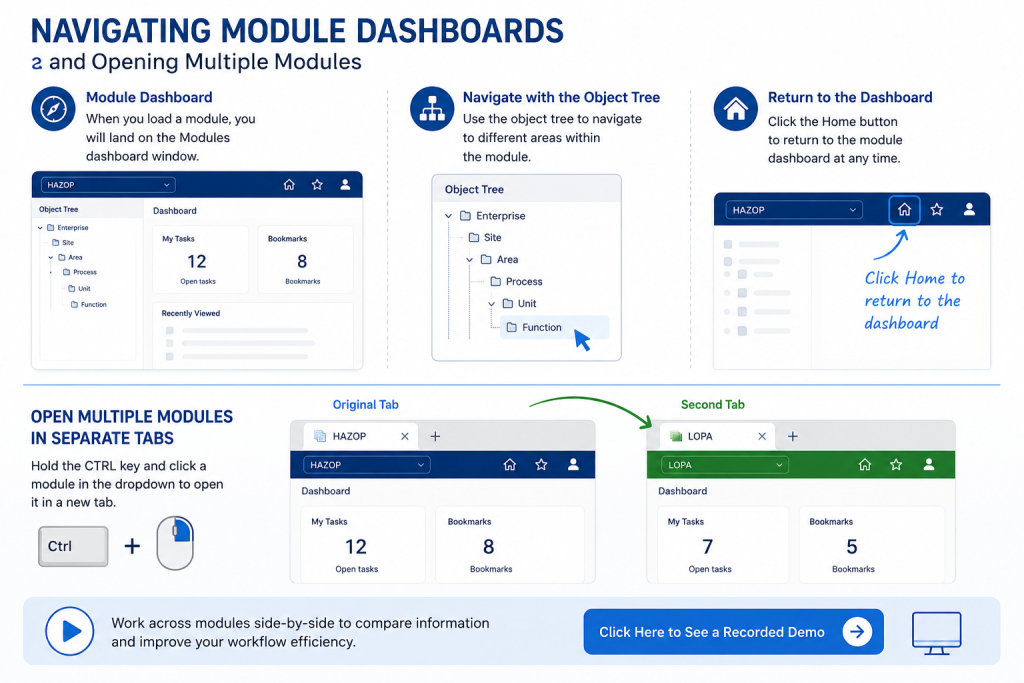
When a new module is selected, SLM loads the module dashboard.
The dashboard provides the starting point for working inside that module.
From the module dashboard, users can navigate using the object tree to access different areas, records, and module-specific information.
If users need to return to the dashboard, they can click the Home button.
This makes it easy to move back to the main module landing screen after working within deeper areas of the module.
Opening Multiple Modules in Separate Tabs
SLM also allows users to open different modules in separate browser tabs.
This is useful when comparing information across modules or working on multiple lifecycle activities at the same time.
To open a module in a new tab:
- Open the module selection dropdown.
- Hold the CTRL key.
- Click the module you want to open.
The selected module will open in a separate browser tab, allowing users to keep another module open in the original tab.
This can improve efficiency when users need to switch between related modules during routine work.
Benefits of SLM Module Selection
SLM module selection helps users move efficiently through Safety Lifecycle Manager without needing to search manually for different application areas.
Key benefits include:
- Fast navigation between available modules
- Clear access based on user permissions
- Quick return to module dashboards
- Ability to work across multiple modules in separate tabs
- Improved workflow efficiency for daily SLM activities
These capabilities make module navigation simple while supporting controlled access to different parts of the application.
Best Practices for Navigating SLM Modules
Users can improve their workflow by following a few simple navigation practices.
- Use the module dropdown when moving between major application areas.
- Use the Home button to return to a module dashboard.
- Open multiple modules in separate tabs when comparing information.
- Check user permissions if an expected module is not visible.
- Use the object tree to move through records within the selected module.
For more information about navigating and locating information in SLM, see our SLM Search guide.
Learn More About SLM Navigation
Module selection is one of the basic navigation tools users rely on when working in Safety Lifecycle Manager. By using the dropdown menu, dashboards, Home button, object tree, and browser tabs, users can move efficiently between the modules available to them.
You may also find these resources useful:
For additional information on functional safety lifecycle standards, visit the International Electrotechnical Commission (IEC).
SLM-101 Module Selection
0:06
Welcome to this Application Explainer video, part of our SLM 101 topic range.
0:11
In this video we will cover the subject of module selection drop down within SLM.
0:18
The module selection provides a drop down menu for navigating to the application modules.
0:24
Modules available in the drop down are determined by user access rights.
0:28
Not all users can access all modules.
0:34
If we navigate to the top of SLM, this area provides a drop down menu for navigating to the application modules.
0:43
Click on the arrow or the module name to activate the list and then select the appropriate module.
0:51
When you load a new module, you will land on the Modules dashboard window.
0:55
From here you can use the object tree to navigate to different areas within the module.
0:59
If you wish to return to the Modules dashboard, simply click the Home button.
1:03
To open different modules in different tabs, simply activate the module drop down, hold the control key and click on your desired module.
1:13
Here we have the local module displayed in a second tab and the Hazard module displayed in the original tab.


