
Object Manipulation – Linking Objects
Linking objects in SLM allows users to create relationships between objects while maintaining a structured and traceable hierarchy throughout the Safety Lifecycle Manager database. These links help ensure information can be reused across multiple locations without creating duplicate records.
As projects and assets evolve, it is often necessary to associate objects with multiple parent structures. SLM provides several methods for creating these relationships while maintaining data integrity and ensuring users can easily navigate between linked records.
This guide explains the rules for linking objects in SLM, the available linking methods, and best practices for maintaining a clean and effective object hierarchy.
What Is Linking Objects in SLM?
Linking objects in SLM creates a relationship between an existing object and an additional parent object. Rather than creating duplicate records, the same object can appear in multiple locations within the hierarchy.
This approach improves data consistency and helps organisations maintain a single source of truth throughout the safety lifecycle.
Common uses for linking objects include:
- Sharing equipment records across multiple structures
- Reusing lifecycle information in different project areas
- Improving traceability between related assets
- Reducing duplicate data entry
- Maintaining consistent information throughout the database
When an object is linked successfully, it remains a single record while becoming accessible from multiple parent locations.
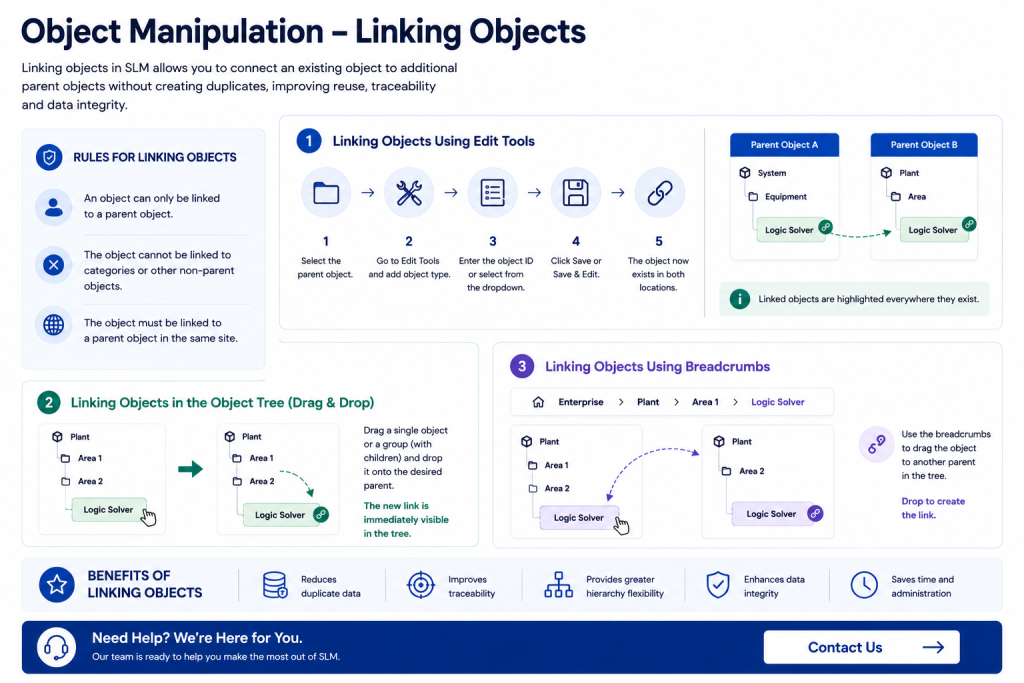
Rules for Linking Objects
Before linking objects, users should understand the rules that govern object relationships within SLM.
Understanding the rules for linking objects in SLM helps ensure hierarchy structures remain accurate and compliant with organisational standards.
The key linking rules are:
- An object can only be linked to a valid parent object.
- Objects cannot be linked to categories or other non-parent objects.
- The object must be linked to a parent object within the same site.
These controls help preserve data integrity and prevent invalid relationships from being created within the system.
By enforcing these rules, SLM maintains a reliable structure that supports lifecycle management and traceability.
Linking Objects Using Edit Tools
The first method for linking objects uses the Edit Tools menu.
This approach provides a simple way to associate an existing object with an additional parent.
To link an object using Edit Tools:
- Select the parent object that will receive the new link.
- Open the Edit Tools dropdown menu.
- Select the appropriate object type.
- Enter the ID of the object you wish to link.
- Alternatively, locate the object using the available dropdown list.
- Click Save or Save and Edit.
Once completed, the object will exist beneath both parent locations while remaining a single shared record.
You can identify linked objects because they are highlighted wherever they appear within the hierarchy.
Linking Objects Within the Object Tree
SLM also supports linking objects directly within the Object Tree using drag-and-drop functionality.
This method is particularly useful when managing large structures and making multiple hierarchy updates.
To link objects using the Object Tree:
- Locate the object you wish to link.
- Select a single object or a group of objects and their children.
- Drag the selected object to the desired parent.
- Drop the object onto the target parent location.
The new relationship is immediately visible within the Object Tree.
This provides a quick and intuitive way of managing hierarchy structures without navigating through additional menus.
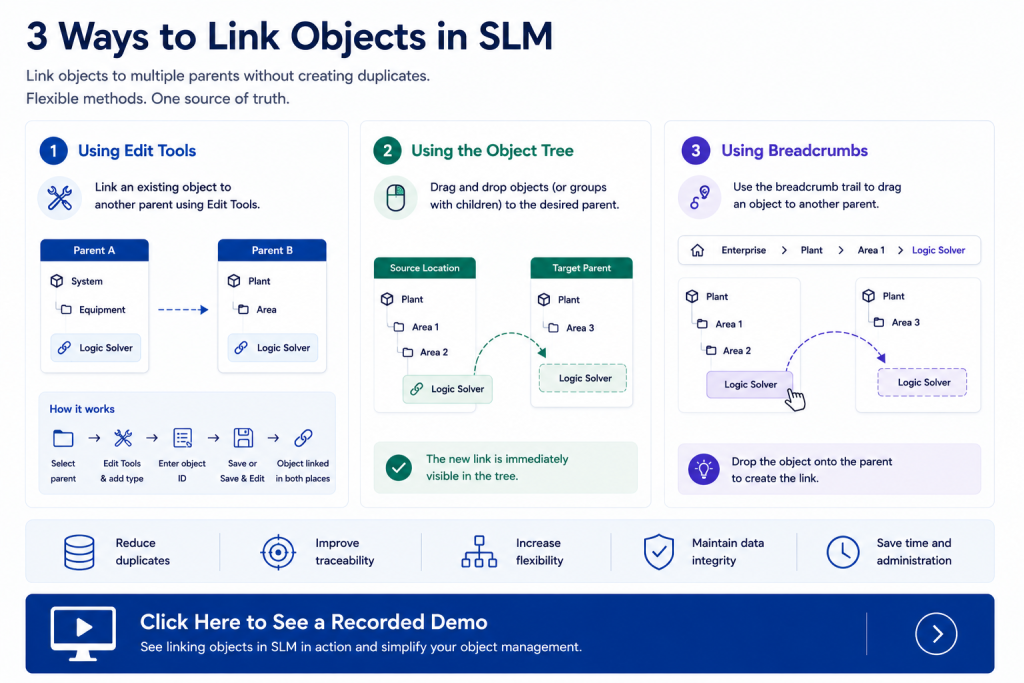
Linking Objects Using Breadcrumbs
Another method for linking objects in SLM uses the breadcrumb navigation displayed at the top of the screen.
The breadcrumb trail shows possible paths from the enterprise level down to the current object and provides an alternative way to create object relationships.
To link objects using breadcrumbs:
- Select the object you want to link elsewhere.
- Ensure the desired parent object is visible in the Object Tree.
- Locate the object within the breadcrumb trail.
- Drag the breadcrumb object onto the target parent.
- Drop the object to create the new relationship.
This method can be particularly useful when navigating complex structures and locating objects through multiple hierarchy paths.
Learn more about navigating SLM structures in our SLM-101 View Templates guide.
Benefits of Linking Objects in SLM
Linking objects in SLM provides significant advantages for organisations managing large volumes of lifecycle information.
Rather than maintaining duplicate records, users can create shared relationships that improve consistency and reduce administrative effort.
Key benefits include:
- Reduced duplicate data
- Improved traceability
- Greater hierarchy flexibility
- Enhanced lifecycle information management
- More efficient administration of object relationships
These capabilities help organisations maintain accurate information while supporting efficient lifecycle management processes.
For organisations implementing digital functional safety processes, our Functional Safety Management Software resources provide additional guidance.
Best Practices for Object Linking
When creating object relationships, it is important to follow consistent data management practices.
Recommended best practices include:
- Verify parent objects before creating links
- Ensure linked objects belong within the same site
- Avoid unnecessary hierarchy complexity
- Review linked relationships periodically
- Maintain clear traceability throughout the lifecycle
Following these practices helps maintain a clean and reliable hierarchy while supporting long-term information governance.
Learn More About SLM Object Management
Understanding how to create and manage object relationships is an important part of effective Safety Lifecycle Manager administration. By using Edit Tools, Object Tree drag-and-drop functionality, and breadcrumb navigation, users can efficiently manage hierarchy structures while maintaining data integrity.
Additional resources you may find useful include:
For further information on lifecycle management principles and industrial safety standards, visit the International Electrotechnical Commission (IEC).
Object Manipulation – Linking Objects
0:06
Welcome to this Application Explainer video, part of our SLM 101 topic range.
0:11
In this video we’ll be covering the subject of linking objects within.
0:15
SLMSLM provides various ways to link objects.
0:19
In this video we’ll be concentrating on rules for linking objects, linking objects with edit tools, linking objects within the object tree, and linking objects using bread crumbs.
0:33
There are certain rules for linking objects and they are The object can only be linked to the parent object.
0:39
The object cannot be linked to categories or other non parent objects.
0:44
The object must be linked to a parent object in the same site.
0:51
The first method of linking objects will be through the Edit Tools drop down menu.
0:58
To use this method, click on the parent of the object that you wish to link.
1:03
Navigate to edit tools, add the object type.
1:11
Enter the ID for the object that you wish to link to that parent.
1:14
It can be found in the drop down as well.
1:17
When finished, you can either click save or save and edit.
1:21
And now the object that we LinkedIn this case the logic solver exists in both places.
1:27
You can tell it’s linked because it’s highlighted everywhere that the object exists.
1:33
The next method used for linking is using the drag and drop method in the object tree.
1:38
Here you can take a single object, or you can take a series of objects and their children.
1:48
You can link them by dragging and dropping that object to the desired parent.
1:56
And now you can see the results of the linking in the object tree.
2:03
The next method of linking is by using the bread crumbs at the top of your screen.
2:08
The bread crumbs show every possible path, or at least a potential path, from the enterprise down to the object that you’re on.
2:19
In order to link using the bread crumbs, click on the object that you wish to link elsewhere.
2:24
Make sure the parent is in view in the object tree and then click on the object in the bread crumbs, drag and drop it to the parent and now it’s linked to that parent.


