
Object Manipulation – Unlinking Objects
Unlinking objects in SLM allows users to safely remove relationships between parent and child objects without deleting the underlying data. As Safety Lifecycle Manager (SLM) databases grow and evolve, object hierarchies often require restructuring to reflect changes in projects, assets, procedures, and lifecycle information.
Unlinking objects is a powerful feature that helps maintain an accurate hierarchy without losing valuable safety information. Whether correcting an incorrect relationship, restructuring a project, or reorganising information, SLM provides several methods for removing parent-child links safely.
This guide explains the rules governing object unlinking, how to use the Edit Tools functionality, object tree shortcuts, and Template View controls to manage object relationships effectively.
What Is Unlinking Objects in SLM?
Unlinking objects in SLM removes the relationship between an object and one or more parent objects while keeping the object itself intact. This allows users to reorganise information structures without deleting valuable lifecycle data.
This functionality enables users to reorganise information structures while preserving the data stored within the object.
Common scenarios where unlinking may be required include:
- Removing an incorrect parent relationship
- Reorganising project structures
- Managing changes to lifecycle information
- Eliminating duplicate object relationships
- Improving overall database organisation
Because the object itself remains intact, unlinking provides a safe method of restructuring information without impacting historical records or traceability.
Rules for Unlinking Objects
To maintain data integrity, SLM enforces specific rules when users attempt to unlink objects.
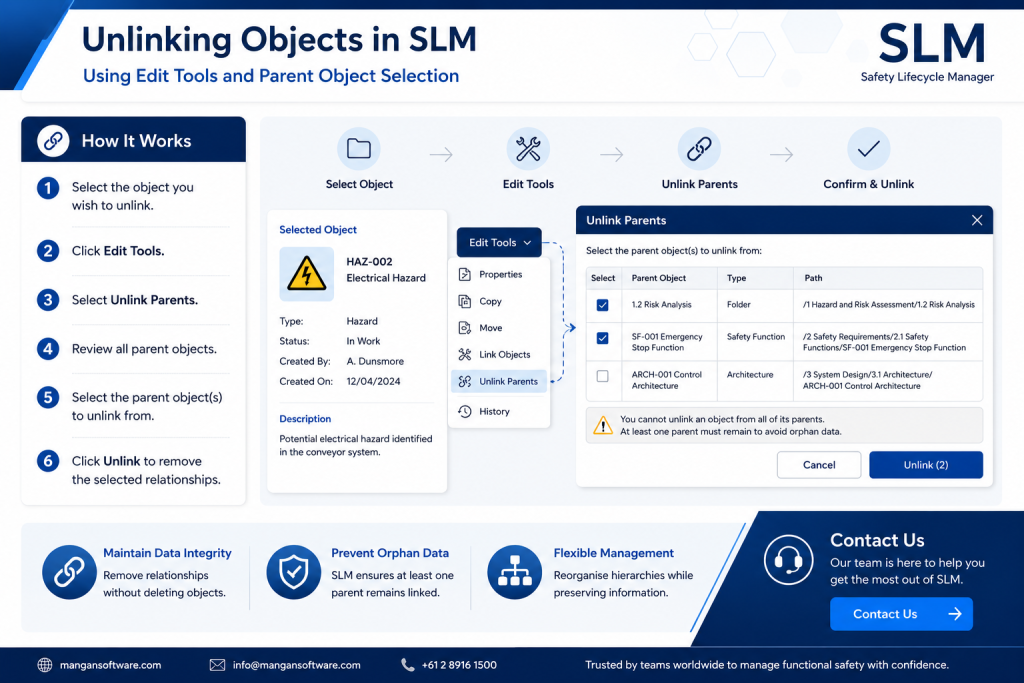
The most important requirement is that the object being unlinked must be connected to more than one parent object. This ensures that removing a relationship does not create orphaned data within the database.
If a user attempts to unlink an object that only has a single parent, SLM displays a warning message explaining why the operation cannot be completed.
These validation rules help preserve the integrity of the object hierarchy and ensure information remains accessible and traceable throughout the safety lifecycle.
By preventing invalid unlink operations, SLM supports effective information governance and reduces the risk of data management errors.
Unlinking Objects Using Edit Tools
The most common method for unlinking objects is through the Edit Tools menu.
This option provides visibility of all parent relationships associated with an object and allows users to choose which relationships should be removed.
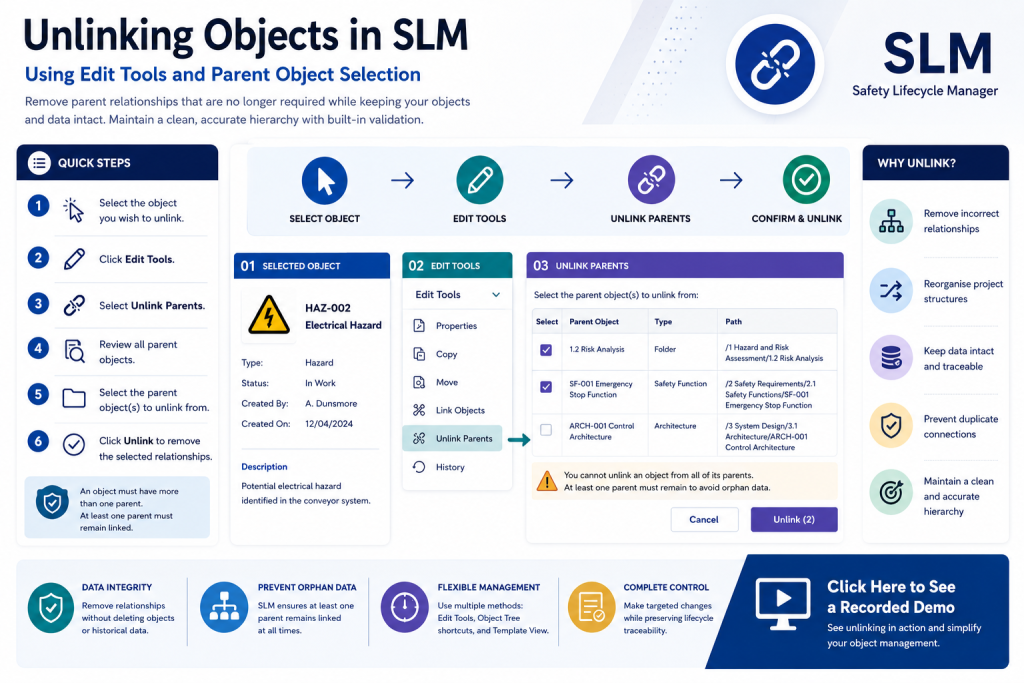
To unlink objects using Edit Tools:
- Select the object you wish to modify.
- Open the Edit Tools dropdown menu.
- Select Unlink Parents.
- Review the list of parent objects displayed.
- Select the parent relationships that should be removed.
- Leave any parent relationships that should remain linked.
- Click Unlink to complete the process.
If all parent relationships are selected for removal, SLM will display a warning because removing every parent would create orphan data.
This safeguard ensures that objects always remain connected within the database structure.
Unlinking Objects Within the Object Tree
SLM also provides a quick keyboard shortcut that allows users to unlink objects directly within the Object Tree.
This method is particularly useful when working with large hierarchies and making frequent structural changes.
To unlink an object using the Object Tree:
- Locate the object within the Object Tree.
- Hold CTRL + SHIFT on your keyboard.
- Click the object you wish to unlink.
A confirmation window will appear asking you to verify the unlink action.
Once confirmed, the relationship between the selected object and its parent is removed.
This approach offers a fast and efficient way to manage object relationships without navigating through additional menus.
Unlinking Objects in Template View
A third method for unlinking objects is available directly within Template View.
When working in supported templates, users can locate the unlink control associated with the relevant object relationship.
Selecting the unlink option removes the connection between the object and its parent while leaving the object itself intact.
This capability allows users to manage relationships without leaving the template they are currently working within, improving efficiency and reducing navigation time.
Template-based unlinking is particularly useful when reviewing records and making targeted hierarchy adjustments during routine administration activities.
Best Practices for Managing Object Relationships
Maintaining a clean and accurate object hierarchy is essential for effective safety lifecycle management.
Before performing unlink operations, users should review existing relationships and confirm that the desired changes support the overall structure of the database.
Recommended best practices include:
- Verify parent-child relationships before unlinking
- Ensure alternative parent objects exist where necessary
- Avoid creating orphaned information structures
- Review hierarchy changes after updates are completed
- Maintain clear lifecycle traceability throughout the system
Following these practices helps ensure information remains organised, accessible, and aligned with company data governance requirements.
Benefits of Using Object Unlinking Features
Object unlinking gives organisations greater flexibility when managing information throughout the safety lifecycle.
By allowing relationships to be removed without deleting records, SLM helps users maintain data integrity while adapting information structures to changing operational requirements.
Key benefits include:
- Preservation of valuable lifecycle information
- Improved hierarchy management
- Reduced risk of accidental data loss
- Enhanced database organisation
- Greater flexibility when restructuring projects and assets
Combined with SLM’s built-in validation controls, unlinking provides a safe and efficient method for maintaining accurate object relationships.
Learn More About SLM Object Management
Understanding how to safely unlink objects is an important part of effective information management within Safety Lifecycle Manager. By using Edit Tools, Object Tree shortcuts, and Template View functionality, users can confidently manage object relationships while protecting data integrity.
To learn more about managing information within SLM, explore these related resources:
For additional guidance on information management and lifecycle governance principles, visit the International Electrotechnical Commission (IEC).
SLM-101 Object Manipulation – Unlinking Objects
0:06
Welcome to this Application Explainer video, part of our SLM 101 topic range.
0:11
In this video, we’ll be covering the subject of unlinking objects within SLMSLM provides various ways to unlink objects.
0:20
In this video, we’ll be concentrating on the rules for unlinking objects, unlinking objects using edit tools, and unlinking objects in the object tree.
0:30
The rule for unlinking object is the object must be linked to more than one parent object.
0:35
If unlinking is attempted with an object that has only one parent, a system message will appear explaining why unlinking was not successful.
0:46
The first method of unlinking objects will be through the Edit Tools drop down menu.
0:54
To use this method, click on the object that you wish to unlink, click on Edit Tools and click Unlink Parents.
1:03
This view displays all of the parents for this particular object.
1:08
To unlink this object from the desired parents, select the parents that you wish to unlink it from whilst keeping the others.
1:19
If you unlink it from all of its parents, you’ll get a warning sign saying you cannot unlink from all its parents, as this will cause orphan data.
1:27
Press unlink to unlink the object from the parents.
1:32
The next method for unlinking is by using a keyboard shortcut within the object tree.
1:38
To do this, navigate your mouse to the object that you wish to unlink, hold CTRL Shift, and then click on the object to unlink it.
1:47
When you do this, you get a confirmation window asking you if you’re sure you want to unlink this object from the parents.
1:55
Click OK and the unlinking has been completed.
2:00
The 3rd way to unlink is in the template view.
2:05
Navigating to certain views.
2:07
In the template view area, you’ll see a button that allows you to unlink those objects.
2:11
Clicking on that will unlink the object from its parent.


