
Using SLM Printing Reports
SLM printing reports allow users to create printed output from views, templates, and formatted reports throughout Safety Lifecycle Manager. Users can print directly to PDF or use their web browser to capture the current view displayed on screen.
These printing options provide flexible ways to share information, review records offline, and distribute process safety documentation.
What Are SLM Printing Reports?
SLM printing reports provide built-in options for generating printable output from object views, template views, and formatted reports.
- Printing to PDF
- Printing using the web browser
- Printing formatted reports
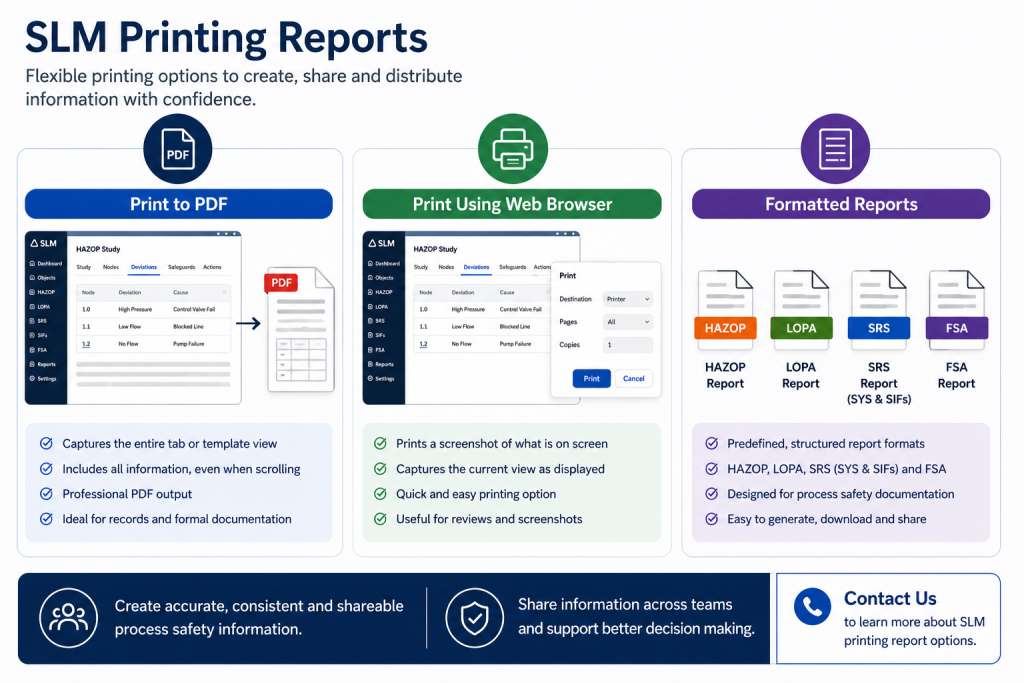
Printing to PDF captures the full selected tab or template view, while browser printing captures the view as it appears on screen.
Printing Views to PDF
Printing to PDF creates a complete output of the selected tab or template view. This includes information that may not be visible without scrolling.
- Full tab content
- Complete template information
- PDF output
- Offline review
- Document sharing
This option is useful when users need a more complete record of information shown within an SLM view.
Printing Through the Web Browser
Browser printing captures the current view as displayed on screen. Unlike PDF printing, this method prints what is visible in the browser at that moment.
- Captures the displayed screen
- Prints visible information only
- Useful for quick screenshots
- Supports rapid review and sharing
Creating Formatted SLM Reports
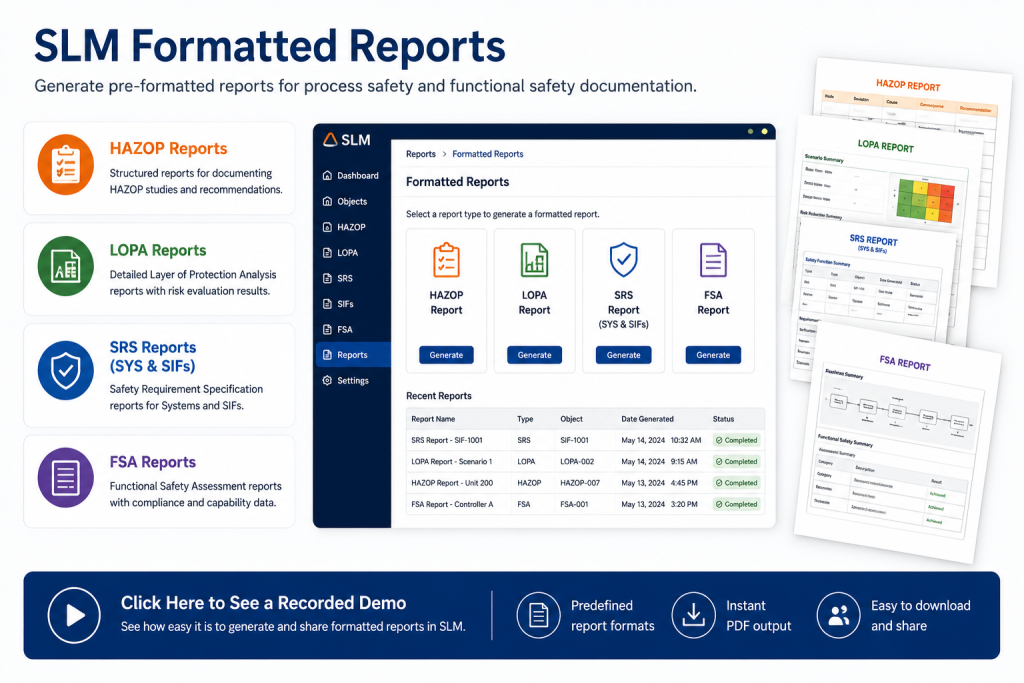
SLM provides formatted reports designed for process safety and functional safety documentation.
Formatted report types include:
- HAZOP reports
- LOPA reports
- SRS reports for SIS and SIFs
- FSA reports
These reports help users generate structured outputs for review, communication, and documentation requirements.
Generating an SRS Report
To generate an SRS report, users navigate to the required report area, open the Print Out tab, select Print, download the generated file, and open the downloaded report for review.
- Navigate to the required SIF or SIS object
- Open the Print Out tab
- Select Print
- Download the generated file
- Open the report for review or distribution
Benefits of SLM Printing Reports
SLM printing reports provide a convenient way to create documentation and distribute information throughout an organization.
- Generate printable documentation
- Create PDF records
- Support regulatory reviews
- Improve information sharing
- Standardize reporting output
- Simplify document distribution
Organizations frequently combine printed reports with SLM Reports to support broader reporting and review activities.
Sharing Printed Information Across Teams
Printed reports and exported PDFs can be distributed to stakeholders who may not have direct access to Safety Lifecycle Manager.
Information can also be shared electronically through SLM Webviews, providing an alternative way to distribute information securely.
The UK Health and Safety Executive provides guidance on managing health and safety information and processes. Learn more about managing health and safety from HSE.
SLM-101 Printing Views and Reports
0:06
Welcome to this Application Explainer video, part of our SLM 101 topic range.
0:11
In this video we will cover the subject of printing views and reports within SLMSLM Provides a user with two methods for printing any view, printing to PDF and printing using the web browser.
0:25
Printing to PDF produces a print out of the entire tab or template view that is selected whilst printing using the web browser prints a screenshot of the entire view as displayed on the screen.
0:36
In this video we will discuss printing to PDF, printing using the web browser and printing formatted reports.
0:44
There are four types of reports that are printed in a formatted way.
0:48
The HAZOP report, the local report, the SRS report for SYS and SIFS, and the FSA report.
1:00
Any view in SLM can be printed by navigating to the desired view on an object and clicking the print button.
1:10
This will bring up a window allowing the choice to select between printing to PDF or printing using the web browser.
1:18
Printing to PDF will produce the PDF showing a display for all of the information on that tab, including what can be seen when scrolling.
1:34
Printing using the web browser takes a screenshot of what is currently showing as it is.
1:46
To print a formatted report, navigate to the desired report.
1:53
In this example, the SRS for the SIF is used.
1:57
Printing the SRS for the SIF, navigate to the Print Out tab and press Print.
2:03
Download the printed file, then open the downloaded file to view the report.


