SLM System Notifications Guide
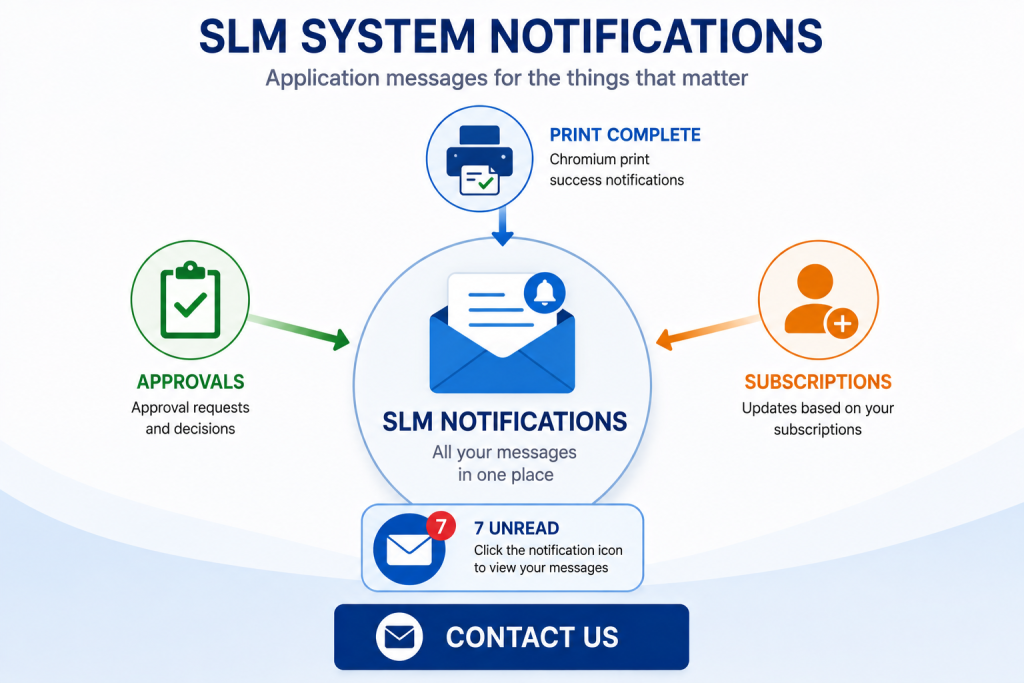
SLM system notifications provide users with application messages relating to approvals, subscriptions and completed print requests. These messages are managed through the Notifications mini module within Safety Lifecycle Manager.
Users can review unread messages, mark notifications as read or unread, star important messages, delete or restore notifications and manage their subscriptions. SLM also provides User Actions functionality for reviewing notifications associated with specific modules and objects.
This guide explains how SLM system notifications work and how users can manage messages through the Notifications module.
Understanding SLM System Notifications
SLM system notifications provide application messaging for several types of activity within Safety Lifecycle Manager.
The training demonstrates notifications associated with:
- Approval activity
- Subscriptions
- Completed Chromium print requests
These messages are collected within the Notifications mini module so users can review and manage them from a central location.
The number displayed beside the notification icon indicates how many notifications are currently unread.
Accessing the Notifications Module
Users can access the Notifications mini module after logging into SLM by selecting the notification icon from the application toolbar.
The default view displays the user’s notification inbox and provides controls for managing individual or selected messages.
Available notification actions demonstrated in the training include:
- Mark as read
- Mark as unread
- Mark as starred
- Mark as unstarred
- Delete
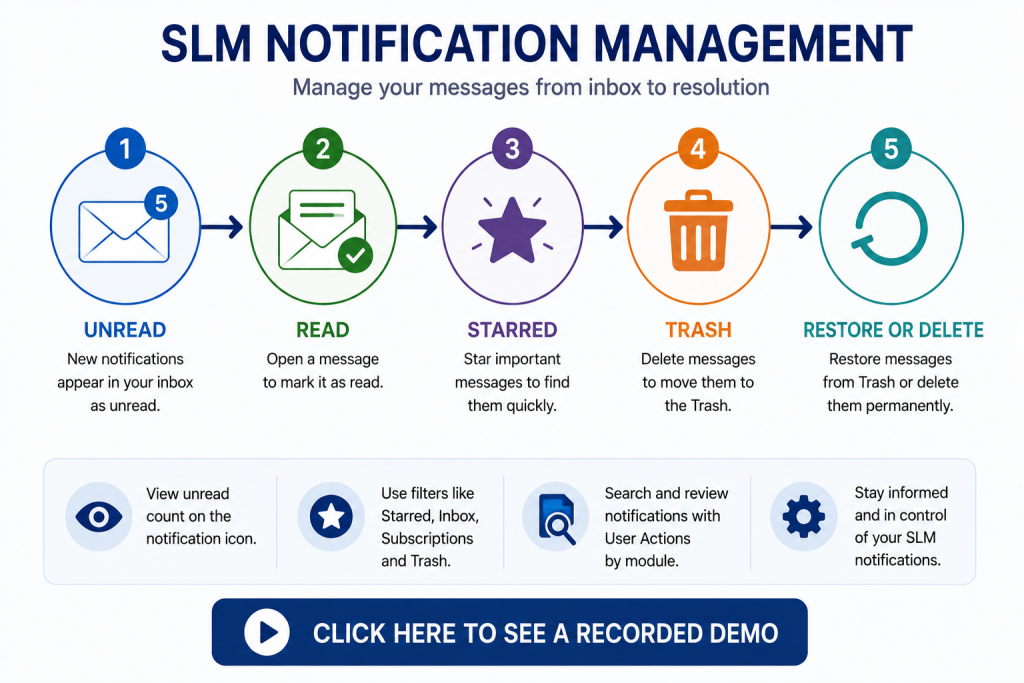
Selecting an individual notification opens its contents and automatically changes that notification to a read state.
Managing Read and Unread Notifications
SLM system notifications use visual states to help users distinguish between messages they have already opened and messages that remain unread.
In the interface demonstrated in the training, unread notifications have a white background. After a notification has been opened, its background changes to grey to indicate that it has been read.
A previously read notification can be returned to the unread state by selecting it and choosing Mark as Unread from the available actions.
This allows users to use the read status as a simple way of keeping track of notifications that may still require attention.
Starring Important SLM Notifications
Notifications that users want to identify or return to later can be starred.
Select the required notification and choose Mark as Starred. A star icon is then displayed against the message.
The Starred area provides a filtered collection of these messages, allowing important SLM system notifications to be located without searching through the complete inbox.
If the notification no longer needs to be starred, select it and choose Mark as Unstarred. It is then removed from the Starred collection while remaining available in the appropriate notification location.
Deleting and Restoring Notifications
SLM system notifications can be removed from the inbox using the Delete action.
Deleting a message from the inbox does not immediately remove it permanently. Instead, the notification is moved into Trash.
The training demonstrates a 30-day deletion period for messages within Trash. This is an environment-specific retention setting rather than a value that should be assumed for every SLM installation.
While a notification remains in Trash, it can be selected and restored. The Restore action moves the message back into the notification inbox.
If a notification needs to be removed permanently, users can select the message while it is in Trash and choose Delete. The message is then permanently removed.
The retention period for deleted notifications can be controlled through application-wide settings. See the SLM System Module Global Configuration Guide for related configuration information.
Managing SLM Notification Subscriptions
The Notifications module also contains a Subscriptions area that lists the user’s subscriptions within SLM.
Subscriptions allow users to receive relevant application notifications associated with subscribed activity.
The training demonstrates that existing subscriptions can be reviewed from this area and removed when they are no longer required.
This gives users direct control over the subscriptions associated with their notification activity rather than requiring every subscription to be managed elsewhere in the application.
Print Completion Notifications
SLM system notifications can also inform users when requested print processing has completed.
The training demonstrates an SLM SIF SRS print notification. Opening the message provides access to the file generated by the requested print operation.
This allows longer-running print activity to complete independently while the resulting notification provides the user with access to the finished output.
These messages form part of the same notification inbox as approval and subscription messages, giving users one location for monitoring different types of application activity.
Reviewing Notifications with User Actions
The User Actions area provides another way to review notification activity within SLM.
Rather than working only with the user’s inbox, User Actions allows notifications to be searched according to information associated with individual SLM modules.
The training demonstrates this using the Functional Safety Assessment module. A site and unit are selected before generating a report containing FSA notifications relating to items for approval.
This provides a useful way to review notification activity associated with a particular area of the application.
For more information about Functional Safety Assessment workflows, see the Conducting an FSA Guide.
Organizing SLM System Notifications
SLM system notifications combine several simple controls that help users manage application messages without losing access to information that may still be required.
A practical notification workflow can include:
- Reviewing the unread count from the application toolbar.
- Opening new approval, subscription or print notifications.
- Marking messages as unread when further attention is required.
- Starring important notifications for easier retrieval.
- Removing subscriptions that are no longer required.
- Deleting unwanted messages and restoring them from Trash when necessary.
- Using User Actions when notification activity needs to be reviewed by module or object context.
These functions give users control over their own notification inbox while retaining access to application-generated messages associated with their SLM activities.
System Notifications and Background Processing
Some SLM system notifications are associated with activities that are processed independently of normal user interaction, such as completed print requests.
SLM also contains a dedicated background-processing framework for automated and queued tasks. Administrators can monitor pending, running and completed background activity separately from the user-facing Notifications module.
For information about those processes, see the SLM Background Task Manager Guide.
This distinction helps separate user-facing messages from the administrative tools used to monitor the underlying processing queue.
Using Notifications Effectively
SLM system notifications provide a central location for messages generated by application activity.
Read and unread states help users identify new messages, starring provides a way to retain important notifications for quick access, and Trash provides an intermediate step before messages are permanently removed.
Subscriptions can also be reviewed and removed directly from the Notifications module, while User Actions provides additional reporting capabilities for reviewing notification activity within individual modules.
For broader guidance on designing and managing effective notification systems, the W3C guidance on status messages explains how application status information can be communicated to users without unnecessarily interrupting their work.
System Notifications
0:06
Welcome to this IT Explainer video, part of our Maintenance Tools topic range.
0:11
In this video, we’ll cover the subject of system notifications within SLM.
0:16
SLM handles user messages for approval notifications, subscriptions, and Chromium print success in your Notifications mini module.
0:25
The Notification module is used for messaging within SLM.
0:29
So SLM sends any approval notifications or subscriptions or print notifications into the Notifications module.
0:37
So the way to access the Notifications module is once you’ve logged into the dashboard.
0:42
There’s a notification icon at the top here, so you click on that to enter the Notifications module.
0:47
The number next to the mail icon is the number of notifications that you have are currently unread.
0:52
So if we click on this, this is the default view of the notification module.
0:57
You can see a list of all of the notifications here.
1:00
We have a drop down here.
1:01
If we just open this, we can see we can mark the notifications as read, mark them as unread, mark them as starred, mark them as UN starred, or delete the notification.
1:14
So to open a notification, you’ll simply click on the notification.
1:19
Let’s click on this SLM SIF SRS print out and we can see in here we’ve got a notification to download a file that’s been requested to print.
1:30
So now it’s a red notification.
1:32
You’ll be able to see that this notification has a greyed background which indicates that the notification has been read.
1:40
If you take a look at the other notifications, they’ve got a white background.
1:42
If we click on this notification and then go back, you can see the one we just clicked on now has a grey background as well because that is now red.
1:53
If we want to mark them as unread again, select them, come to the drop down and click on Mark as unread and now you can see they’re marked as unread again.
2:04
If we want to start a notification, select it, come to the menu and mark as starred, and now you can see there’s the star icon next to the notification.
2:16
Also on to the left.
2:17
Here, if you click on starred, we can see a list of all the notifications that have been starred.
2:22
So let’s come back to the inbox.
2:25
If we want to unstar it, just select it and click on Mark as Unstarred and it’s moved it from the starred collection as well.
2:35
If we want to delete a notification, select it, come to the menu again and click on Delete.
2:42
It will ask if you’re sure you want to delete.
2:44
Select OK in this instance and we can see it’s been deleted from the inbox now, but it will still exist within the trash.
2:52
So if we come to the trash, we can see that message is in here.
2:56
Currently, messages from inside Trash are deleted after 30 days.
3:02
In the meantime, you can come and restore any messages that are in here by selecting them and under the dropdown, select Restore, and that message is now back in the inbox again.
3:15
If we delete the message again and we want to permanently delete this message, come back to the trash, select the message and click on Delete from within here.
3:24
This will permanently delete the message.
3:27
So that’s out of our notification inbox now.
3:30
Another menu item on the left is Subscriptions, which will list all of your subscriptions within SLM.
3:37
We can select here and delete if we want to remove any subscriptions and user actions.
3:42
Under User Actions, you can search for different notifications under each of the different modules.
3:47
Here, for example the FSA module, we can search for approval notifications.
3:55
We just select our site and our specific unit and click on Generate.
4:02
It will generate a report for all of the FSA notifications regarding items for approval.


