
SLM API Usage Guide
SLM API usage enables external applications and integration tools to communicate programmatically with Safety Lifecycle Manager. Through the API, authorized requests can retrieve SLM information, navigate object relationships, create or modify objects and create supported process events.
An Application Programming Interface (API) defines methods and data formats that software applications can use to request and exchange information. Within SLM, these endpoints provide an integration layer that allows other applications to interact with SLM data and functionality.
This SLM API usage guide covers accessing the API, authentication, object methods, parent and child relationships, creating and modifying objects, event endpoints and an example of using SLM API data within a C# application.
Getting Started with the Integration
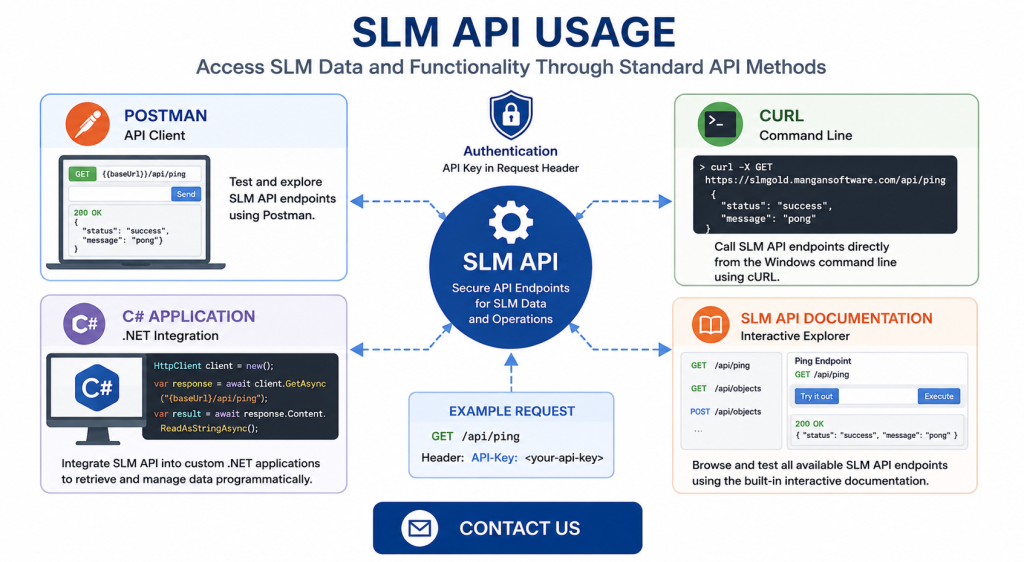
SLM API usage is not restricted to a single development tool or programming language. The training demonstrates API requests using several different approaches, including:
- Postman
- cURL from the Windows command line
- A C# application
- The API documentation provided through an SLM instance
A simple way to test connectivity is the API ping endpoint. The training demonstrates sending a GET request to the ping endpoint and receiving a response from the SLM API.
The same endpoint can be called using a C# application, cURL or Postman, demonstrating that the underlying API can be accessed through different clients capable of making the appropriate HTTP request.
SLM also provides API documentation through the instance, where available endpoints can be reviewed and tested.
For the wider infrastructure in which the API operates, see the SLM On-Premise Hardware and Software Requirements guide.
Authentication and API Keys
Many SLM API operations require authentication. In the examples demonstrated in the training, the SLM API key is passed in the request headers before an authenticated endpoint is executed.
This applies to operations including retrieving protected object information, navigating object relationships, creating objects, updating objects, deleting objects and creating events.
API keys should therefore be treated as security-sensitive credentials. Applications using the API need access to the appropriate key, but that credential should not be unnecessarily exposed through source code, user interfaces, logs or other locations accessible to unauthorized users.
Authentication should be considered at the beginning of an integration rather than added after API functionality has been developed. Requests that require authentication will need the correct SLM API key supplied according to the API requirements demonstrated within the instance documentation.
Retrieving SLM Objects with the API
A major area of SLM API usage is retrieving information about objects. The Objects endpoint allows a request to specify the type of object to retrieve.
For example, the training demonstrates retrieving site information by supplying the appropriate site type ID. The API response returns information for the matching objects together with information such as the total count.
Results can also be filtered when a specific object’s unique identifier is known. Supplying the relevant object identifier allows the request to return information for that particular object rather than the complete set.
This provides the foundation for integrations that need to query selected SLM information programmatically instead of relying on manual navigation through the application.
Navigating Parent and Child Object Relationships
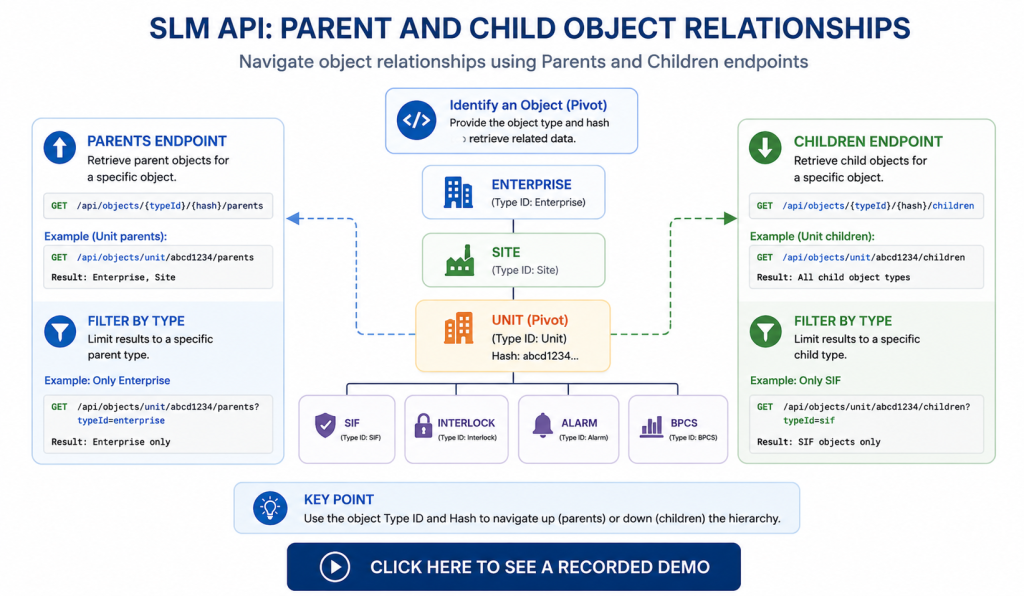
SLM data has relationships between objects, and the API provides endpoints that can be used to navigate those relationships.
The parents endpoint can retrieve parent information for a specific object. The training demonstrates this with a unit, where the returned parent information includes its Enterprise and Site.
The request identifies the object using information including its type and unique hash before requesting the parent relationship. Results can then be filtered to a particular parent type where required.
The children endpoint performs the opposite operation. Given a specific object, it can retrieve information about objects that exist beneath it.
For example, a request can retrieve the children of a unit and then filter those results to a particular object type, such as SIFs.
These endpoints make parent and child navigation particularly useful when an external application needs to understand the context of an SLM object rather than retrieve it as an isolated record.
Creating Objects with SLM API Usage
SLM API usage can also extend beyond retrieving data. The training demonstrates creating a new SLM object using a POST request to the Objects endpoint.
The creation payload contains information including:
- The type ID of the object being created
- The parent relationship for the new object
- The data fields required for the object
In the training example, a new unit is created beneath an existing site. The request identifies the site using its unique hash and supplies fields for the new unit including its object ID, unit name, short ID and unit type.
Authentication is required, so the SLM API key is passed in the request header.
After successful creation, the demonstrated endpoint returns an HTTP 201 response together with information about the newly created object and its unique hash. Reloading SLM then shows the unit beneath the specified site.
Updating and Deleting SLM Objects
The API also supports operations for modifying and deleting existing objects.
To update an object, the training uses the PUT Objects endpoint. The request identifies the object using its hash and supplies the fields that need to be modified within the payload.
For example, the training modifies a site’s short ID and address. After the request is executed, the response contains the object data with the updated values, and those changes can subsequently be seen within SLM.
Deleting an object uses the DELETE Objects endpoint. The object to be removed is identified by its hash, and authentication is again supplied through the SLM API key.
Because API operations can change or remove application data, applications using create, update or delete endpoints should ensure that the intended object and payload have been identified correctly before submitting a request.
Creating SLM Events Through API Endpoints
Another important area of SLM API usage is the creation of events. The training demonstrates API endpoints for three event categories:
- Bypass events
- Demand events
- Test events
A bypass activation can be created using the relevant POST event endpoint. The payload identifies the function where the bypass will be established and contains the applicable bypass fields. After execution, the response includes the unique hash and associated information for the newly created bypass.
Demand events use a separate POST endpoint. The request identifies the relevant function and can include device-event failure data for specified devices.
The training demonstrates creating failure information for an input device and an output device. For other online devices where failure information is not supplied in the demand-event payload, a passed device event is created.
Test events are created through the test-record endpoint. The payload identifies the test group and contains the test-event fields together with device-event data that should be recorded with the test.
There is an important distinction between the demonstrated demand and test workflows. For a test event, only supplied device-event data results in device events. For the demonstrated demand event, online devices without supplied failure information receive device events containing passed values.
The SLM Cloud Gateway Interface Guide provides an example of how another SLM component uses the API to send detected plant process events into SLM.
Understanding SLM API Requests and Responses
SLM API usage requires an integration to send the correct HTTP method, endpoint, authentication information and, where required, a request payload.
The transcript demonstrates several common HTTP methods:
- GET for retrieving information
- POST for creating objects and events
- PUT for modifying existing objects
- DELETE for deleting objects
Responses provide information that allows the calling application to determine the result of a request. Examples in the training include HTTP 200 responses for successful operations and an HTTP 201 response following successful object creation.
GET response information demonstrated in the C# example includes:
- Status
- Data
- Total count
- Limit
- Offset
The contents of the data element vary according to the information requested.
For general HTTP semantics, developers can refer to the IETF HTTP Semantics specification, which defines standard HTTP request methods and response status-code behaviour. The SLM instance documentation should remain the source for the specific SLM endpoints, payloads and authentication requirements used by an integration.
Using the SLM API in a C# Application
The training concludes with a C# demonstration showing how SLM API usage can be incorporated into an external application. This example demonstrates practical SLM API usage for retrieving and presenting selected SLM data programmatically.
The demonstration accepts an API URL and API key and then retrieves site information through the Objects endpoint. Returned information is presented in a table containing fields such as site ID, site name and description.
When a site is selected, the application uses children endpoints to retrieve information about function types beneath that site. The example considers function categories including SIF, interlock, alarm and BPCS.
The demonstration uses response models to work with API data. A general response model represents elements including status, data, total count, limit and offset, while additional models extract only the fields needed for the particular application.
The application’s GET method establishes the API client, constructs the request, includes the API key for authentication, performs the call and deserializes the returned information into the required type.
This illustrates an important principle for SLM integrations: an external application does not necessarily need every field returned by an endpoint. It can model and use the information required for its particular workflow.
For example, the demonstration requests a limit of one when calculating function counts because the application is interested in the total count rather than the detailed information for every function returned by the children endpoint.
Through these object, relationship and event endpoints, the SLM API provides a programmatic integration layer for applications that need to retrieve SLM data or perform supported operations without relying exclusively on manual interaction with the SLM interface.
SLM-API Usage
0:06
Welcome to this IT explaining video, part of our integration topic range.
0:10
In this video we will cover the subject of API usage within SLM.
0:16
API stands for Application Programming Interface.
0:19
It’s a set of rules and protocols that allows different software applications to communicate with each other.
0:25
AP is define the methods and data formats that applications can use to request and exchange information.
0:31
They act as intermediaries that enable the integration of different software systems, allowing them to work together and share data and functionality.
0:39
The following information will be covered in this training chapter.
0:42
One will be accessing Atlas API, chapter 2 will be API Basic Object methods, chapter 3 will be API event endpoints, and chapter 4 will be C# Demo application.
0:59
In chapter one, we’ll be covering using Postman to call the ping endpoint, using curl to call the ping endpoint through the console, using a Winform app in C# to call the ping endpoint, and SLMAPI documentation.
1:13
You can use various applications and languages to access the Atlas API server.
1:18
Let’s go over some of them.
1:20
The first one is a simple C# application that receives the APIURL and once we click the button, it will call the ping endpoint and it will display the results in the console of this application.
1:34
So you can see we received a response.
1:36
If we take a look at the code, we can see that the click on the button is calling a GET method with the APIURL and the endpoint that we’re calling at the moment, which is the ping.
1:52
The result is output to the simple C# application.
1:56
Another way to access the API is directly in the Windows console by using the curl command.
2:03
Let’s specify the verb of the endpoint.
2:06
In this case it’s a GET method.
2:09
Then let’s add the APIURL and the endpoint would be ping.
2:22
Let’s hit enter and we can see the response of the API.
2:26
Another way to access the API is using Postman.
2:29
Here we have the verb.
2:31
This is a GET endpoint.
2:32
We have the endpoint URL slmgold.mangandslm.com/API/ping.
2:40
If we execute, we’ll get the same response and also we can access the API through the instance documentation in the API.
2:48
If we type SLM gold.mangandslm.com/API, the documentation will load and we’re going to be able to see all the endpoints that are in that documentation.
2:59
For this scenario, let’s just go ahead and test the ping endpoint.
3:03
If we try this out and click Execute, we’re going to be able to see the response that we would get from this endpoint.
3:15
In Chapter 2, we’ll be covering the endpoints including getting objects, getting parents, getting children, creating objects, updating objects, and deleting objects.
3:27
To retrieve information about objects, users can utilise the Objects endpoint.
3:33
This endpoint requires users to specify the type of object it wishes to retrieve.
3:39
For example, let’s get information for sites.
3:44
In this scenario, we need to type the site type ID as part of the endpoint URL.
3:50
Before executing, we need to make sure that we add the API key in the header.
4:00
So let’s go ahead and execute.
4:03
Upon execution, the endpoint will return the data for all five sites.
4:17
Here we have a total count of five, which is the number of sites that we have in the system.
4:22
Users can also filter the results for specific data.
4:26
If a particular site is needed and its objects ID is known, then the object ID can be specified as a parameter and the endpoint will return the filtered results accordingly.
4:53
In order to get parents for a specific object, users can use their parents endpoints.
4:58
Let’s go over a scenario.
5:00
Let’s say that the user would like to get the parent for this specific unit.
5:04
The information that that the endpoint requires is the type ID which in this scenario is unit, the hash value and then add slash parents.
5:22
This is going to be the URL for the endpoint object, type ID of the object, the hash and then the parents.
5:31
This endpoint requires authentication.
5:38
The SLMAPI key is passed in the headers.
5:48
Upon execution, we can see the result is the Enterprise and the site, which are the two parents for that unit.
5:57
Results for this endpoint can also be filtered.
6:00
Let’s say we’d like to only retrieve parents of type Enterprise.
6:12
We add the type ID and the parameters specify the value, and we’re returning only the Enterprise data.
6:21
In order to get child data for specific objects, users can use the child endpoint.
6:27
Let’s go over this endpoint to see how it’s used.
6:31
The URL endpoint is composed of objects, the type of the object that we’re going to use as a pivot.
6:41
Let’s say that we’re going to get the children for this unit.
6:46
Let’s get the type ID for this object.
6:50
It’s going to be a unit.
6:53
Then we need the hash for the unit and then slash children.
7:03
This point requires authentication to be passed in the headers.
7:14
Let’s go ahead and execute.
7:18
The endpoint will retrieve information for all the different data types of children for that specific object.
7:33
Now let’s say we would like to filter children for a specific type.
7:38
Let’s say that we would like to bring information for these two Sifs.
7:43
Then in the parameters, we type type ID the value of SIF and we can see that the endpoint has filtered the data according to the parameters provided.
8:01
In order to create an object using the API, users can use the POST object endpoint.
8:07
This endpoint receives a payload with the type ID of the object that is going to be created, the parents for that object, and the data fields for that object.
8:18
Let’s go over our scenario.
8:21
Let’s say that we’d like to create a unit under the site London, UK.
8:26
Let’s grab the hash for that site then.
8:36
We’re saying that we are creating a unit and that we’re going to use these data fields for the unit, object ID, unit name, short ID, and unit type.
8:50
These endpoints require authentication.
8:55
The SLM API key needs to be passed in the header.
9:01
Let’s go ahead and execute.
9:07
As we can see, we’ve received a 2O one response, which means that the object has been created and we have the data for the object that was recently created and the hash which is a unique ID for that unit.
9:22
Now let’s go ahead and reload SLM and we can see that under London UK site we have the newly created unit with the data provided in the payload, the object ID, unit name, short ID, and unit type.
9:42
In order to edit an object using the API, we use the PUT Objects endpoint.
9:47
The information that we’re going to require would be the hash for the object that we would like to update and the fields that we would like to update.
9:55
Let’s go over an example.
9:57
Let’s say that we’d like to edit the site address and the short name for this site.
10:03
First, let’s get the hash for that site.
10:12
It’s going to be part of the APIURL object and the hash for the object that we would like to edit.
10:21
And then as part of the payload for this endpoint, we will send the fields that we would like to modify in this scenario, the short ID and the site address for that site.
10:34
As we can observe, the verb is PUT.
10:36
This endpoint also requires authentication, so the API key needs to be passed in the header.
10:46
Let’s go ahead and execute the endpoint.
10:57
The return of this endpoint will contain the data of the objects with the data fields updated, short ID and we have the site address.
11:06
Now let’s check the instance.
11:09
Let’s reload.
11:13
As we can see those values have been set.
11:17
Now let’s say that we would like to delete an object using the API.
11:22
For that purpose, we use the Delete object endpoint.
11:25
This endpoint receives the hash of the object that we would like to delete.
11:29
Let’s say that we would like to delete this unit.
11:32
Let’s grab the hash value.
11:37
Let’s put it as part of the URL of the endpoint.
11:41
Before we execute, we need to remember to pass the SLM API key in the header for the authentication.
11:47
Now let’s go ahead and execute.
11:49
We’ve received a 200 OK response and take a look at the site.
11:58
There’s no units and then if we refresh the interface so the tree is refreshed, we can see that the unit has been deleted.
12:08
In Chapter 3 we’ll be covering how to create events in SLM via the API endpoints.
12:14
Creating bypasses creating demand events and creating test events.
12:20
To initiate a bypass activation via the API, we will utilise the POST endpoint events/ bypass.
12:28
The payload should include the function hash where the bypass will be established along with the bypass fields.
12:34
In this scenario we’re using object ID bypass activation source, bypass activated date, bypass, reset source and return to service date.
12:46
This endpoint requires authentication, hence we must pass the SLMAPI key within the headers.
12:56
We need to obtain the hash of a function where we intend to create the bypass.
13:10
Also, let’s provide the information for the bypass fields.
13:16
Upon executing the call, we’ll observe the response containing the hash of the newly created bypass along with its associated data.
13:25
Let’s refresh SLM.
13:28
We’ll find that the bypass has been successfully created under the specified function.
13:37
To create a demand event via the API, we will utilise the POST endpoint events/ demand.
13:45
The payload should include the function hash where the demand event will be established along with the demand event fields.
13:52
The payload must also contain the device event fail data.
13:57
Each device event needs to contain the device hash where the device event will be created.
14:04
As with any other POST endpoint, authentication is required.
14:11
Let’s execute the endpoint 1st.
14:15
We need to obtain the hash for the function where the demand event will be created.
14:27
Then in this scenario, let’s create 2 device events with failed data for two different devices.
14:35
Let’s get the hash for an input device, and then let’s grab the hash for an output device.
14:58
Let’s go ahead and execute the call.
15:02
Upon executing the call, we’ll observe the response containing the hash of the newly created demand event with its associated data and the information for all of the device events related to the demand event.
15:22
Let’s reload SLM.
15:30
We can see that there’s a demand event that’s been created, and let’s check for the failed data that was provided in the payload.
15:43
So we provided failed data for an input device.
15:49
This is failed with dangerous failures.
16:01
This is for the input and for the output.
16:12
Failed with dangerous failures as well.
16:17
It’s worth noting that for the other online devices that didn’t receive failure data in the payload, a past device event will be created.
16:27
Another type of event that can be created by the API are test events.
16:32
In order to record this type of event, the POST endpoint events slash test record is used.
16:38
The payload should include the test group hash where the test event will be executed along with the test event fields and the device event data that will be recorded along with the test event.
16:50
For the device event data, we need to specify the device hash where the device event will be created.
16:57
Let’s go over a scenario.
16:59
First, we need to get the test group hash.
17:10
Then let’s create a device event under the one of the devices that the test group tests.
17:26
And let’s use the sample data that we have for the test event, the same sample data that we have for the device event that we’re going to create.
17:36
Let’s execute the endpoint.
17:38
As we can see, the test event has been created.
17:42
Here we have the hash for the test event and the device and the information for the device event created as well.
17:52
If we go to SLM and reload the interface, we’re going to be able to see that the test event has been created along with the device event.
18:22
One thing to note is that there’s a difference between the test event and the demand event.
18:28
When we run a test event, only device event data creates device events for the test event.
18:34
As for the demand event, that information that is not passed for the specific online devices, a device event with past values will be created.
18:47
In Chapter 4 we’ll be covering showcasing the utilisation of the objects endpoint within AC Sharp application.
18:54
The purpose of this demo is to showcase the utilisation of a couple of endpoints within the C# application.
19:00
To run the demo, we’ll need to enter the APIURL.
19:04
In this scenario, we’re using the SLM Gold API as well as the API key.
19:09
Upon clicking the Get Sites button, the application will retrieve data from our SLM instance using the object endpoints.
19:17
It will be presented in the table below, displaying the site ID, site name, and description.
19:23
Subsequently, as we click on one of the sites, the demo will use the children endpoints to retrieve the count of all of the functions found under that specific site.
19:32
Now let’s take a look at the models used for this demo.
19:36
The first one is a response model.
19:38
As we know by this point, the GET API response will have the following format, status, data, total count, limit, and offset.
19:48
The data will vary depending on the information that the user requests.
19:53
Now let’s introduce the two additional models that we’ll employ in this demonstration to fetch data via the GET endpoints.
20:01
Firstly, the child data model will handle data retrieval using the children’s endpoints.
20:07
In this case, we’ll only extract the hash and the label from our response as additional information is not necessary at this stage.
20:13
Secondly, we had the site data model utilised to acquire site information.
20:19
Similar to the child data model, we’ll only extract the essential fields required for our demonstration, hash, object ID, site name and object description.
20:31
Now let’s take a look at the logic for this demonstration.
20:34
The class demo contains a property called object endpoint, which is the endpoint that we’ll be using throughout this demo.
20:44
The method GET is used to make a request to the API and retrieve data.
20:48
The method takes in a specific endpoint to access.
20:52
First, we establish the client using the provided API URL.
20:56
Next, we construct the request and include the API for authentication.
21:01
Then we initiate the call.
21:03
Upon receiving the response, we deserialise it, converting it into a specific type determined at runtime.
21:10
Finally, we return the result.
21:13
Another method within the demo class is the get sites click.
21:16
This method is triggered when the button name get sites is clicked.
21:20
It fetches information about different sites using the API and displays them in a tabular format on the program’s interface.
21:28
This method utilises the GET function to execute the API call specifying the end point for objects as a parameter aimed at retrieving information about the sites.
21:38
The Data Grid View Cell content click method is triggered when the cell in the table is clicked.
21:44
It retrieves the unique identifier or hash for the selected site and then updates the pie chart to display information about the functions associated with that site.
21:54
The populate function pie chart method updates the pie chart with the data about functions of the selected site.
22:01
It calculates the number of functions of different types like SIF, interlock, alarm and BPCS associated with the site and represents the information in the form of a pie chart.
22:13
As we can see, we’re iterating through each one of these types so we can construct the children endpoint.
22:21
The children endpoint will be object’s site.
22:25
We have the site hash children, then the type ID, and then we specify which type we’re searching for at this specific moment.
22:38
We set the limit as one because we don’t really care about the information of each one of the functions, we just want the total counts which will tell us the amount of functions for each specific type that we have under this site.
22:51
Finally, let’s see our demo in action.
23:01
We have the APIURL, which is the SLM Gold instance, and we’ve provided the API key.
23:07
Once we click get sites using the object function, the object endpoint will retrieve the list of sites in this instance.
23:16
Then when we click on a specific site, we will retrieve the count of function types that exist under the selected sites.


