Test Procedure Instruments
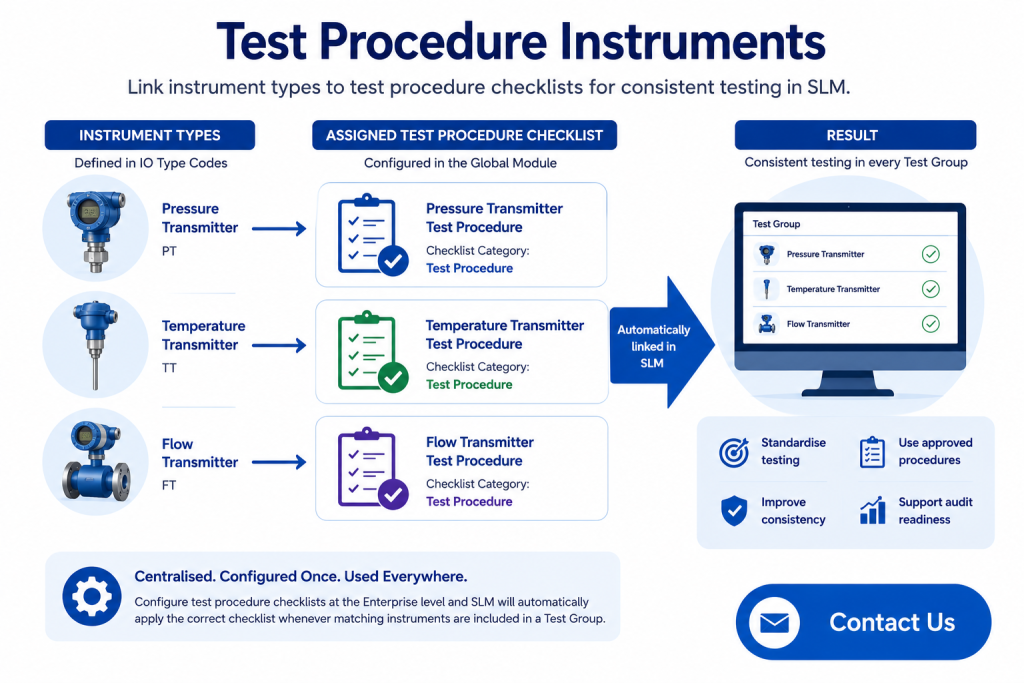
Test Procedure Instruments allow organisations to automatically associate instrument types with predefined test procedure checklists. By configuring these relationships in the SLM Global Module, operators can quickly access the correct testing instructions whenever a test group is executed, improving consistency and reducing manual administration.
Instead of manually selecting procedures for every proof test or maintenance activity, SLM automatically identifies the appropriate checklist based on the instrument types assigned to each device. This helps organisations standardise testing practices, improve audit readiness and ensure technicians always have the correct procedures available.
This guide explains how to create Test Procedure checklists, assign them to instrument types, and automatically access them within Test Groups.
What are Test Procedure Instruments?
Test Procedure Instruments provide an automated method of linking instrument types to predefined test procedure checklists. Once configured, SLM automatically presents the correct procedure whenever compatible devices are included within a Test Group.
This removes the need for users to manually search for procedures and helps ensure consistent testing practices across the organisation.
- Automatically associate instrument types with procedures.
- Standardise proof testing activities.
- Reduce manual checklist selection.
- Improve consistency across maintenance teams.
- Support auditable testing processes.
Before assigning procedures to instrument types, the checklist itself must first be created within the Verification Checklist section of the system.
Learn how system-wide configuration is managed in the System Module Global Configuration guide.
These capabilities are available within the SLM Global Module.
Creating Test Procedure Checklists
Before Test Procedure Instruments can be configured, the appropriate Test Procedure checklist must first exist within SLM. These checklists are created in the Verification Checklist section of the System Module and are managed in the same way as other verification checklists.
To ensure SLM recognises a checklist as a test procedure, the checklist category must be set to Test Procedure when it is created. Only checklists with this category are available for assignment to instrument types.
- Create a new Verification Checklist.
- Select Test Procedure as the checklist category.
- Add the required testing steps.
- Save the checklist for future assignment.
Verification Checklists provide a consistent method of documenting testing activities while ensuring approved procedures are used throughout the organisation.
Learn more about overall system administration in the System Module Global Configuration guide.
Assigning Checklists to Instrument Types
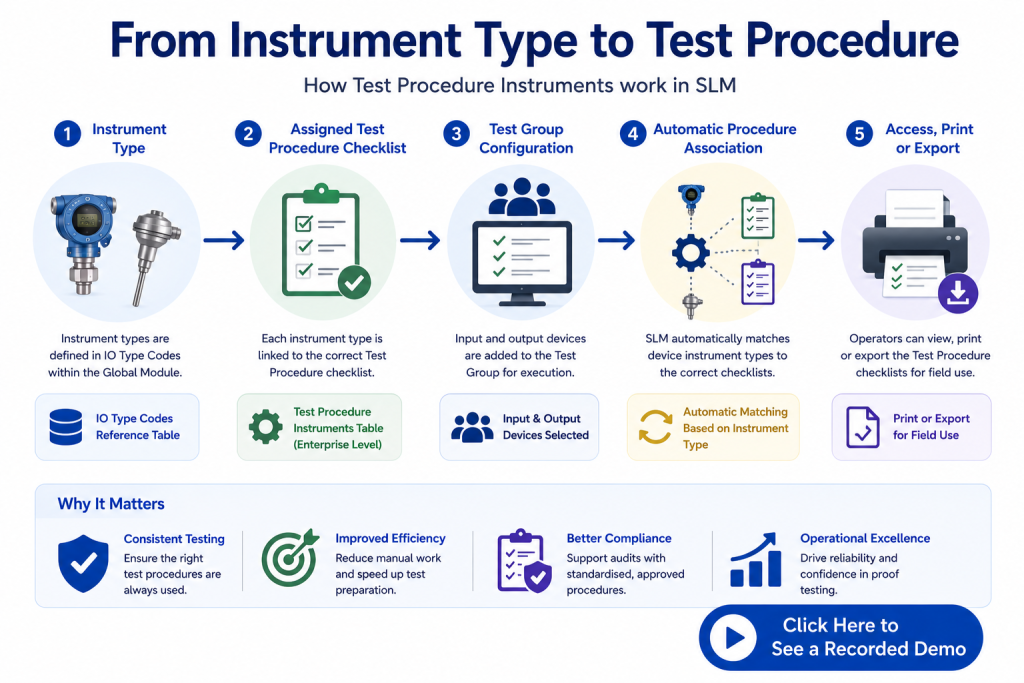
Once a Test Procedure checklist has been created, it can be linked to individual instrument types using the IO Type Codes reference table. This creates the relationship between each instrument type and its corresponding testing procedure.
SLM automatically builds the Test Procedure Instruments tables from the configured IO Type Codes, ensuring consistency between instrument classifications used throughout the platform.
- Open the IO Type Codes reference table.
- Select the required instrument type.
- Choose the appropriate Test Procedure checklist.
- Save the updated configuration.
Because the same instrument type references are used throughout SLM, assigning procedures centrally eliminates duplicate configuration and reduces the risk of inconsistent testing instructions.
For information on maintaining standard reference data, see AIChE’s Center for Chemical Process Safety (CCPS), which provides guidance on process safety management and standardised work practices.
Accessing Test Procedures from Test Groups
SLM automatically associates Test Procedure checklists with Test Groups based on the instrument types assigned to each selected device. Users do not need to manually select procedures during testing.
When input and output devices are added to a Test Group, SLM examines their recorded instrument types and retrieves the corresponding Test Procedure checklist configured within the Global Module.
- Automatically identify applicable procedures.
- Display procedures for selected devices.
- Reduce manual administration.
- Ensure consistent proof testing.
This automation helps operators access the correct procedures quickly while reducing the possibility of using outdated or incorrect testing instructions.
Related configuration is managed alongside Approval Policies and Personnel Configuration within the Global Module.
Printing and Exporting Test Procedures
After the appropriate devices have been added to a Test Group, users can view the associated Test Procedure checklists directly within the group. These procedures can then be printed or exported for use during field testing.
Providing technicians with consistent testing instructions improves execution quality, supports compliance activities and ensures approved procedures are available even when working away from the office.
- View procedures directly from Test Groups.
- Print approved testing instructions.
- Export procedures for field use.
- Support consistent proof testing activities.
Combined with standardised instrument classifications and centrally managed checklists, Test Procedure Instruments help organisations improve testing consistency while simplifying maintenance workflows.
To learn more about the Global Module capabilities, visit the SLM Global Module product page.
Related Resources
Test Procedure Instruments work alongside several other Global Module features that help standardise testing, governance and enterprise-wide configuration within SLM.
- System Module Global Configuration – Learn how enterprise-wide settings are managed.
- Approval Policies – Configure approval requirements for objects and events.
- Personnel Configuration – Manage users, approvers and organisational roles.
- Configuring a Risk Matrix – Configure corporate risk matrices used throughout SLM.
- SLM Global Module – Explore the complete Global Module functionality.
Test Procedure Instruments
0:06
Welcome to this Application Explainer video, part of our Global topic range.
0:10
In this video, we will cover the subject of Test procedure instruments in SLM.
0:16
Within SLM’s global module, instrument types may be assigned a test procedure checklist that can be referenced by a test group in the Operate and Maintain module that contains any instruments of the same type.
0:29
The following information will be covered in this training.
0:32
Chapter one will be Test Procedure Checklist setup, Chapter 2 will be connecting test procedures to IO types, and Chapter 3 will be accessing test procedures from test groups.
0:47
In Chapter 1, we will cover how to create and manage test procedure checklists and things to consider.
0:52
For a checklist to be recognized by the system.
0:55
For this use, the checklist category value must be entered as Test procedure.
1:00
Test Procedure Checklist functionality first requires that the checklist exists in the system.
1:07
The checklists are entered like other checklist types in the Verification Checklist section of the system module.
1:14
For the system to consider a checklist for selection by instrument type, the checklist category field must be entered as Test Procedure and when a new checklist is created, we simply click Add Checklist and ensure that the category is entered as such.
1:38
Now we can see a couple of test procedure checklists already created here, and if we open one of them, we can see that the items for that checklist can be managed just like any other verification checklist, and the test procedure steps can be added here.
2:03
In Chapter 2, we will cover how to assign a Test Procedure checklist to an instrument type and things to consider.
2:09
Instrument type options are set in the IO Type Codes reference table that align with instrument type references elsewhere with Test Procedure checklist built, SLM will use the IO Types code reference table to generate the Test Procedure Instruments view for the Enterprise level in the global module containing tables for input instrument Types and Output instrument types.
2:35
The IO Types Codes reference table is the same reference table that is used by the Device Instrument Types field to ensure that there are no potential discrepancies between the field options selected for the device and the instrument type list.
2:49
Here we can see that a few of our instrument types already have Test Procedure Checklist options selected, and to select an option for another instrument type, we simply open the Text Procedure Checklist field to edit, make the appropriate selection, and click Save Changes.
3:16
In Chapter 3, we’ll cover how to access the test procedures checklists at the test group level and things to consider.
3:23
The association of the test procedure checklist to the test group is executed automatically by the system, by the instruments that are assigned to the test group and their entered instrument type Within a test group.
3:36
Input and output devices are selected for inclusion in the executed test records as can be seen here in the Input Devices and Output Devices table.
3:45
Since these devices have fields where the instrumentation type fields are recorded and correspond with the Test Procedure instrument tables, the system is then capable of correctly associating the Test Procedure checklist to the devices selected for the test group per the selections made in the Test Procedure Instruments table at the Enterprise level.
4:08
In this test group, we can see DP and temperature transmitters that are selected by the test group.
4:17
So when we click View Test Procedures, the system will display the test procedure checklists associated with those selected devices.
4:26
From this view, we can print or export the Test Procedure checklist for reference when the operator goes to execute the test in the field.


