Object Tree Hierarchy
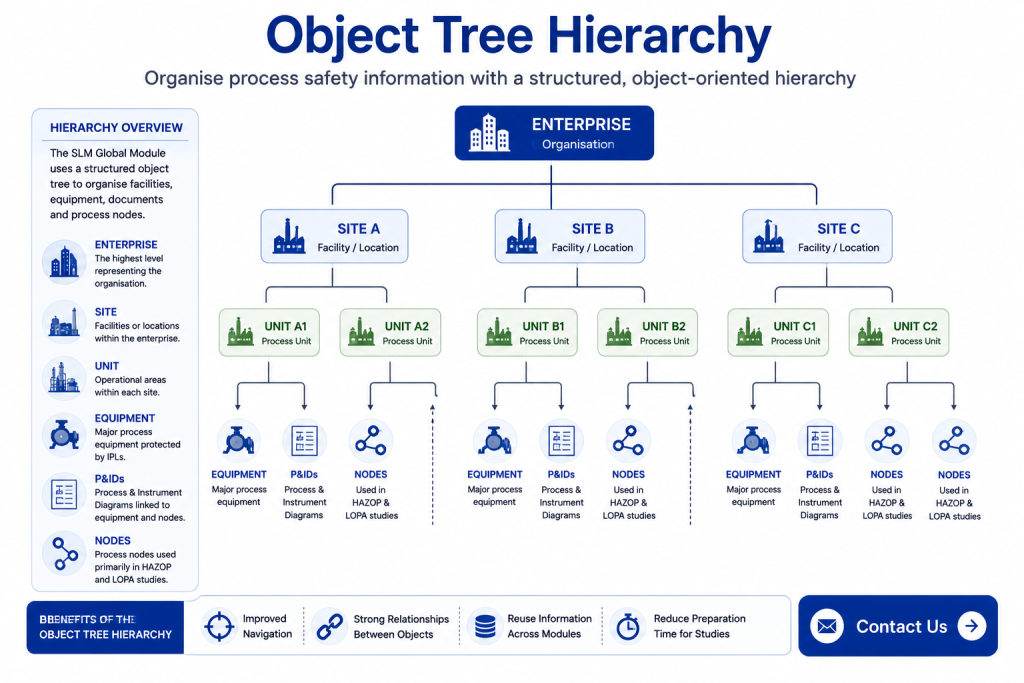
Object Tree Hierarchy provides the foundation for organising data within the SLM Global Module. Using a structured hierarchy of Enterprise, Site, Unit, Equipment, P&ID and Node objects, organisations can efficiently manage process safety information while supporting HAZOP, LOPA and other safety lifecycle activities.
Each object within the hierarchy has a specific purpose and relationship with other objects, allowing information to be reused throughout the system. This structure improves navigation, simplifies data management and ensures documents, equipment and hazard studies remain connected.
This guide explains how the Object Tree Hierarchy is organised, how each object is created and how these relationships support efficient process safety management within SLM.
What Is the Object Tree Hierarchy?
Object Tree Hierarchy is the structured framework used throughout the SLM Global Module to organise facilities, process units, equipment and supporting documentation. Each object has a defined relationship with its parent and child objects, making navigation intuitive while ensuring information is available throughout the safety lifecycle.
The hierarchy begins at the Enterprise level and expands down through Sites, Units, Equipment, P&IDs and Nodes. This object-oriented approach allows information to be entered once and reused by multiple modules without duplication.
- Organise process safety information logically.
- Provide consistent navigation throughout SLM.
- Maintain relationships between related objects.
- Reduce duplicate data entry.
- Support HAZOP, LOPA and other safety studies.
Learn more about overall system configuration in the System Module Global Configuration guide. Organisations using the SLM Global Module can manage the complete hierarchy from a single location.
Creating Units within the Hierarchy
The Unit object is created beneath each Site and represents an operational area within the facility. Units form the parent object for Equipment, P&IDs and Nodes, making them a key part of the overall hierarchy.
When creating a Unit, administrators can define identifiers, names, process descriptions and other operational information. Once saved, the Unit becomes part of the Object Tree and provides the structure for all child objects.
- Create Units beneath Site objects.
- Assign Unit IDs and names.
- Record process descriptions.
- Provide the parent object for Equipment, P&IDs and Nodes.
Managing Equipment Objects in the Object Tree Hierarchy
Equipment objects represent the major process equipment protected by independent protection layers. Typical examples include pumps, vessels, tanks, furnaces and compressors.
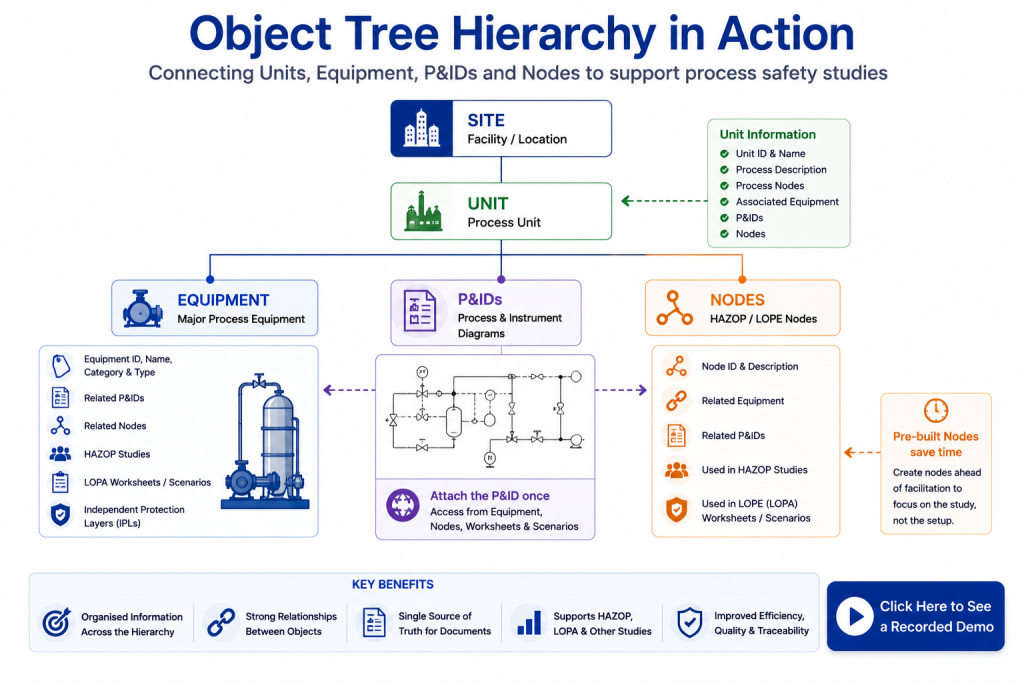
Each Equipment object stores important information including equipment identifiers, categories, equipment types, related P&IDs, Nodes, HAZOP studies, LOPA worksheets and the protection layers associated with that equipment.
Equipment Categories and Types are selected from standard libraries created at the Site or Enterprise level, ensuring consistent classification throughout the organisation.
Learn how these libraries are configured in the Equipment Category & Type guide.
Working with P&IDs and Nodes in the Object Tree Hierarchy
P&ID and Node objects provide important relationships within the Object Tree Hierarchy. Rather than attaching drawings to every individual object, P&IDs are stored once and then linked wherever they are required.
This centralised approach ensures document revisions only need to be updated in one location while remaining available from Equipment, Nodes, Local Worksheets and HAZOP scenarios.
Nodes are primarily used during HAZOP studies and can be prepared before facilitation begins. Each Node can be related to Equipment and P&IDs, allowing facilitators to begin studies with the necessary information already organised.
Supporting HAZOP and LOPA Studies
The Object Tree Hierarchy is designed to support hazard studies by organising information before facilitation begins. Equipment, Nodes and P&IDs can all be prepared within the Global Module and then reused during HAZOP and LOPA studies.
This reduces workshop preparation time while ensuring facilitators have immediate access to equipment information, associated drawings and process nodes throughout the study.
- Reduce HAZOP preparation time.
- Reuse existing equipment information.
- Maintain consistent document relationships.
- Improve navigation during facilitation.
For more information on HAZOP preparation, see the HAZOP Facilitation Guide.
Benefits of an Object-Oriented Structure
Using an object-oriented hierarchy provides long-term benefits for both data management and process safety activities.
- Maintain consistent relationships between objects.
- Reduce duplicate document storage.
- Improve navigation across the safety lifecycle.
- Support multiple process safety modules.
- Simplify document revision management.
- Improve reporting and traceability.
Because objects are linked rather than duplicated, changes made to one object automatically benefit every related process safety activity.
Related Global Module Resources
Continue learning about configuring the Global Module with these related guides:
- System Module Global Configuration
- Equipment Category & Type
- Global Standard Process Deviations
- SLM Global Module
For additional guidance on process hazard analysis and process safety management, visit the AIChE Center for Chemical Process Safety (CCPS).
Object Tree Hierarchy
0:04
Welcome to this application explainer video, part of our global module topic range.
0:09
In this video we will be covering the subject of object tree hierarchy in the global module.
0:18
The SLM system is an object oriented database with a hierarchy formatted object tree for quick navigation with the SLM modules.
0:28
Each module has its own object tree structure showing objects relevant to the use of that module in the safety life cycle.
0:38
In this video we will cover the objects in the object tree for the global module, how to create them and the relationships between them.
0:50
The following information will be covered in this training.
0:53
Chapter 1.
0:54
Overview.
0:55
Chapter 2.
0:56
Creating the Unit Chapter 3.
0:59
Creating major equipment Chapter 4.
1:02
Creating PN IDs Chapter 5 Creating Nodes Chapter 1 Overview In this chapter, we’ll cover global module objects and the relationships between objects in the global module.
1:20
As previously stated, each module has its own object tree showing objects specific to the topics related to that module.
1:29
The global module is designed as a place to create the initial setup of the company or enterprise, all of their facilities or sites, and the structure of those sites down to the unit level.
1:44
SLM is designed to be flexible to handle any enterprise structure by having the capability to insert organizational object layers anywhere between the enterprise and the unit to better represent the structure of the company.
1:59
However, this series of videos will focus on the core version of SLM, which contains the enterprise site and the unit level objects as children of the unit.
2:13
There are three more objects in the Global module, equipment nodes and PN IDs.
2:25
Equipment refers to the major process equipment that is being protected by independent protection layers.
2:32
This includes equipment like pumps, tanks, furnaces, vessels and so on.
2:37
To be clear, this does not include devices like transmitters, valves, solenoids and logic solvers.
2:44
These kind of objects are designed in the engineering modules of instrumented systems, relief systems and non instrumented systems.
2:58
The PNID object is where you can attach the PNID as a document and then relate it to the Equipment node, local worksheet, or scenario input and output objects.
3:16
This provides direct access to the PNID from any of those locations without having to attach the PNID document to each of those objects.
3:26
Here on the input object, clicking on the hyperlink takes you to that PNID without having to attach the document PNID to each of those objects where you can view the document.
3:42
Additionally, when a PNID document needs updating due to another revision, it is only necessary to upload the document in one location rather than on every object that the PNID relates to.
4:05
The Node object is used primarily for HAZOP and LOPE studies.
4:09
It allows for the setting up of a node of a HAZOP ahead of time and can be connected to both the equipment and PNID objects.
4:18
Setting up nodes ahead of the HAZOP facilitation HAZOP study means that valuable time will not be taken away from the HAZOP facilitation.
4:28
Once a node exists in the global module, it can be used when performing a HAZOP of record Project HAZOP or Revalidation HAZOP.
4:37
Now that we have covered an overview for the unit, Equipment, PNID, and Node, let’s take a look at how they are created.
4:48
Chapter 2 Creating the Unit In this chapter, we’ll cover creating the unit and the effects of creating that unit and filling out specific fields on the object tree.
5:02
Chapter 3 Creating Major Equipment In this chapter, we’ll cover viewing the equipment object, creating equipment, and then selecting categories and types for that equipment.
5:19
Chapter 4 Creating PN IDs In this chapter, we’ll cover creating the PN ID object, relating equipment to APN ID, and attaching documents to APN ID.
5:33
Chapter 5 Creating Nodes In this chapter, we’ll cover creating the node object, relating equipment and nodes, and relating APN ID with the node.
5:47
The unit object is a child of the site.
5:53
Clicking on the unit object, you’ll see the unit name, the ID, the type, the process description, and process nodes.
6:04
You’ll also see the equipment for that unit, any PN IDs and any nodes.
6:17
To add a unit, navigate to the site, click on Edit Tools, add Unit, type in the unit ID, and press Save or Save and Edit to navigate to the unit object.
6:39
Now under the Site object you see the unit with its ID entering in the unit name.
6:54
Will cause the unit name to also appear in the object tree.
7:03
The Equipment object is a child of the unit object.
7:08
Click on the equipment to view information for that equipment object where you will see specifications including your equipment category type next PNID List.
7:26
All the PN IDs which the equipment can be found on.
7:30
All the nodes that the equipment can be found on.
7:34
All Hazops that refer to that equipment.
7:41
All LOPA worksheets or scenarios that also refer to that equipment.
7:48
All IP LS protecting that equipment.
7:51
To add equipment to the unit object, click on the Unit object and it can be done by two ways.
8:02
One add equipment through edit tools or adding equipment In the table I add equipment with edit tools.
8:17
I enter in the ID.
8:34
Click Save and Edit to navigate to the newly created equipment and enter in any of the desired fields, including equipment category and equipment type, which are cascading drop downs.
8:47
To select the equipment category and equipment type, first select the category and then the type that applies to that piece of equipment.
8:58
Click Save when finished entering in all the desired information and remember that the equipment category and equipment type come from a list set up at the site level.
9:13
To view this list, click on the site, click on Equipment, navigate to Custom Actions, and Manage Equipment Type.
9:23
For more on managing the equipment categories and type, see the video on Equipment Categories and Type.
9:31
The PN ID object is found as a child of the unit.
9:37
Navigating to the PN ID allows you to see the PN ID ID.
9:42
The title, the date description, and the revision can be related to equipment and nodes.
9:51
You can also attach a PN ID document that can be downloaded and viewed at any time.
9:58
To add the PN ID object, navigate to the unit and either click on Edit Tools and add PN ID or Scroll down to the PN ID table.
10:12
To add the PN ID, enter in the PN ID.
10:27
The title and any of the other fields as desired.
10:38
PN IDs can also be related to equipment by clicking on the blue area in the equipment cell and checking the box for any existing equipment in the unit.
10:50
Save changes when desired and once again to view any information for that PN ID, click on the ID and view the information.
11:05
To attach APNID, click on Attach document.
11:09
Select the PNID Diagrams option and if the PNID already exists in SLM, it can be selectable here.
11:24
Press continue and now the PNID is attached as a document.
11:30
For more on attaching documents, see the video on documents.
11:39
The Node object is a child of the unit.
11:43
It’s found underneath the unit.
11:46
It contains fields specific to that node, including the category and type, which are correspondent to the category and type for your equipment that is related to that node.
11:59
It can be related to the equipment and your PN IDs.
12:03
To add a node, navigate to the unit, Scroll down to the node table and add node.
12:21
You can enter in the description the design intention and so on.
12:25
Relate equipment to that node and relate PN IDs to that node by selecting them in the fields.
12:31
Upon saving.
12:33
The equipment category and type is now the node category and type, and the node itself is found in the object tree.


