Modes
SLM modes allow users to personalise the appearance of Safety Lifecycle Manager by switching between the standard light interface and Dark Mode. This flexibility helps users choose the display that best suits their working environment and personal preference.
Users can quickly toggle between display modes from the application title bar or permanently select a preferred theme through their user profile. Once saved, the preferred mode is automatically applied every time they log in.
This guide explains the available SLM modes, how to switch between them, and how to save your preferred display setting.
What Are SLM Modes?
SLM modes provide two different display themes for Safety Lifecycle Manager:
- Default Mode (Light Theme)
- Dark Mode
Both modes provide identical functionality while changing the appearance of the user interface.
Users can choose the theme that offers the best visibility, comfort, and working experience for their environment.
To learn more about navigating the application after logging in, see our Dashboard guide.
Switching Between Default Mode and Dark Mode
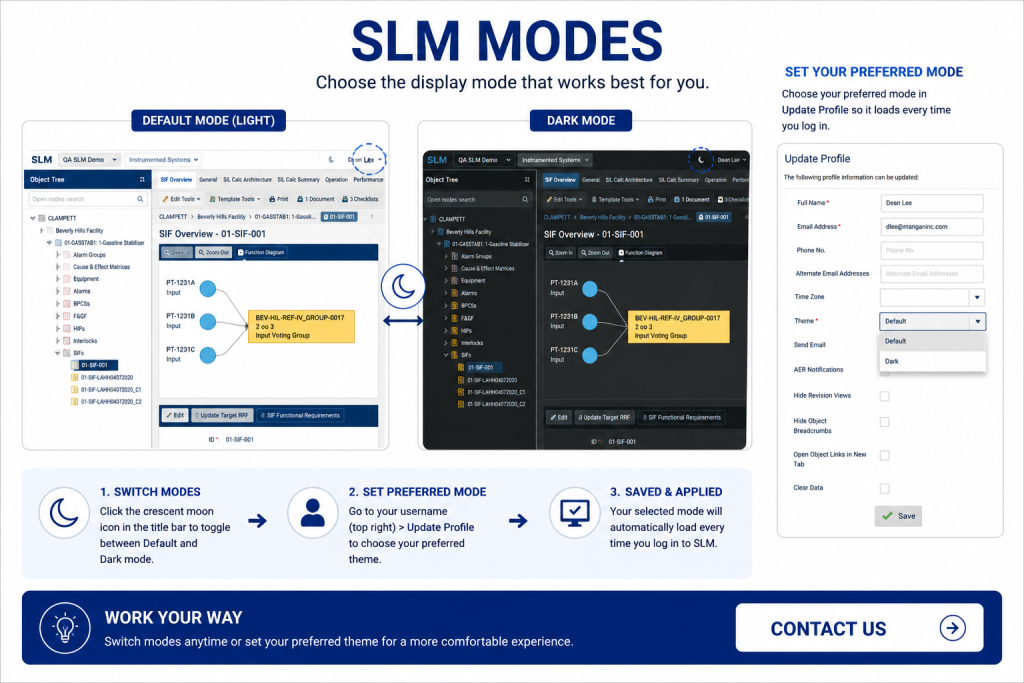
Changing SLM modes only takes a single click.
To switch display modes:
- Locate the crescent moon icon in the application title bar.
- Click the icon to enable Dark Mode.
- Click the icon again to return to Default Mode.
The display changes immediately without requiring users to log out or restart the application.
This allows users to switch themes whenever their working conditions change.
Setting Your Preferred SLM Mode
Users can also configure a preferred SLM mode that automatically loads each time they sign in.
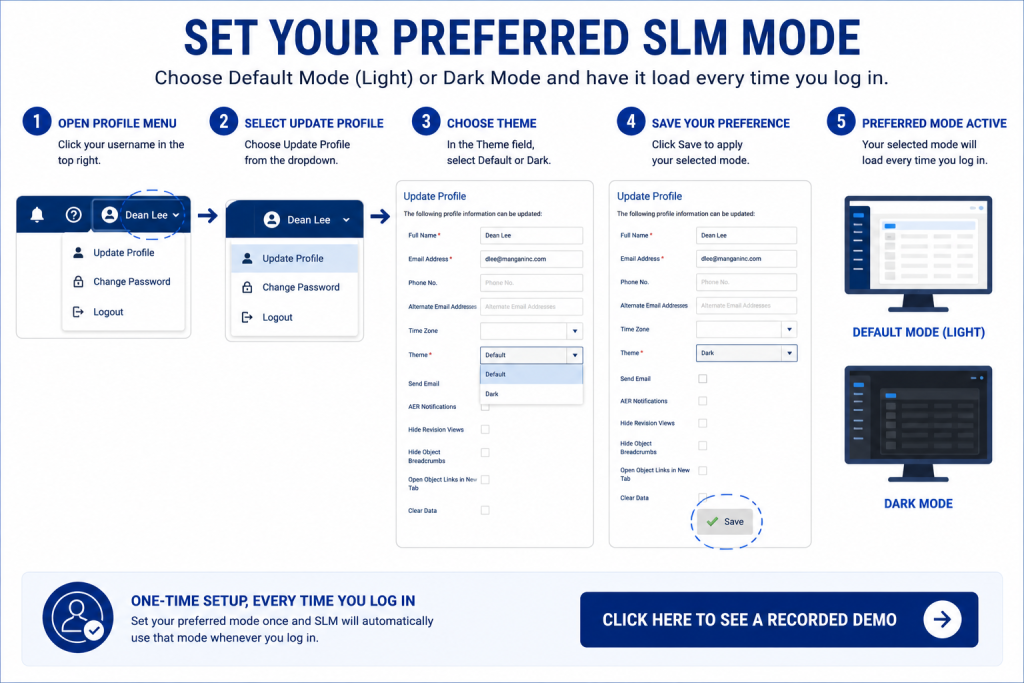
To set your preferred theme:
- Select your username in the top-right corner.
- Choose Update Profile.
- Locate the Theme setting.
- Select either Default or Dark.
- Click Save.
The selected theme becomes your default display whenever you next log into Safety Lifecycle Manager.
Why Use Different SLM Modes?
SLM modes allow users to choose the interface that best suits their personal preferences and working environment.
Some users prefer Default Mode for brightly lit offices, while others find Dark Mode more comfortable during extended periods of use or in lower-light environments.
Both themes provide:
- Identical application functionality
- The same navigation tools
- The same object management features
- The same reporting capabilities
Only the appearance of the interface changes.
Benefits of SLM Modes
SLM modes improve the user experience by allowing individuals to personalise how Safety Lifecycle Manager is displayed.
Key benefits include:
- Quick switching between themes
- Support for Light and Dark Mode
- Personalised display preferences
- Improved viewing comfort
- Automatic loading of preferred themes
These features help users create a workspace that best matches their individual working preferences.
For more information about Safety Lifecycle Manager, see our Functional Safety Management Software guide.
Best Practices for Using SLM Modes
Choosing the right display mode can improve comfort during everyday use.
- Use Default Mode in bright working environments.
- Consider Dark Mode during long working sessions.
- Save your preferred theme to avoid changing it after each login.
- Switch modes whenever your environment changes.
- Keep your preferred theme updated through your profile settings.
These simple adjustments can make everyday use of Safety Lifecycle Manager more comfortable.
Learn More About SLM Personalisation
For additional information about designing accessible light and dark user interfaces, visit the Material Design Dark Theme guidance.
Modes
0:06
Welcome to this application explainer video, part of our SLM 101 topic range.
0:11
In this video, we’ll cover the subject of modes within.
0:13
SLMSLM provides the user with two modes for viewing and using the software default mode and dark mode.
0:22
In this video, we will discuss switching between default mode and dark mode and setting an SLM mode as a preferred mode.
0:34
When logging into SLM, you’ll see a display in its default mode, which is the lighter mode.
0:40
To change modes, click on the Crescent moon located in the title bar.
0:44
The display now shows SLM in dark mode.
0:48
Click it again to switch to the default mode or the lighter mode.
0:53
You can also set a preferred mode.
0:54
Let’s in SLM know which mode you wish to see when you log in.
0:58
To do this, navigate to the top right where the username appears, click on the drop down and select Update Profile.
1:08
As you can see in the Theme field, default is currently selected.
1:12
Selecting dark and saving it will make Dark mode your preferred mode.
1:19
Now whenever you log in, SLM will be in dark mode.


